The Game Loop: The Heartbeat of Every Game
Welcome to Game Development!
You're about to learn the most fundamental concept in game programming - the Game Loop. This is the engine that powers every game you've ever played, from Pong to Fortnite! 🚀
What Is a Game Loop? 🔄
🎬 Think of It Like a Movie
A movie appears to show smooth motion, but it's actually 24-30 still images (frames) shown per second. Your brain sees these rapid images as movement. Games work the same way! The game loop is like a movie projector, showing you 30-60 (or more) slightly different images per second to create the illusion of movement and interaction.
The Anatomy of a Game Loop
Breaking Down Each Step
📥 Handle Events
This is where the game listens to you! Did you press a key? Move the mouse? Click something? The game needs to know!
🔄 Update Game State
Based on the events and game rules, update everything: Move the player, enemies, check collisions, update scores, etc.
🎨 Draw Everything
Take the current game state and draw it on the screen. Every sprite, every background, every UI element.
⏱️ Control Frame Rate
Make sure the game runs at a consistent speed, typically 30 or 60 frames per second (FPS).
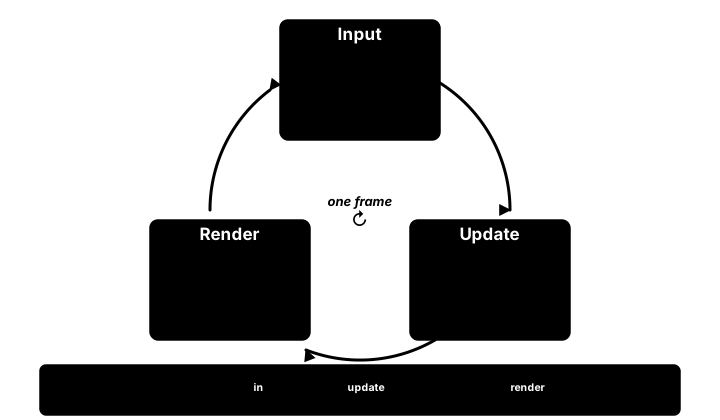
16.67 ms budget at 60 FPS that clock.tick(60) enforces; if the three phases together overrun the budget, the game drops a frame.Your First Game Loop in Pygame
# Import Pygame
import pygame
import sys

# Initialize Pygame
pygame.init()

# Set up the display
screen = pygame.display.set_mode((800, 600))
pygame.display.set_caption("My First Game Loop!")

# Define colors (R, G, B)
BLACK = (0, 0, 0)
WHITE = (255, 255, 255)
RED = (255, 0, 0)

# Game variables
ball_x = 400
ball_y = 300
ball_speed_x = 5
ball_speed_y = 3

# Clock for controlling frame rate
clock = pygame.time.Clock()

# Game loop
running = True
while running:
    # 1. HANDLE EVENTS
    for event in pygame.event.get():
        if event.type == pygame.QUIT:
            running = False

    # 2. UPDATE GAME STATE
    ball_x += ball_speed_x
    ball_y += ball_speed_y

    # Bounce off walls
    if ball_x >= 780 or ball_x <= 20:
        ball_speed_x = -ball_speed_x
    if ball_y >= 580 or ball_y <= 20:
        ball_speed_y = -ball_speed_y

    # 3. DRAW EVERYTHING
    screen.fill(BLACK)  # Clear screen
    pygame.draw.circle(screen, RED, (ball_x, ball_y), 20)

    # 4. UPDATE DISPLAY
    pygame.display.flip()

    # 5. CONTROL FRAME RATE
    clock.tick(60)  # 60 FPS

# Clean up
pygame.quit()
sys.exit()
🎮 Interactive Demo: See the Game Loop in Action!
FPS: 0 | Frame: 0
Real-World Analogy: The Restaurant Kitchen 🍳
Imagine a busy restaurant kitchen during dinner service:
- Handle Events: Taking new orders from waiters (player input)
- Update State: Cooking food, moving dishes along (game logic)
- Draw/Render: Plating and presenting dishes (displaying graphics)
- Frame Rate: The rhythm of service - too slow and customers wait, too fast and mistakes happen!
Just like a kitchen needs to continuously take orders, cook, and serve, a game needs to continuously listen, update, and display!
Common Frame Rates and Their Uses
🎯 Frame Rate Standards
- 30 FPS: Console standard, smooth enough for most games 🎮
- 60 FPS: PC gaming standard, very smooth, responsive 💻
- 120+ FPS: Competitive gaming, ultra-smooth 🏆
- 24 FPS: Cinematic feel, used in some story games 🎬
Different Types of Game Loops
Fixed Timestep Loop
# Updates happen at fixed intervals
TARGET_FPS = 60
TICK_TIME = 1000 / TARGET_FPS  # milliseconds

while running:
    current_time = get_time()

    # Wait if we're running too fast
    if current_time - last_update < TICK_TIME:
        sleep(TICK_TIME - (current_time - last_update))

    handle_events()
    update_game()
    render()

    last_update = current_time
Variable Timestep Loop
# Updates based on actual time passed
while running:
    current_time = get_time()
    delta_time = current_time - last_time

    handle_events()
    update_game(delta_time)  # Pass time to update
    render()

    last_time = current_time
💡 Pro Tips
- Start with a simple fixed timestep loop - it's easier to debug!
- Always clear the screen before drawing new frames
- Use
clock.tick(FPS)in Pygame to maintain consistent speed - Test your game at different frame rates to ensure it plays well
- Remember: The game loop runs THOUSANDS of times per minute!
Common Game Loop Problems and Solutions
⚠️ Watch Out For These Issues!
Problem: Game runs too fast on powerful computers
Solution: Always use frame rate limiting (clock.tick())
Problem: Game freezes during long calculations
Solution: Break up heavy work across multiple frames
Problem: Input feels unresponsive
Solution: Handle events at the beginning of each loop iteration
Problem: Animations look choppy
Solution: Ensure consistent frame rate and use delta time for smooth movement
Practice Exercise: Modify the Loop! 🎯
Try These Modifications:
- Change the Speed: Modify
clock.tick(60)to 30 or 120. What happens? - Add a Second Ball: Create another ball with different speed and color
- Add Gravity: Make the ball accelerate downward (hint: add to ball_speed_y each frame)
- Add Paddle Control: Draw a paddle that follows the mouse position
- Frame Counter: Display how many frames have passed on screen
The Magic Behind Your Favorite Games 🎮
Game Loop in Popular Games
Key Takeaways 🎯
- 🔄 The game loop is the core of every game - it runs continuously while playing
- 📥 Each iteration: Handle Input → Update State → Draw Graphics → Control Speed
- ⏱️ Frame rate (FPS) determines how smooth your game feels
- 🎮 Different games may optimize their loops differently, but the pattern is universal
- 🐛 Most game bugs come from incorrect game loop implementation
🏋️♂️ Practice Exercise: Build a Complete Game Loop
🏋️♂️ Exercise 1: A Minimal Pygame Skeleton
Objective: Write a minimal Pygame program that opens a window, runs a clean game loop with proper event handling, frame-rate control, and the three core phases (input → update → render), and exits cleanly when the user closes the window.
Instructions:
- Initialize Pygame and create an 800×600 window with a descriptive caption.
- Create a
pygame.time.Clock()object and start awhile running:game loop. - Inside the loop, iterate
pygame.event.get()and setrunning = Falsewhen you seepygame.QUIT. - Clear the screen each frame with a solid colour using
screen.fill(). - Call
pygame.display.flip()at the end of the render phase to present the frame. - Cap the frame rate at 60 FPS with
clock.tick(60). - After the loop exits, call
pygame.quit()andsys.exit()for a clean shutdown.
💡 Hint
The skeleton has three “before the loop” lines (init, screen, clock), one while condition, four “inside the loop” steps in a strict order (events → fill → draw → flip → tick), and two “after the loop” cleanup calls. Don’t forget import sys at the top alongside import pygame.
✅ Example Solution
import sys
import pygame

pygame.init()
screen = pygame.display.set_mode((800, 600))
pygame.display.set_caption("My First Game Loop")
clock = pygame.time.Clock()

running = True
while running:
    # 1. Handle events
    for event in pygame.event.get():
        if event.type == pygame.QUIT:
            running = False

    # 2. Update state (placeholder — next lesson adds movement)

    # 3. Render
    screen.fill((30, 30, 40))   # Clear back buffer with dark blue-grey
    # (drawing calls go here)
    pygame.display.flip()       # Swap back buffer onto the screen

    # 4. Cap frame rate at 60 FPS
    clock.tick(60)

pygame.quit()
sys.exit()
🎯 Quick Quiz
Question 1: Inside a Pygame game loop, why is it essential to call pygame.event.get() (or pygame.event.pump()) every frame?
Question 2: What is the difference between screen.fill() and pygame.display.flip() within a single frame?
Question 3: What does clock.tick(60) actually do at the end of each loop iteration?
What's Next?
Now that you understand the heartbeat of games, next we'll learn how to draw shapes and sprites to bring your game world to life! You'll create colorful graphics, load images, and make things move smoothly across the screen.