Handling Keyboard and Mouse Input
Making Your Games Interactive!
A game without input is just a movie! In this lesson, you'll learn how to capture and respond to player actions through keyboard and mouse controls. By the end, you'll be creating games that feel responsive and fun to play! 🎮
Two Ways to Handle Input
🎯 The Restaurant Analogy
Think of input handling like a restaurant taking orders:
- Event-Based (Discrete): Like a waiter taking individual orders - "Table 3 wants pizza!" Perfect for one-time actions like jumping or shooting.
- State-Based (Continuous): Like a buffet where you continuously check what's available - "Is there still pizza?" Perfect for continuous actions like moving or holding a button.
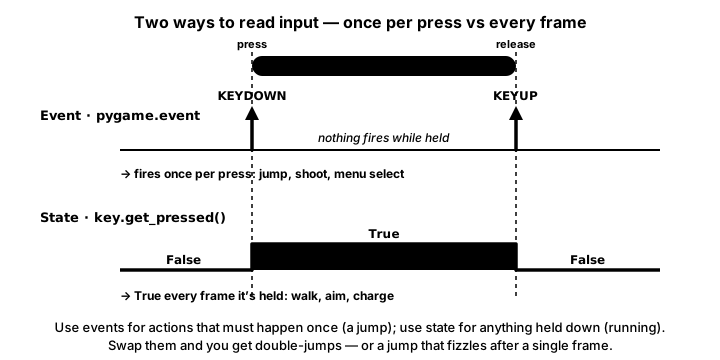
KEYDOWN/KEYUP) fire once at the instant a key changes — perfect for one-shot actions like a jump or a menu select. State polling (key.get_pressed()) returns True every frame a key is held — perfect for continuous actions like walking or aiming. Use state for a jump and you leap once per frame; use an event for movement and you inch one step per press.Event-Based Input (Discrete Actions)
Keyboard Events
import pygame
import sys

pygame.init()
screen = pygame.display.set_mode((800, 600))
clock = pygame.time.Clock()

running = True
while running:
    for event in pygame.event.get():
        if event.type == pygame.QUIT:
            running = False

        # Keyboard key pressed down
        elif event.type == pygame.KEYDOWN:
            if event.key == pygame.K_SPACE:
                print("Spacebar pressed - Jump!")
            elif event.key == pygame.K_RETURN:
                print("Enter pressed - Start game!")
            elif event.key == pygame.K_ESCAPE:
                print("Escape pressed - Open menu!")

        # Keyboard key released
        elif event.type == pygame.KEYUP:
            if event.key == pygame.K_SPACE:
                print("Spacebar released - Stop charging jump!")

    screen.fill((20, 20, 20))
    pygame.display.flip()
    clock.tick(60)

pygame.quit()
Mouse Events
# Mouse button events
for event in pygame.event.get():
    if event.type == pygame.MOUSEBUTTONDOWN:
        if event.button == 1:  # Left click
            print(f"Left clicked at {event.pos}")
        elif event.button == 2:  # Middle click
            print(f"Middle clicked at {event.pos}")
        elif event.button == 3:  # Right click
            print(f"Right clicked at {event.pos}")
        elif event.button == 4:  # Scroll up
            print("Scrolled up")
        elif event.button == 5:  # Scroll down
            print("Scrolled down")

    elif event.type == pygame.MOUSEBUTTONUP:
        print(f"Mouse button {event.button} released")

    elif event.type == pygame.MOUSEMOTION:
        # This fires continuously when mouse moves
        print(f"Mouse at {event.pos}, moved by {event.rel}")
State-Based Input (Continuous Actions)
Continuous Keyboard Input
# Get the state of all keyboard keys
keys = pygame.key.get_pressed()

# Movement with arrow keys or WASD
player_speed = 5

if keys[pygame.K_LEFT] or keys[pygame.K_a]:
    player_x -= player_speed
if keys[pygame.K_RIGHT] or keys[pygame.K_d]:
    player_x += player_speed
if keys[pygame.K_UP] or keys[pygame.K_w]:
    player_y -= player_speed
if keys[pygame.K_DOWN] or keys[pygame.K_s]:
    player_y += player_speed

# Diagonal movement is faster unless normalized!
# We'll fix this later with vector math
Continuous Mouse Input
# Get mouse position
mouse_x, mouse_y = pygame.mouse.get_pos()

# Get mouse button states
mouse_buttons = pygame.mouse.get_pressed()
if mouse_buttons[0]:  # Left button held
    print("Left mouse button is being held")
if mouse_buttons[1]:  # Middle button held
    print("Middle mouse button is being held")
if mouse_buttons[2]:  # Right button held
    print("Right mouse button is being held")

# Hide/show mouse cursor
pygame.mouse.set_visible(False)  # Hide cursor
pygame.mouse.set_visible(True)   # Show cursor

# Get relative mouse movement (useful for FPS games)
mouse_rel = pygame.mouse.get_rel()
Interactive Input Demo
Use WASD or Arrow Keys to move the blue square
Click to shoot projectiles • Right-click to place targets
Keys Pressed: None
Mouse Position: 0, 0
Common Key Constants
📌 Pygame Key Constants Reference
| Key | Constant | Key | Constant |
|---|---|---|---|
| Letters A-Z | pygame.K_a to pygame.K_z | Numbers 0-9 | pygame.K_0 to pygame.K_9 |
| Arrow Keys | K_UP, K_DOWN, K_LEFT, K_RIGHT | Space | pygame.K_SPACE |
| Enter/Return | pygame.K_RETURN | Escape | pygame.K_ESCAPE |
| Shift | K_LSHIFT, K_RSHIFT | Control | K_LCTRL, K_RCTRL |
| Tab | pygame.K_TAB | Backspace | pygame.K_BACKSPACE |
Complete Example: Interactive Paint Program
import pygame
import sys

class PaintProgram:
    def __init__(self):
        pygame.init()
        self.screen = pygame.display.set_mode((800, 600))
        pygame.display.set_caption("Paint with Input!")
        self.clock = pygame.time.Clock()

        # Drawing surface
        self.canvas = pygame.Surface((800, 600))
        self.canvas.fill((255, 255, 255))

        # Drawing settings
        self.drawing = False
        self.current_color = (0, 0, 0)
        self.brush_size = 5
        self.last_pos = None

        # Color palette
        self.colors = [
            (0, 0, 0),      # Black
            (255, 0, 0),    # Red
            (0, 255, 0),    # Green
            (0, 0, 255),    # Blue
            (255, 255, 0),  # Yellow
            (255, 0, 255),  # Magenta
            (0, 255, 255),  # Cyan
            (255, 255, 255) # White (eraser)
        ]

    def handle_events(self):
        for event in pygame.event.get():
            if event.type == pygame.QUIT:
                return False

            elif event.type == pygame.KEYDOWN:
                # Number keys select colors
                if pygame.K_1 <= event.key <= pygame.K_8:
                    color_index = event.key - pygame.K_1
                    if color_index < len(self.colors):
                        self.current_color = self.colors[color_index]

                # Clear canvas
                elif event.key == pygame.K_c:
                    self.canvas.fill((255, 255, 255))

                # Adjust brush size
                elif event.key == pygame.K_PLUS or event.key == pygame.K_EQUALS:
                    self.brush_size = min(50, self.brush_size + 2)
                elif event.key == pygame.K_MINUS:
                    self.brush_size = max(1, self.brush_size - 2)

            elif event.type == pygame.MOUSEBUTTONDOWN:
                if event.button == 1:  # Left click
                    self.drawing = True
                    self.last_pos = event.pos

            elif event.type == pygame.MOUSEBUTTONUP:
                if event.button == 1:
                    self.drawing = False
                    self.last_pos = None

            elif event.type == pygame.MOUSEMOTION:
                if self.drawing:
                    if self.last_pos:
                        pygame.draw.line(self.canvas, self.current_color,
                                       self.last_pos, event.pos,
                                       self.brush_size)
                    self.last_pos = event.pos

            elif event.type == pygame.MOUSEWHEEL:
                # Scroll to change brush size
                self.brush_size = max(1, min(50,
                                   self.brush_size + event.y * 2))

        return True

    def draw(self):
        # Draw canvas
        self.screen.blit(self.canvas, (0, 0))

        # Draw color palette
        for i, color in enumerate(self.colors):
            x = 10 + i * 40
            pygame.draw.rect(self.screen, color, (x, 10, 30, 30))
            if color == self.current_color:
                pygame.draw.rect(self.screen, (0, 0, 0),
                               (x-2, 8, 34, 34), 2)

        # Draw brush preview at mouse position
        mouse_pos = pygame.mouse.get_pos()
        pygame.draw.circle(self.screen, self.current_color,
                         mouse_pos, self.brush_size, 1)

        # Draw instructions
        font = pygame.font.Font(None, 24)
        instructions = [
            f"Brush Size: {self.brush_size} (scroll or +/-)",
            "Keys 1-8: Select Color",
            "C: Clear Canvas",
            "Click and Drag to Draw"
        ]
        for i, text in enumerate(instructions):
            rendered = font.render(text, True, (0, 0, 0))
            self.screen.blit(rendered, (10, 550 - i * 25))

    def run(self):
        running = True
        while running:
            running = self.handle_events()
            self.draw()
            pygame.display.flip()
            self.clock.tick(60)

        pygame.quit()
        sys.exit()

if __name__ == "__main__":
    paint = PaintProgram()
    paint.run()
Input Best Practices
💡 Pro Tips for Great Input
- Responsive Feedback: Always give immediate visual/audio feedback for inputs
- Input Buffering: Store inputs briefly to catch player intent
- Coyote Time: Allow jumps slightly after leaving platforms
- Dead Zones: Ignore tiny movements to prevent drift
- Customizable Controls: Let players remap keys
- Multiple Input Methods: Support both keyboard and gamepad
Practice Exercises
🎯 Challenge Yourself!
- Twin-Stick Shooter: WASD moves, mouse aims and shoots
- Combo System: Detect sequences like ↓↓↑ or rapid button presses
- Gesture Recognition: Detect mouse patterns (circles, lines)
- Virtual Joystick: Create on-screen controls for mobile-style input
- Input Replay: Record and replay player inputs
Gamepad Support
# Basic gamepad/joystick support
pygame.joystick.init()

# Check for joysticks
joystick_count = pygame.joystick.get_count()

if joystick_count > 0:
    # Use first joystick
    joystick = pygame.joystick.Joystick(0)
    joystick.init()

    # In your game loop
    # Get axis values (-1 to 1)
    x_axis = joystick.get_axis(0)  # Left stick X
    y_axis = joystick.get_axis(1)  # Left stick Y

    # Apply dead zone
    if abs(x_axis) < 0.1:
        x_axis = 0
    if abs(y_axis) < 0.1:
        y_axis = 0

    # Get button states
    a_button = joystick.get_button(0)
    b_button = joystick.get_button(1)

    # Get D-pad (hat)
    hat = joystick.get_hat(0)  # Returns (x, y) tuple
Key Takeaways
- 🎮 Use events for discrete actions (jump, shoot, menu)
- 🕹️ Use state polling for continuous actions (movement, aiming)
- ⌨️ pygame.key.get_pressed() returns all key states
- 🖱️ pygame.mouse.get_pos() gives current mouse position
- 💡 Combine both methods for best game feel
- 🎯 Always provide immediate feedback for inputs
🏋️♂️ Practice Exercise: Move and Jump
🏋️♂️ Exercise 1: Two Input Styles in One Program
Objective: Build a tiny game where a square moves horizontally with the arrow keys (continuous — state-based input via pygame.key.get_pressed()) and jumps once per spacebar tap (discrete — event-based input via a KEYDOWN event), so you can feel the difference between the two input styles inside a single game loop.
Instructions:
- Initialize Pygame and create an 800×600 window. Track the player's position as
x, y, vertical velocityvy, and constants for movementSPEED,JUMP_VELOCITY,GRAVITY, andGROUND_Y. - In the event loop, handle
pygame.QUITas usual. Add anelif event.type == pygame.KEYDOWNbranch and inside it checkevent.key == pygame.K_SPACE. Setvy = JUMP_VELOCITYonly if the player is on the ground (y == GROUND_Y) so they can't double-jump. - After the event loop, call
keys = pygame.key.get_pressed()and decrementxbySPEEDwhenkeys[pygame.K_LEFT]is true; incrementxwhenkeys[pygame.K_RIGHT]is true. This is the state-based path — it runs every frame the key is held. - Apply simple gravity: add
GRAVITYtovyevery frame, then addvytoy. ClampytoGROUND_Yand zero outvywhen the player lands. - Render: clear the screen, draw a horizontal ground line at
GROUND_Y + 40, and draw the player as a 40×40 rectangle at(x, y). Callpygame.display.flip()andclock.tick(60)at the end of the frame. - Run it. Hold left/right — the square should glide smoothly. Tap space — the square should jump exactly once per tap, even if you keep holding the spacebar.
💡 Hint
The two input styles are doing fundamentally different jobs in this program. pygame.event.get() only returns NEW events that happened since the last frame — a KEYDOWN for spacebar fires once when you press the key, then NOT AGAIN even if you hold it down. That's why jumping goes inside the event loop. pygame.key.get_pressed() returns the CURRENT state of every key right now — if you're still holding K_LEFT, keys[pygame.K_LEFT] is true every single frame. That's why movement goes outside the event loop. Try moving the jump logic into the get_pressed() block to feel why it's wrong: the square will fly off the top of the screen because vy gets reset every frame the spacebar is held.
✅ Example Solution
import sys
import pygame

pygame.init()
screen = pygame.display.set_mode((800, 600))
pygame.display.set_caption("Move and Jump")
clock = pygame.time.Clock()

# Player state + tuning constants
x, y = 400, 500
vy = 0
SPEED          = 5
JUMP_VELOCITY  = -15
GRAVITY        = 1
GROUND_Y       = 500

running = True
while running:
    # 1. Event loop — DISCRETE actions (one-shot)
    for event in pygame.event.get():
        if event.type == pygame.QUIT:
            running = False
        elif event.type == pygame.KEYDOWN:
            if event.key == pygame.K_SPACE and y == GROUND_Y:
                vy = JUMP_VELOCITY   # Fires ONCE per spacebar press

    # 2. State polling — CONTINUOUS actions (every frame)
    keys = pygame.key.get_pressed()
    if keys[pygame.K_LEFT]:
        x -= SPEED
    if keys[pygame.K_RIGHT]:
        x += SPEED

    # 3. Gravity + ground clamp
    vy += GRAVITY
    y  += vy
    if y > GROUND_Y:
        y  = GROUND_Y
        vy = 0

    # 4. Render
    screen.fill((20, 20, 30))
    pygame.draw.line(screen, (120, 120, 120), (0, GROUND_Y + 40), (800, GROUND_Y + 40), 2)
    pygame.draw.rect(screen, (80, 200, 240), (x, y, 40, 40))
    pygame.display.flip()
    clock.tick(60)

pygame.quit()
sys.exit()
🎯 Quick Quiz
Question 1: The lesson's Restaurant Analogy distinguishes event-based from state-based input. Which of the following is the canonical event-based use case?
Question 2: What does pygame.key.get_pressed() return, and how is it typically used inside the game loop?
Question 3: Why does a one-shot jump belong inside the KEYDOWN event branch instead of inside a pygame.key.get_pressed() check?
What's Next?
Now that you can handle player input, next we'll learn about collision detection - how to know when game objects touch or overlap. This is crucial for making games where things can interact!