Lesson 13: moderngl Foundations
You will hand pixel work to the graphics card: open an OpenGL window from pygame-ce, feed it vertices, write your first shaders and pipe an ordinary pygame Surface through them. This is the one scaffold every graphics lesson in this module builds on, and it turns full-screen effects that crawl in Python into effects that cost about a millisecond.
🎯 Learning Objectives
By the end of this lesson, you will be able to:
- Set up pygame-ce with moderngl using an OpenGL 3.3 core context that also works on macOS.
- Explain how vertices travel from a vertex buffer, through a vertex array and a vertex shader, to a fragment shader that colors each pixel.
- Build a full-screen quad and drive per-pixel effects from Python with uniforms.
- Upload a pygame Surface as a texture and sample it in GLSL, the right way up.
- Debug shaders: catch compile errors, show them on screen, and fix the "missing uniform"
KeyError.
Project: a Shader Sandbox that runs a pygame scene through switchable wave, pixelate and chromatic-aberration effects on the GPU.
In This Lesson
⚡ Why Hand Pixels to the GPU?
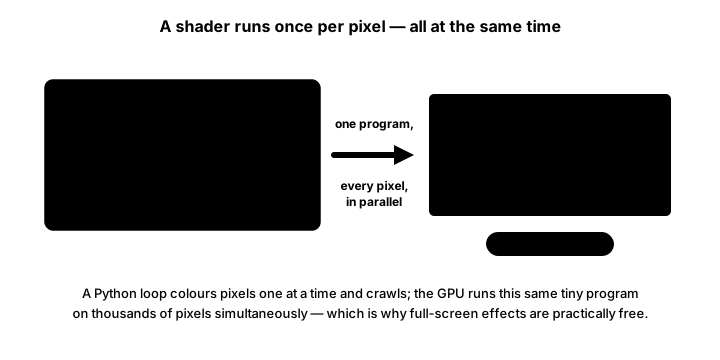
Picture a restaurant that must plate half a million identical desserts in a few milliseconds. A handful of master chefs (your CPU) would never make it, however skilled they are. A stadium full of line cooks who each plate one dessert, all at the same moment, finishes before the chefs have picked up a spoon. That stadium is your graphics card (the GPU), and the recipe every cook follows is a shader: a tiny program the GPU runs once per vertex or once per pixel, thousands of copies in parallel.
So far every pixel you have drawn went through pygame on the CPU. That is fine for sprites, but a full-screen effect such as a heat shimmer, a glow or a color grade has to touch every pixel of every frame: 518,400 pixels at 960 × 540. Later in this lesson you will time the same effect both ways on your own machine.
Every frame the GPU runs the same pipeline. You control the two programmable stages, and you feed them data:
| Word | What it is | Changes |
|---|---|---|
Attribute (in in a vertex shader) | Per-vertex data read from a buffer: position, color, texture coordinate | Every vertex |
Varying (out → in) | A value the vertex shader hands on; the rasterizer blends it across the triangle | Every pixel (blended) |
| Uniform | A value you set from Python that is the same for the whole draw: time, screen size, a toggle | Once per draw |
Texture (sampler2D) | An image on the GPU that shaders read with texture(tex, uv) | When you upload it |
Play with a live shader before writing one. Each button loads a different fragment shader into your browser's WebGL, which uses a close cousin of the GLSL you will write in Python. Every effect is one small function that turns a pixel position and a time into a color.
// The selected shader's source appears here.Notice that no shader loops over pixels. The loop is the GPU itself: your function describes one pixel, and the hardware runs it everywhere.
🧰 Setup and a NumPy Primer
moderngl is a Python wrapper around modern OpenGL. It does not open windows by itself; pygame-ce opens the window and creates the OpenGL context, and moderngl talks to it. numpy packs your vertex data into the tight binary arrays the GPU expects. Install all three:
# Windows
py -m pip install pygame-ce moderngl numpy

# macOS and Linux
python3 -m pip install pygame-ce moderngl numpy🏗️ The Scaffold: One Context for Every Lesson
Every GPU program in this module starts with the same function. Learn it once and you can copy it into every project. It returns two things: the moderngl context ctx, and an offscreen framebuffer fbo that is None whenever there is a real window.
import os
import sys

import moderngl
import pygame

SIZE = (960, 540)


def make_context():
    """Return (ctx, fbo). Window + GL 3.3 core normally; headless EGL under the lab checker."""
    if os.environ.get("LAB_GL") == "egl":
        try:
            ctx = moderngl.create_standalone_context(backend="egl")
        except Exception as exc:
            print("SKIP: no headless OpenGL:", exc)
            sys.exit(77)                      # 77 = SKIP, not FAIL
        fbo = ctx.simple_framebuffer(SIZE)
        fbo.use()
        return ctx, fbo
    pygame.display.gl_set_attribute(pygame.GL_CONTEXT_MAJOR_VERSION, 3)
    pygame.display.gl_set_attribute(pygame.GL_CONTEXT_MINOR_VERSION, 3)
    pygame.display.gl_set_attribute(pygame.GL_CONTEXT_PROFILE_MASK, pygame.GL_CONTEXT_PROFILE_CORE)
    pygame.display.gl_set_attribute(pygame.GL_CONTEXT_FORWARD_COMPATIBLE_FLAG, True)  # macOS
    pygame.display.set_mode(SIZE, pygame.OPENGL | pygame.DOUBLEBUF)
    return moderngl.create_context(), None


pygame.init()
ctx, fbo = make_context()
print("OpenGL", ctx.info["GL_VERSION"], "on", ctx.info["GL_RENDERER"])
pygame.quit()
Read the window branch (the bottom half) first, because that is what runs on your machine:
- The four
gl_set_attributecalls must come beforeset_mode. They ask for OpenGL 3.3 core: the modern API without the old fixed-function calls. The forward-compatible flag matters on macOS, which only hands out a modern core context when you ask for one this way. pygame.OPENGL | pygame.DOUBLEBUFmakes a window whose pixels belong to OpenGL. You no longer blit onto a screen Surface; you draw with moderngl and then callpygame.display.flip()to show the finished frame.moderngl.create_context()attaches moderngl to the context pygame just made.
The top branch runs only when the course's lab checker sets LAB_GL=egl. There is no window then, so it creates a headless context and draws into an offscreen framebuffer. If the machine has no headless OpenGL at all, it exits with code 77, which the checker reports as "skipped" rather than "failed". Your own runs never take that branch, but keeping it means every lab in this module can be tested automatically.
🍎 A note on macOS
Apple deprecated OpenGL in macOS 10.14 (2018) in favor of its own Metal API, but it still ships OpenGL up to version 4.1 core. Asking for 3.3 core with the forward-compatible flag, as the scaffold does, is what gets you that modern context. Without those attributes a Mac gives you an old OpenGL 2.1 context and every #version 330 core shader fails to compile.
🔺 Buffers, Vertex Arrays and Your First Triangle
Drawing anything with moderngl takes four objects. Think of shipping furniture flat-packed: the buffer is the box of parts, the vertex array is the assembly sheet that says which bytes are which part, the program is the worker who assembles it, and render() is "go".
- Program:
ctx.program(vertex_shader=..., fragment_shader=...)compiles and links your two GLSL shaders. - Buffer (VBO):
ctx.buffer(data)copies bytes into GPU memory. - Vertex array (VAO):
ctx.vertex_array(prog, [(vbo, "2f 3f", "in_pos", "in_color")])says "each vertex is 2 floats then 3 floats; feed them toin_posandin_color". - Render:
vao.render(moderngl.TRIANGLES)draws every three vertices as one triangle.
Here is the complete warm-up program, gpu_hello.py. It draws one triangle whose corners are red, green and blue, and pulses its brightness with a uniform:
"""GPU Hello: Advanced Lesson 13 warm-up (solution).

The canonical pygame-ce + moderngl scaffold: open an OpenGL 3.3 core
context, put one triangle in a vertex buffer (VBO), describe its layout
with a vertex array (VAO), and draw it every frame with a shader program
whose brightness pulses through a uniform. Press Esc or close the window.
"""
import os
import sys

import moderngl
import numpy as np
import pygame


SIZE = (960, 540)


def make_context():
    """Return (ctx, fbo). Window + GL 3.3 core normally; headless EGL under the lab checker."""
    if os.environ.get("LAB_GL") == "egl":
        try:
            ctx = moderngl.create_standalone_context(backend="egl")
        except Exception as exc:
            print("SKIP: no headless OpenGL:", exc)
            sys.exit(77)                      # 77 = SKIP, not FAIL
        fbo = ctx.simple_framebuffer(SIZE)
        fbo.use()
        return ctx, fbo
    pygame.display.gl_set_attribute(pygame.GL_CONTEXT_MAJOR_VERSION, 3)
    pygame.display.gl_set_attribute(pygame.GL_CONTEXT_MINOR_VERSION, 3)
    pygame.display.gl_set_attribute(pygame.GL_CONTEXT_PROFILE_MASK, pygame.GL_CONTEXT_PROFILE_CORE)
    pygame.display.gl_set_attribute(pygame.GL_CONTEXT_FORWARD_COMPATIBLE_FLAG, True)  # macOS
    pygame.display.set_mode(SIZE, pygame.OPENGL | pygame.DOUBLEBUF)
    return moderngl.create_context(), None


VERTEX_SHADER = """#version 330 core
in vec2 in_pos;        // per-vertex position, from the VBO
in vec3 in_color;      // per-vertex color, from the VBO
out vec3 v_color;      // handed to the fragment shader, blended across the triangle

void main() {
    v_color = in_color;
    gl_Position = vec4(in_pos, 0.0, 1.0);
}
"""

FRAGMENT_SHADER = """#version 330 core
in vec3 v_color;
uniform float u_time;  // seconds, set from Python every frame
out vec4 f_color;

void main() {
    float pulse = 0.65 + 0.35 * sin(u_time * 2.0);
    f_color = vec4(v_color * pulse, 1.0);
}
"""


def main():
    pygame.init()
    pygame.display.set_caption("GPU Hello")
    ctx, fbo = make_context()
    print("OpenGL:", ctx.info["GL_VERSION"])

    try:
        prog = ctx.program(vertex_shader=VERTEX_SHADER, fragment_shader=FRAGMENT_SHADER)
    except moderngl.Error as err:
        print("Shader error:\n", err)
        pygame.quit()
        return

    vertices = np.array([
        # x,    y,     r,   g,   b
        -0.6, -0.5,   1.0, 0.35, 0.35,
         0.6, -0.5,   0.35, 1.0, 0.45,
         0.0,  0.6,   0.35, 0.5, 1.0,
    ], dtype="f4")
    vbo = ctx.buffer(vertices.tobytes())
    vao = ctx.vertex_array(prog, [(vbo, "2f 3f", "in_pos", "in_color")])

    clock = pygame.time.Clock()
    seconds = 0.0
    frames = 0
    running = True
    while running:
        dt = clock.tick(60) / 1000
        for event in pygame.event.get():
            if event.type == pygame.QUIT:
                running = False
            elif event.type == pygame.KEYDOWN and event.key == pygame.K_ESCAPE:
                running = False

        seconds += dt
        prog["u_time"].value = seconds

        ctx.clear(0.08, 0.09, 0.14)
        vao.render(moderngl.TRIANGLES)
        if fbo is None:
            pygame.display.flip()
        frames += 1

    if fbo is not None:
        # Headless run (lab checker): read the center pixel back as proof.
        r, g, b = fbo.read(viewport=(SIZE[0] // 2, SIZE[1] // 2, 1, 1), components=3)
        print(f"Center pixel is lit: {r + g + b > 100}")
    print(f"Drew {frames} frames.")
    pygame.quit()


if __name__ == "__main__":
    main()
A few details worth slowing down for:
- Clip space. The vertex shader writes
gl_Positionin coordinates that run from −1 to 1 on both axes, with y pointing up. That is why the triangle's top vertex has y = 0.6. pygame's y-down pixels are gone inside a shader. - Blended colors. The vertex shader outputs
v_coloronly at the three corners. The rasterizer blends it for every pixel in between, which is where the smooth rainbow comes from. Anyoutof the vertex shader that matches aninof the fragment shader is blended this way. - Clear, draw, flip.
ctx.clear(...)replacesscreen.fill(...). It takes floats from 0 to 1, not 0 to 255. The loop still usesclock.tick(60) / 1000fordtin seconds, exactly like every pygame loop so far. - The headless check. The last lines read one pixel back from the offscreen framebuffer. They only run under the lab checker, as proof the triangle was drawn.
✅ Growth Mindset: A Black Window Is Normal, for Now
Almost everyone's first OpenGL program shows a black (or cleared) window and no error. That is not a sign you are bad at this; it is how OpenGL fails: quietly. The good news is that the list of causes is short, and you will learn to check it in order: did the shader compile, is the VAO built from the right names, is the triangle inside −1..1, did render() run before flip()? Treat each black window as a puzzle you haven't solved yet. The "When Shaders Break" section turns that list into a checklist.
🌊 Uniforms and the Full-Screen Quad
Most 2D effects don't need interesting geometry at all. You draw one rectangle that covers the whole screen, a full-screen quad, and let the fragment shader decide every pixel's color. Four vertices drawn as a TRIANGLE_STRIP make two triangles that fill clip space. Each vertex also carries a texture coordinate (u, v) from 0 to 1, which the rasterizer blends so the fragment shader knows where it is:
QUAD = np.array([
    # x,    y,    u,   v
    -1.0, -1.0,  0.0, 0.0,
     1.0, -1.0,  1.0, 0.0,
    -1.0,  1.0,  0.0, 1.0,
     1.0,  1.0,  1.0, 1.0,
], dtype="f4")
vbo = ctx.buffer(QUAD.tobytes())
vao = ctx.vertex_array(prog, [(vbo, "2f 2f", "in_pos", "in_uv")])
vao.render(moderngl.TRIANGLE_STRIP)
Uniforms are how Python talks to a shader while it runs. You declare one in GLSL (uniform float u_time;) and set it from Python each frame (prog["u_time"].value = seconds). Here is a fragment shader that makes animated stripes from nothing but the pixel's position and the time:
#version 330 core
uniform float u_time;       // seconds
uniform vec2 u_resolution;  // pixels
in vec2 v_uv;               // 0..1 across the quad
out vec4 f_color;

void main() {
    // Each pixel computes its own wave: this is per-pixel, so it is smooth everywhere.
    float wave = sin(v_uv.x * 20.0 + u_time * 2.0) * sin(v_uv.y * 15.0 - u_time * 1.5);
    vec3 color = mix(vec3(0.1, 0.2, 0.3), vec3(0.3, 0.8, 1.0), wave * 0.5 + 0.5);
    f_color = vec4(color, 1.0);
}
⚠️ Why the wave goes in the fragment shader
You may find tutorials that "wave" a full-screen quad by moving vertices in the vertex shader. On a quad that has only four vertices, that can only move the four corners: the edges stay straight lines and nothing ripples. A wave needs something computed at every point along it. Either you build a mesh with hundreds of vertices, or, far simpler for 2D, you compute the wave per pixel in the fragment shader, as above.
Two practical rules about uniforms:
- Unused uniforms disappear. The GLSL compiler removes any uniform that doesn't affect the output. Setting it then raises
KeyErrorin moderngl. That bites while you are editing a shader and temporarily comment out the line that used it. A tiny helper keeps the program running:def set_uniform(prog, name, value): """Set a uniform if the shader still has it (GLSL drops uniforms it never uses).""" if name in prog: prog[name].value = value - Precision words are for phones and browsers. You will see
precision mediump float;in WebGL shaders like the playground above. Desktop GLSL 3.30 accepts precision qualifiers for compatibility but gives them no meaning, so the shaders in this course leave them out.
🖼️ Textures: A pygame Surface on the GPU
You don't have to give up pygame's drawing tools. Draw on an ordinary Surface as you always have, upload it to the GPU as a texture, and let a shader do the per-pixel work. That hybrid is how this whole module works.
def surface_to_texture(ctx, surf):
"""Upload a pygame Surface as an RGBA texture. flip=True: GL's rows start at the bottom."""
tex = ctx.texture(surf.get_size(), 4, pygame.image.tobytes(surf, "RGBA", True))
tex.repeat_x = False # clamp at the edges instead of wrapping around
tex.repeat_y = False
return texpygame.image.tobytes(surf, "RGBA", True)turns the Surface into raw bytes. The finalTrueflips it vertically, because pygame stores the top row first while OpenGL textures start at the bottom row. Forget it and your scene appears upside down.ctx.texture(size, 4, data)makes a texture with 4 components (red, green, blue, alpha).repeat_xandrepeat_ydefault toTrue: a coordinate past the edge wraps around to the other side. For effects that nudge sample positions, clamping looks better.- Filtering defaults to smooth (linear) blending between texels. For crisp pixel art, set
tex.filter = (moderngl.NEAREST, moderngl.NEAREST).
To read it in a shader, bind the texture to a numbered texture unit and tell the sampler uniform which unit to use:
tex.use(0) # bind to texture unit 0
set_uniform(prog, "u_tex", 0) # uniform sampler2D u_tex; reads unit 0
tex.write(pygame.image.tobytes(scene, "RGBA", True)) # re-upload after redrawing the SurfaceIn GLSL, texture(u_tex, v_uv) returns the color at that coordinate as floats from 0 to 1. Every effect in the practice exercise is just a change to where it samples or which channels it keeps.
🩺 When Shaders Break
A GLSL typo isn't found when Python starts; it is found when ctx.program(...) sends the source to your graphics driver to compile. moderngl then raises moderngl.Error with the driver's message, including the line number inside the shader string. Never let that exception vanish. Catch it, print it, and in a game show it on screen, so an artist editing a shader sees the problem instead of a black window:
def build_program(ctx, vertex_src, fragment_src):
"""Compile a shader program. Returns (program, None) or (None, error text)."""
try:
return ctx.program(vertex_shader=vertex_src, fragment_shader=fragment_src), None
except moderngl.Error as err:
return None, str(err)A typical message from a missing semicolon looks like this (the exact wording depends on your driver):
GLSL Compiler failed
fragment_shader
===============
0:24(1): error: syntax error, unexpected '}', expecting ',' or ';'Read 0:24 as "line 24 of the fragment shader string". The error often points at the line after the real mistake, because that is where the compiler noticed. In the Shader Sandbox you will render this text onto a Surface and draw it with a second, known-good shader, so the error screen can never be broken by the error.
| Symptom | Likely cause | Fix |
|---|---|---|
moderngl.Error: GLSL Compiler failed | A GLSL typo | Read the line number in the message; check the line above it too |
KeyError: 'u_time' when setting a uniform | The shader never uses that uniform, so the compiler removed it | Use it, or set it through set_uniform() |
KeyError: 'in_uv' in vertex_array() | The attribute is unused or misspelled, so it doesn't exist in the program | Match the names in vertex_array() to the shader's in variables |
| Black window, no error | Nothing drawn inside −1..1, or render() never ran | Output a solid color from the fragment shader to prove the draw happens |
| Scene upside down | Surface uploaded without the flip | pygame.image.tobytes(surf, "RGBA", True) |
| Shader fails only on a Mac | No 3.3 core context was requested | Use the scaffold's four gl_set_attribute lines |
✅ Growth Mindset: Debug the GPU With Colors
You can't print() from inside a shader, and that feels like flying blind at first. Graphics programmers turn it around: they print with color. Write f_color = vec4(v_uv, 0.0, 1.0); and the screen becomes a map of your coordinates (red grows to the right, green grows upward). Write f_color = vec4(vec3(u_time - floor(u_time)), 1.0); and the screen pulses once a second if the time uniform arrives. Each strange picture tells you something. You are not stuck; you are collecting clues.
🐢 The Same Effects on the CPU
Before GPUs, games did effects like these on the CPU, and in pygame you can still do them with numpy and pygame.surfarray. It is worth doing once, both to understand what the shader does and to measure the difference yourself. The lab file cpu_effects_solution.py implements the three effects of the practice exercise:
# surfarray arrays are indexed [x, y, channel]: axis 0 runs across (x), axis 1 runs down (y).
def apply_wave(arr, amp, t):
"""Each column x reads from rows shifted by a sine of x (edges clamp, no wrap)."""
xs = np.arange(arr.shape[0])
shift = (amp * np.sin(xs / arr.shape[0] * 12.0 + t * 3.0)).astype(int) # one per column
rows = np.clip(np.arange(arr.shape[1])[None, :] - shift[:, None], 0, arr.shape[1] - 1)
return arr[xs[:, None], rows]
def apply_pixelate(arr, n):
"""Every pixel of an n-by-n block copies the block's center pixel."""
w, h = arr.shape[:2]
xs = np.minimum((np.arange(w) // n) * n + n // 2, w - 1)
ys = np.minimum((np.arange(h) // n) * n + n // 2, h - 1)
return arr[xs[:, None], ys[None, :]]
def apply_chromatic(arr, shift):
"""Red is read from `shift` pixels to the right, blue from the left, green in place."""
w = arr.shape[0]
xs = np.arange(w)
out = arr.copy()
out[:, :, 0] = arr[np.clip(xs + shift, 0, w - 1), :, 0]
out[:, :, 2] = arr[np.clip(xs - shift, 0, w - 1), :, 2]
return out- Axis order.
pygame.surfarray.array3d()returns shape(width, height, 3), indexed[x, y, channel]. That is the opposite of most image libraries, which use[row, column]. So axis 0 is x and axis 1 is y. Mixing them up shifts your effect along the wrong direction. - Clamping, not wrapping.
np.rollis tempting for shifts, but it wraps pixels from one edge around to the other.np.clipon the indices repeats the edge pixel instead, like the texture's clamp setting. - Order matters. Both versions move the read position first (wave, then pixelate) and split the channels last. Do the steps in a different order and you get a different picture, because each step reads what the previous one produced.
- Pixelating with scale. You could also pixelate by shrinking with
pygame.transform.scaleand growing back.scalepicks nearest pixels, so the result stays crisp.smoothscaleaverages, so it would blur instead of pixelate.
📏 Measured, not guessed
On the machine used to write this lesson (an Intel Core i7-12700K under WSL2, with Intel UHD 770 graphics through Mesa), the numpy version of all three effects took about 17 to 19 ms per 960 × 540 frame, most of a 60 FPS frame budget. The GPU version's draw took about 1 ms, and drawing the pygame scene and uploading it as a texture added about 1.7 ms. Your numbers will differ: run cpu_effects_solution.py (it shows its timing in the window title) and compare them to the practice exercise on your own machine.
🏋️ Practice Exercise: Shader Sandbox
Objective: run a pygame-drawn scene through one fragment shader with a wave, a pixelate and a chromatic-aberration effect that you can switch on and off, and show shader errors on screen instead of crashing.
Time: about 55 minutes. Starter file: shader_sandbox_starter.py (your instructor has it). It already contains the scaffold, the full-screen quad, a scene with a moving ball and the key handling. Its numbered to-do comments match the steps below.
- Run the starter. The window stays black: the scene Surface was uploaded to the texture once, before anything was drawn on it. (≈ 5 min)
- The scene is redrawn every frame but never uploaded again. Re-upload the Surface each frame with
scene_tex.write(...): the test pattern appears, with no effects yet, and the ball moves. (≈ 5 min) - In
EFFECTS_FRAG, add the wave by movinguv.ybyu_amp * sin(uv.x * 12.0 + u_time * 3.0) / u_resolution.y. Press W to toggle it. (≈ 10 min) - Pixelate by snapping
uvto the center of its block. Press P, then + and −. (≈ 10 min) - Chromatic aberration: read red from
uv + (dx, 0), green fromuvand blue fromuv − (dx, 0), and combine them. Press C. (≈ 10 min) - Make
build_program()catchmoderngl.Error. Press E to break the shader on purpose: you should see the red error screen, and pressing E again brings the scene back. (≈ 15 min)
You are done when:
- W, P and C each switch one effect on and off, and all three work together;
- the ball moves smoothly at the same speed at any frame rate (it moves by
ball_speed * dt); - pressing E shows the compiler's message on a red screen and the program keeps running;
- closing the window prints
Shader errors caught:andFrames drawn:lines.
💡 Hint
Work on one effect at a time and turn the others off with their keys. If a shader edit makes the screen go black with no error, you have probably produced a color outside 0..1 or read outside the texture. Temporarily output f_color = vec4(uv, 0.0, 1.0); to check that uv still runs from 0 to 1. For pixelate, block is the block size in UV units: pixels divided by the resolution.
✅ Example Solution
The lab file your instructor runs also contains a short block marked lab runtime and and frame_budget() in the loop, so the checker can run it for a fixed number of frames. They are left out here and do nothing when you run it yourself.
"""Shader Sandbox: Advanced Lesson 13 practice exercise (solution).
pygame-ce draws a colorful scene onto an ordinary Surface. Every frame the
Surface is uploaded to a GPU texture and drawn on a full-screen quad through
one fragment shader with three switchable effects:
W wave (moves the sample position up and down)
P pixelate (snaps the sample position to the center of a block)
C chromatic (reads red, green and blue from three different places)
+/- block size E break the shader on purpose Esc quit
If the effects shader fails to compile, the error is printed AND shown on
screen through a second, known-good shader.
"""
import os
import sys
import moderngl
import numpy as np
import pygame
SIZE = (960, 540)
def make_context():
"""Return (ctx, fbo). Window + GL 3.3 core normally; headless EGL under the lab checker."""
if os.environ.get("LAB_GL") == "egl":
try:
ctx = moderngl.create_standalone_context(backend="egl")
except Exception as exc:
print("SKIP: no headless OpenGL:", exc)
sys.exit(77) # 77 = SKIP, not FAIL
fbo = ctx.simple_framebuffer(SIZE)
fbo.use()
return ctx, fbo
pygame.display.gl_set_attribute(pygame.GL_CONTEXT_MAJOR_VERSION, 3)
pygame.display.gl_set_attribute(pygame.GL_CONTEXT_MINOR_VERSION, 3)
pygame.display.gl_set_attribute(pygame.GL_CONTEXT_PROFILE_MASK, pygame.GL_CONTEXT_PROFILE_CORE)
pygame.display.gl_set_attribute(pygame.GL_CONTEXT_FORWARD_COMPATIBLE_FLAG, True) # macOS
pygame.display.set_mode(SIZE, pygame.OPENGL | pygame.DOUBLEBUF)
return moderngl.create_context(), None
VERTEX_SHADER = """#version 330 core
in vec2 in_pos;
in vec2 in_uv;
out vec2 v_uv;
void main() {
v_uv = in_uv;
gl_Position = vec4(in_pos, 0.0, 1.0);
}
"""
PLAIN_FRAG = """#version 330 core
uniform sampler2D u_tex;
in vec2 v_uv;
out vec4 f_color;
void main() {
f_color = texture(u_tex, v_uv);
}
"""
EFFECTS_FRAG = """#version 330 core
uniform sampler2D u_tex;
uniform vec2 u_resolution; // texture size in pixels
uniform float u_time; // seconds
uniform float u_amp; // wave height in pixels (0 = off)
uniform float u_block; // pixelate block size in pixels (1 = off)
uniform float u_shift; // chromatic offset in pixels (0 = off)
in vec2 v_uv;
out vec4 f_color;
void main() {
vec2 uv = v_uv;
// 1. Wave: move WHERE we read from, up or down by a sine of x.
uv.y += u_amp * sin(uv.x * 12.0 + u_time * 3.0) / u_resolution.y;
// 2. Pixelate: snap the read position to the center of its block.
vec2 block = u_block / u_resolution;
uv = (floor(uv / block) + 0.5) * block;
// 3. Chromatic aberration: read each channel from a different x.
float dx = u_shift / u_resolution.x;
float r = texture(u_tex, uv + vec2(dx, 0.0)).r;
float g = texture(u_tex, uv).g;
float b = texture(u_tex, uv - vec2(dx, 0.0)).b;
f_color = vec4(r, g, b, 1.0);
}
"""
# A full-screen quad: two triangles as a strip. x, y in clip space; u, v in texture space.
QUAD = np.array([
# x, y, u, v
-1.0, -1.0, 0.0, 0.0,
1.0, -1.0, 1.0, 0.0,
-1.0, 1.0, 0.0, 1.0,
1.0, 1.0, 1.0, 1.0,
], dtype="f4")
def build_program(ctx, vertex_src, fragment_src):
"""Compile a shader program. Returns (program, None) or (None, error text)."""
try:
return ctx.program(vertex_shader=vertex_src, fragment_shader=fragment_src), None
except moderngl.Error as err:
return None, str(err)
def set_uniform(prog, name, value):
    """Set a uniform if the shader still has it (GLSL drops uniforms it never uses)."""
    if name in prog:
        prog[name].value = value
def surface_to_texture(ctx, surf):
    """Upload a pygame Surface as an RGBA texture. flip=True: GL's rows start at the bottom."""
    tex = ctx.texture(surf.get_size(), 4, pygame.image.tobytes(surf, "RGBA", True))
    tex.repeat_x = False                   # clamp at the edges instead of wrapping around
    tex.repeat_y = False
    return tex
def draw_scene(surf, ball_x):
"""Draw the test pattern: bright shapes with hard edges and a moving ball."""
surf.fill((12, 12, 22))
pygame.draw.rect(surf, (245, 245, 245), (60, 90, 240, 150))
pygame.draw.rect(surf, (235, 64, 64), (340, 110, 170, 110))
pygame.draw.rect(surf, (64, 220, 235), (560, 90, 200, 210))
pygame.draw.polygon(surf, (255, 214, 64), [(120, 300), (280, 300), (200, 450)])
for i, color in enumerate([(170, 240, 120), (220, 120, 220), (90, 200, 250)]):
pygame.draw.rect(surf, color, (330, 340 + i * 45, 520, 22))
pygame.draw.circle(surf, (255, 255, 255), (ball_x, 500), 18)
def error_surface(font, message):
"""A dark red screen with the first lines of a shader error."""
surf = pygame.Surface(SIZE)
surf.fill((70, 12, 18))
lines = ["Shader error (press E to fix it):", ""] + message.strip().splitlines()[:14]
for i, text in enumerate(lines):
surf.blit(font.render(text, True, (255, 230, 230)), (20, 20 + i * 24))
return surf
def main():
pygame.init()
pygame.display.set_caption("Shader Sandbox")
ctx, fbo = make_context()
font = pygame.font.Font(None, 26) # for the error screen; created once
vbo = ctx.buffer(QUAD.tobytes())
plain, error = build_program(ctx, VERTEX_SHADER, PLAIN_FRAG)
if plain is None: # the known-good shader must work
print(error)
pygame.quit()
return
plain_vao = ctx.vertex_array(plain, [(vbo, "2f 2f", "in_pos", "in_uv")])
effects, effects_vao, error_tex = None, None, None
errors_caught = 0
def load_effects(broken):
nonlocal effects, effects_vao, error_tex, errors_caught
source = EFFECTS_FRAG
if broken: # drop one semicolon on purpose
source = source.replace("f_color = vec4(r, g, b, 1.0);", "f_color = vec4(r, g, b, 1.0)")
effects, error = build_program(ctx, VERTEX_SHADER, source)
if effects is None:
errors_caught += 1
print("Shader error:\n" + error)
effects_vao = None
error_tex = surface_to_texture(ctx, error_surface(font, error))
else:
effects_vao = ctx.vertex_array(effects, [(vbo, "2f 2f", "in_pos", "in_uv")])
error_tex = None
broken = False
load_effects(broken)
scene = pygame.Surface(SIZE)
scene_tex = surface_to_texture(ctx, scene)
wave_on, pixel_on, chroma_on = True, True, True
block = 8
ball_x, ball_speed = 60.0, 260.0 # pixels, pixels per second
seconds = 0.0
frames = 0
last_title = ""
clock = pygame.time.Clock()
running = True
while running:
dt = clock.tick(60) / 1000
for event in pygame.event.get():
if event.type == pygame.QUIT:
running = False
elif event.type == pygame.KEYDOWN:
if event.key == pygame.K_ESCAPE:
running = False
elif event.key == pygame.K_w:
wave_on = not wave_on
elif event.key == pygame.K_p:
pixel_on = not pixel_on
elif event.key == pygame.K_c:
chroma_on = not chroma_on
elif event.key in (pygame.K_PLUS, pygame.K_EQUALS, pygame.K_KP_PLUS):
block = min(32, block + 2)
elif event.key in (pygame.K_MINUS, pygame.K_KP_MINUS):
block = max(2, block - 2)
elif event.key == pygame.K_e:
broken = not broken
load_effects(broken)
title = (f"Shader Sandbox | W wave {'on' if wave_on else 'off'} | "
f"P pixelate {'on' if pixel_on else 'off'} ({block} px) | "
f"C chromatic {'on' if chroma_on else 'off'} | E break shader")
if title != last_title: # the HUD lives in the window title
pygame.display.set_caption(title)
last_title = title
seconds += dt
ball_x += ball_speed * dt
if ball_x > SIZE[0] + 20:
ball_x = -20.0
ctx.clear(0.0, 0.0, 0.0)
if effects_vao is not None:
draw_scene(scene, ball_x)
scene_tex.write(pygame.image.tobytes(scene, "RGBA", True)) # re-upload each frame
scene_tex.use(0)
set_uniform(effects, "u_tex", 0)
set_uniform(effects, "u_resolution", SIZE)
set_uniform(effects, "u_time", seconds)
set_uniform(effects, "u_amp", 10.0 if wave_on else 0.0)
set_uniform(effects, "u_block", float(block) if pixel_on else 1.0)
set_uniform(effects, "u_shift", 6.0 if chroma_on else 0.0)
effects_vao.render(moderngl.TRIANGLE_STRIP)
else:
error_tex.use(0)
set_uniform(plain, "u_tex", 0)
plain_vao.render(moderngl.TRIANGLE_STRIP)
if fbo is None:
pygame.display.flip()
frames += 1
print(f"Shader errors caught: {errors_caught}")
print(f"Frames drawn: {frames}")
pygame.quit()
if __name__ == "__main__":
main()📓 Learning Journal
Take five minutes to write in your learning journal (a notebook or a plain text file works). Jot down:
- Key concepts you learned today
- Techniques that clicked (and the ones that haven't, yet)
- Questions or confusion to bring to the next session
- Ideas to try in your own game
- Progress and feelings: how did this lesson go for you?
✍️ This lesson's prompts:
- Explain the difference between an attribute, a varying and a uniform to someone who knows pygame but has never seen a shader. Use the triangle from GPU Hello as your example.
- You timed the same effects on the CPU and the GPU. Which effect in a game you like could only run well on the GPU, and why?
- What was the most confusing black window or error you hit today, and what finally told you the cause?
📝 Summary
You opened an OpenGL 3.3 core window from pygame-ce with one reusable scaffold, then drew with the GPU the modern way: a buffer of vertex bytes, a vertex array that names them, and a program of two shaders. You drew a full-screen quad and let a fragment shader compute every pixel from its coordinates and a time uniform. You uploaded a pygame Surface as a texture, flipped the right way, and bent it with three effects. Finally you made shader errors visible instead of silent, and measured how much faster the GPU does per-pixel work than numpy on the CPU.
🎓 Key Takeaways
- Ask for OpenGL 3.3 core (plus forward compatible) before
set_mode, then attach moderngl withcreate_context(). - Draw with program + buffer + vertex array +
render(); vertex data must befloat32("f4"). - Per-pixel effects belong in the fragment shader; uniforms carry time, sizes and toggles from Python.
- Upload Surfaces with
pygame.image.tobytes(surf, "RGBA", True); the flip matches OpenGL's bottom-up rows. - Catch
moderngl.Errorand show it; useset_uniform()because unused uniforms are removed.
🔭 Looking Ahead
In Post-processing, you will render the scene into an offscreen framebuffer and chain several full-screen passes, including a proper bloom with a bright pass and a separable blur.
❓ Common Questions
Can I still use screen.blit() in an OpenGL window?
Not directly: with pygame.OPENGL, the window's pixels belong to OpenGL and there is no screen Surface to blit onto. Draw on an ordinary Surface instead, upload it as a texture and draw it on a quad, as the Shader Sandbox does. pygame's fonts, images, input, sound and clock all keep working as before.
Why does my shader work in the browser playground but not in Python?
WebGL uses GLSL ES, a slightly different dialect: gl_FragColor and attribute/varying instead of out vec4 f_color and in/out, plus required precision lines. The math inside main() carries over; the declarations at the top need translating to #version 330 core style.
Do I have to call ctx.clear() if my quad covers the whole screen?
Not strictly, since every pixel is overwritten. It is still a good habit: it costs little, and the moment something doesn't cover the screen (an error, a smaller viewport), you see your clear color instead of leftovers from earlier frames.
Is uploading a Surface every frame too slow?
For one 960 × 540 Surface it took about 1.7 ms including the pygame drawing on the machine used for this lesson; measure yours with time.perf_counter(). Upload only what changes: a static background can be uploaded once, and a HUD Surface only when its text changes.
What if my computer has no OpenGL 3.3?
Almost every computer made in the last decade supports it, but very old integrated graphics, some virtual machines and some remote desktops don't. The scaffold then fails at set_mode or at moderngl.create_context() with an error about the OpenGL version or context. Updating the graphics driver fixes most cases; otherwise use another machine for this module.
🎯 Quick Quiz
Question 1: In the GPU pipeline, which stage runs once for every covered pixel?
Question 2: Why does the scaffold call gl_set_attribute for a 3.3 core, forward-compatible context before set_mode?
Question 3: You comment out the only line that uses u_time, and prog["u_time"].value = t now raises KeyError. Why?
Question 4: Your scene appears upside down on the quad. What is the most likely fix?
Question 5: An array from pygame.surfarray.array3d() has shape (960, 540, 3). Along which axis do you shift to move the picture sideways?
🌟 Going Further
- Hot reload: keep the effects shader in a
.fragfile next to your script and rebuild the program when you press R. With the error screen from the exercise, you can edit shaders while the game runs. - A fourth effect: add a vignette (darken pixels by their distance from
vec2(0.5)) or scan lines (darken every other row usinggl_FragCoord.y) as another uniform-controlled switch. - Port a playground shader: translate the vortex or plasma shader from the demo into
#version 330 coreand run it in your sandbox. - Read the docs: the moderngl documentation (Context, Program, Buffer, VertexArray, Texture) and the pygame-ce display page for
gl_set_attribute. The Book of Shaders is a gentle, visual introduction to fragment shaders.