Lesson 18: Building a Level Editor
Typing levels into lists of numbers gets old fast; clicking them together is how real games get built. In this lesson you plan a level the way designers do, then build your own editor with mouse painting, undo and redo, and a Save button that refuses to write a broken level.
🎯 Learning Objectives
By the end of this lesson, you will be able to:
- Plan a level's pacing with the teach, test, twist pattern and rest beats.
- Build a grid editor that paints and erases tiles with mouse strokes and converts screen positions to cells.
- Build snapshot undo and redo with
copy.deepcopy, including the first edit, moves and a redo history that is cleared correctly. - Validate a level before saving, and save it atomically as JSON.
- Explain why a moving platform should travel at a constant speed in pixels per second rather than a fixed time per segment.
Project: a Level Editor that paints solid, spike and coin tiles, places a player start and goal, undoes and redoes every change, and saves only valid levels.
In This Lesson
🎢 Design First: Pacing
A good level is like a good song: it has quiet parts and loud parts, and the loud parts hit harder because of the quiet ones. A level that is hard from the first jump to the last doesn't feel exciting; it feels exhausting. Designers call the shape of that experience pacing, and they plan it before they place a single tile.
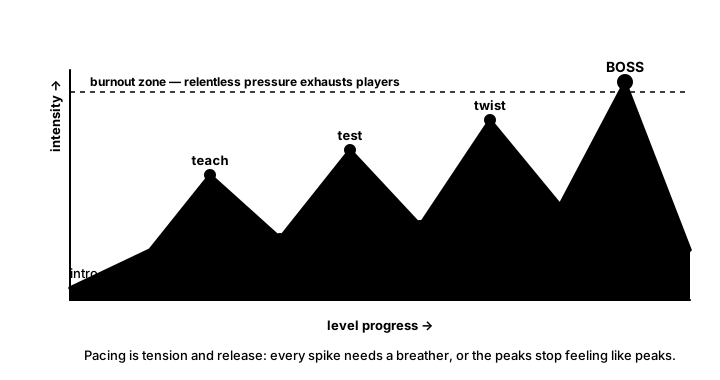
A simple, widely used recipe for each new idea in a level is teach, test, twist:
- Teach. Introduce the idea where failing is cheap: a single spike pit with a wide landing and no enemies around.
- Test. Ask for the same skill under a little pressure: two pits in a row, or a narrower platform.
- Twist. Combine it with something the player already knows: a pit with a patrolling enemy on the far side.
Between the peaks, give a rest beat: a flat stretch, a coin trail or a checkpoint. Rest beats let tension drain away, so the next peak feels like a peak.
Before you open the editor, answer four questions on paper: What is the one new idea in this level? Where does the player first meet it safely? Where is it tested, and what is the twist? Where are the rest beats? A level with a plan takes minutes to build. A level without one takes hours of shuffling tiles around.
💡 Why this matters
Tools make levels faster to build, but a plan makes them worth playing. Keep your four answers next to you while you use the editor you build today, and check the finished level against them.
🧱 The Editor's Data
An editor edits data, and the game reads the same data. We reuse the tile grid from the Tile Maps lesson, a list of rows where each number is a tile type, and add two markers: where the player starts and where the goal flag is. A dataclass (from the Saving & Loading lesson) holds all three and turns into JSON-ready dictionaries with asdict():
from dataclasses import asdict, dataclass

EMPTY, SOLID, SPIKE, COIN = 0, 1, 2, 3
COLS, ROWS = 25, 14


@dataclass
class Level:
    tiles: list     # ROWS lists of COLS tile ids
    start: list     # [col, row] of the player start, or None
    goal: list      # [col, row] of the goal flag, or None


def new_level():
    tiles = [[EMPTY] * COLS for _ in range(ROWS)]
    tiles[ROWS - 1] = [SOLID] * COLS            # a floor to stand on
    return Level(tiles=tiles, start=None, goal=None)
Lists of lists survive a trip through JSON unchanged, which saves you from the integer-dictionary-key trap from the Tile Maps lesson. Notice [[EMPTY] * COLS for _ in range(ROWS)] builds a separate list for every row; [[EMPTY] * COLS] * ROWS would repeat the same row object 14 times, and painting one row would paint them all.
To turn a mouse position into a cell, divide by the tile size and round down, because every pixel from 32 up to 63 belongs to cell 1:
def screen_to_cell(pos):
    """Mouse position -> (col, row), or None outside the grid. Floor, not round."""
    col, row = int(pos[0] // TILE), int(pos[1] // TILE)
    if 0 <= col < COLS and 0 <= row < ROWS:
        return col, row
    return None
If your editor also places free-floating objects that snap to grid lines (a sign at a corner, say), that is a different question, "which grid line is nearest?", and round(x / TILE) * TILE answers it. Painting cells always uses the floor. If the level scrolls, add the camera's position to the mouse position first, the reverse of world-to-screen from the Cameras lesson.
🖌️ Painting With the Mouse
Painting one cell per click is tedious. Painting while you drag is what makes an editor feel good, and it needs three mouse events: MOUSEBUTTONDOWN starts a stroke, MOUSEMOTION paints every cell the cursor passes over, and MOUSEBUTTONUP ends it. Left button paints, right button erases.
Here is a complete, minimal painter. Number keys choose the brush:
import pygame

TILE, COLS, ROWS = 32, 20, 12
EMPTY, SOLID, SPIKE, COIN = 0, 1, 2, 3
COLORS = {SOLID: (120, 90, 60), SPIKE: (220, 70, 70), COIN: (250, 210, 60)}
BRUSHES = {pygame.K_1: SOLID, pygame.K_2: SPIKE, pygame.K_3: COIN}


def screen_to_cell(pos):
    col, row = int(pos[0] // TILE), int(pos[1] // TILE)
    if 0 <= col < COLS and 0 <= row < ROWS:
        return col, row
    return None


def paint(tiles, cell, brush):
    """Set one cell. Returns True if anything actually changed."""
    col, row = cell
    changed = tiles[row][col] != brush
    tiles[row][col] = brush
    return changed


pygame.init()
screen = pygame.display.set_mode((COLS * TILE, ROWS * TILE))
pygame.display.set_caption("Left-drag paints, right-drag erases, 1/2/3 brushes")
clock = pygame.time.Clock()
tiles = [[EMPTY] * COLS for _ in range(ROWS)]
brush = SOLID
stroke = None              # the brush of the stroke in progress, or None
strokes = 0

running = True
while running:
    clock.tick(60)
    for event in pygame.event.get():
        if event.type == pygame.QUIT:
            running = False
        elif event.type == pygame.KEYDOWN and event.key in BRUSHES:
            brush = BRUSHES[event.key]
        elif event.type == pygame.MOUSEBUTTONDOWN and event.button in (1, 3):
            stroke = brush if event.button == 1 else EMPTY
            cell = screen_to_cell(event.pos)
            if cell is not None:
                paint(tiles, cell, stroke)
        elif event.type == pygame.MOUSEMOTION and stroke is not None:
            cell = screen_to_cell(event.pos)
            if cell is not None:
                paint(tiles, cell, stroke)
        elif event.type == pygame.MOUSEBUTTONUP and event.button in (1, 3):
            if stroke is not None:
                strokes += 1       # the whole drag is ONE edit
            stroke = None

    screen.fill((24, 26, 38))
    for row in range(ROWS):
        for col in range(COLS):
            if tiles[row][col] != EMPTY:
                pygame.draw.rect(screen, COLORS[tiles[row][col]], (col * TILE, row * TILE, TILE, TILE))
    pygame.display.flip()

pygame.quit()
print(f"You painted {strokes} strokes.")
Two details matter for what comes next. paint() reports whether it changed anything, so clicking a cell that already holds the brush's tile doesn't count as an edit. And the stroke ends on MOUSEBUTTONUP: that is the moment an editor records one undo step for the whole drag. Nobody wants to press Ctrl+Z forty times to undo one sweep of the mouse.
Very fast mouse moves can skip cells, because MOUSEMOTION reports positions, not every pixel in between. For a tile editor that is usually fine; the Going Further section has a fix.
Try the idea in the browser. Tap or click cells to paint with the chosen brush, then undo and redo:
↩️ Undo and Redo
Undo is the feature that makes people brave: they try wild ideas because they can take them back. The simplest reliable version keeps snapshots, full copies of the level after every edit, plus an index that says which snapshot you are looking at. Undo moves the index back and loads that copy; redo moves it forward.
Copies that really are copies
A snapshot only works if later edits can't change it. Assigning a list, or even copying the outer list, isn't enough, because the inner row lists are still shared:
import copy

tiles = [[0, 0], [0, 0]]
alias = tiles                   # the same list under a second name
shallow = list(tiles)           # a new outer list... holding the SAME row lists
deep = copy.deepcopy(tiles)     # new lists all the way down

tiles[0][0] = 9
print(alias[0][0], shallow[0][0], deep[0][0])   # 9 9 0
copy.deepcopy() from Python's copy module copies an object and everything inside it, all the way down. It works on lists, dictionaries and dataclass objects alike, which is exactly what a snapshot needs.
The history class
class History:
    """Snapshot undo/redo. states[index] is always the level you are looking at."""

    def __init__(self, level, limit=100):
        self.states = [copy.deepcopy(level)]    # the untouched level, so the FIRST edit can be undone
        self.index = 0
        self.limit = limit

    def record(self, level):
        del self.states[self.index + 1:]        # a new edit throws away the redo "future"
        self.states.append(copy.deepcopy(level))
        if len(self.states) > self.limit:
            self.states.pop(0)
        self.index = len(self.states) - 1

    def undo(self):
        if self.index > 0:
            self.index -= 1
        return copy.deepcopy(self.states[self.index])

    def redo(self):
        if self.index < len(self.states) - 1:
            self.index += 1
        return copy.deepcopy(self.states[self.index])
Each line fixes a bug that editors really ship with:
- Start with the untouched level. If the history starts empty, the first snapshot is taken after the first edit, and there is nothing to go back to: the first tile you place can never be undone.
- Delete the redo future on a new edit. After undoing twice and painting something new, the two undone states belong to a timeline that no longer exists. Keep them, and Redo would bring back a level you never made.
- Hand out copies.
undo()andredo()return a deep copy, so painting on the restored level can't reach back into the history. - Record every kind of change. Placing the player start a second time moves it; that is an edit too and gets recorded like any other, or Undo would skip over it.
In the editor, Ctrl+Z and Ctrl+Y call these methods. Check the Ctrl key with event.mod & pygame.KMOD_CTRL on the KEYDOWN event.
Full snapshots use memory, since every step stores the whole level. For a 25 × 14 grid that is a few hundred numbers per step, so a limit of 100 steps is no problem. Huge levels often store commands instead ("set cell (4, 7) from 0 to 1", which knows how to reverse itself); snapshots are simpler to get right, so start with them.
✅ Growth Mindset: Undo Bugs Are Sneaky, and That's Normal
Undo code often looks right and still fails, because the bug is in which object a name points to, and you can't see that by reading the screen. If Undo seems to do nothing, you probably have an alias somewhere. Test it the way the lesson's examples do: make a change, record, change again, and print() the first snapshot. If it changed too, you've found your shared list. Every developer who has built an editor has chased this bug at least once.
✅ Validate, Then Save
A level with no player start crashes the game the moment it loads, and a goal buried inside a wall can never be reached. The editor is the cheapest place to catch these mistakes: the designer is looking right at the level and can fix it in one click. So validate() returns a list of human-readable problems, and saving is refused while that list isn't empty:
def validate(level):
    """Return a list of problems; an empty list means the level can be saved."""
    problems = []
    for name, spot in (("Player start", level.start), ("Goal", level.goal)):
        if spot is None:
            problems.append(f"{name} is missing.")
            continue
        col, row = spot
        if level.tiles[row][col] != EMPTY:
            problems.append(f"{name} is inside a tile.")
        elif row + 1 >= ROWS or level.tiles[row + 1][col] != SOLID:
            problems.append(f"{name} is not standing on solid ground.")
    if level.start is not None and level.start == level.goal:
        problems.append("Player start and goal are on the same cell.")
    return problems


def save_level(level, path):
    """Validate, then write atomically. Returns the list of problems (empty = saved)."""
    problems = validate(level)
    if problems:
        return problems
    tmp = str(path) + ".tmp"
    with open(tmp, "w", encoding="utf-8") as f:
        json.dump(asdict(level), f)
    os.replace(tmp, path)                       # the old file is only replaced by a complete one
    return []
The write uses the atomic-save pattern from the Saving & Loading lesson: write a temporary file, then os.replace() it over the real one, so a crash halfway through never leaves a half-written level.json. Loading is json.load() and building a Level from the dictionary. Record the loaded level in the history too, so loading the wrong file is one Ctrl+Z away from being fixed.
These checks are simple on purpose. "Can the player actually reach the goal?" is a real question too, and you will be able to answer it after the A* Pathfinding lesson.
🚂 Paths for Moving Platforms
Many editors let you click a series of points to draw a path for a moving platform. The editor just stores the list of points; the interesting part is how the game moves along it. A common mistake is to spend the same time on every segment, so a platform rushes along long segments and crawls along short ones. Players notice the jerk at every corner.
Instead, move a fixed distance each frame, speed * dt pixels, and carry any leftover distance into the next segment:
import pygame

PATH = [pygame.Vector2(80, 300), pygame.Vector2(180, 300),     # a short segment...
        pygame.Vector2(560, 300), pygame.Vector2(560, 120)]    # ...then long ones
SPEED = 120                                                     # pixels per second


def advance(pos, index, distance):
    """Move `distance` pixels along PATH (looping). Returns (new_pos, new_index)."""
    while distance > 0:
        target = PATH[(index + 1) % len(PATH)]
        gap = pos.distance_to(target)
        if gap > distance:
            return pos + (target - pos) / gap * distance, index
        pos = pygame.Vector2(target)                            # reached a corner...
        index = (index + 1) % len(PATH)
        distance -= gap                                         # ...keep the leftover
    return pos, index


pygame.init()
screen = pygame.display.set_mode((640, 400))
pygame.display.set_caption("Constant speed along a path")
clock = pygame.time.Clock()
platform = pygame.Vector2(PATH[0])
index = 0

running = True
while running:
    dt = clock.tick(60) / 1000
    for event in pygame.event.get():
        if event.type == pygame.QUIT:
            running = False

    platform, index = advance(platform, index, SPEED * dt)

    screen.fill((24, 26, 38))
    pygame.draw.lines(screen, (80, 90, 120), True, PATH, 2)
    for point in PATH:
        pygame.draw.circle(screen, (140, 150, 190), point, 5)
    box = pygame.FRect(0, 0, 80, 16)
    box.center = platform
    pygame.draw.rect(screen, (120, 200, 255), box)
    pygame.display.flip()

pygame.quit()
The platform now takes about 0.8 seconds for the 100-pixel segment and about 3.2 seconds for the 380-pixel one, at an even 120 px/s throughout. In an editor, store PATH as a list of [x, y] pairs next to the platform in the level file, and let a "path" brush append a point on each click.
🏋️ Practice Exercise: Level Editor
Objective: finish a platformer level editor so every change can be undone and redone, and Save only writes levels that pass validation.
Time: about 45 minutes. Starter file: level_editor_starter.py (your instructor has it). Painting, erasing, brushes and drawing already work. Each step below names what to change, and the starter marks each spot with a numbered to-do comment (the numbers are labels, not step numbers).
- Run the starter and paint a few strokes. Press Ctrl+Z: nothing happens. Make
History.__init__()store a deep copy of the starting level. (≈ 5 min) - Fix
History.record(): delete the redo future first, then append a deep copy. (≈ 8 min) - Record one undo step when a stroke ends, in the
MOUSEBUTTONUPbranch, but only if the stroke changed something. Test: paint, move the start with P, undo twice. (≈ 7 min) - Write
validate(): complain about a missing start or goal, one that is inside a tile, one that isn't standing on solid ground, and a start and goal on the same cell. (≈ 12 min) - Make
save_level()validate first and write atomically with a.tmpfile andos.replace(). (≈ 5 min) - Plan a teach, test, twist level on paper, build it, save it with Ctrl+S, then load it with Ctrl+L. (≈ 8 min)
You are done when:
- Ctrl+Z undoes even the first stroke, one whole drag at a time, and moving the start or goal is undoable;
- after undoing and painting something new, Ctrl+Y has nothing left to redo;
- Ctrl+S on an empty level shows "Not saved: Player start is missing. Goal is missing." and writes no file;
- a valid level saves to
level.jsonand loads back exactly as it was.
💡 Hint
If undo "works" but always shows the current level, a snapshot is sharing lists with the live level: look for a missing copy.deepcopy. For the redo future, del self.states[self.index + 1:] deletes everything after the current snapshot and does nothing when there is nothing after it. For "standing on solid ground", look at the cell one row below: level.tiles[row + 1][col], after checking that row + 1 is still inside the grid.
✅ Example Solution
If your instructor hands you the lab file, you will see a few extra lines marked lab runtime near the top, plus an extra and frame_budget() condition on the main loop. They let the instructor's checker run the program automatically for a fixed number of frames; when you run it yourself they do nothing. You never need to write them.
"""Level Editor: Intermediate Lesson 18 practice exercise (solution).

Paint a platformer level on a grid, undo and redo every change, and save it
to level.json only when it passes validation.

Mouse: left-drag paints with the current brush, right-drag erases.
Keys: 1 solid, 2 spike, 3 coin, P player start, G goal flag,
Ctrl+Z undo, Ctrl+Y redo, Ctrl+S save (validates first), Ctrl+L load.
"""
import copy
import json
import os
from dataclasses import asdict, dataclass
from pathlib import Path

import pygame


TILE = 32
COLS, ROWS = 25, 14
HUD_H = 56
WIDTH, HEIGHT = COLS * TILE, ROWS * TILE + HUD_H
LEVEL_PATH = Path(__file__).with_name("level.json")

EMPTY, SOLID, SPIKE, COIN = 0, 1, 2, 3
TILE_COLORS = {SOLID: (120, 90, 60), SPIKE: (220, 70, 70), COIN: (250, 210, 60)}
BRUSH_KEYS = {pygame.K_1: SOLID, pygame.K_2: SPIKE, pygame.K_3: COIN,
              pygame.K_p: "start", pygame.K_g: "goal"}
BRUSH_NAMES = {SOLID: "solid", SPIKE: "spike", COIN: "coin", "start": "player start",
               "goal": "goal flag", EMPTY: "eraser"}


@dataclass
class Level:
    tiles: list     # ROWS lists of COLS tile ids
    start: list     # [col, row] of the player start, or None
    goal: list      # [col, row] of the goal flag, or None


def new_level():
    tiles = [[EMPTY] * COLS for _ in range(ROWS)]
    tiles[ROWS - 1] = [SOLID] * COLS            # a floor to stand on
    return Level(tiles=tiles, start=None, goal=None)


class History:
    """Snapshot undo/redo. states[index] is always the level you are looking at."""

    def __init__(self, level, limit=100):
        self.states = [copy.deepcopy(level)]    # the untouched level, so the FIRST edit can be undone
        self.index = 0
        self.limit = limit

    def record(self, level):
        del self.states[self.index + 1:]        # a new edit throws away the redo "future"
        self.states.append(copy.deepcopy(level))
        if len(self.states) > self.limit:
            self.states.pop(0)
        self.index = len(self.states) - 1

    def undo(self):
        if self.index > 0:
            self.index -= 1
        return copy.deepcopy(self.states[self.index])

    def redo(self):
        if self.index < len(self.states) - 1:
            self.index += 1
        return copy.deepcopy(self.states[self.index])


def screen_to_cell(pos):
    """Mouse position -> (col, row), or None outside the grid. Floor, not round."""
    col, row = int(pos[0] // TILE), int(pos[1] // TILE)
    if 0 <= col < COLS and 0 <= row < ROWS:
        return col, row
    return None


def paint(level, cell, brush):
    """Apply one brush to one cell. Returns True if the level changed."""
    col, row = cell
    if brush in ("start", "goal"):
        spot = [col, row]
        if getattr(level, brush) == spot:
            return False
        setattr(level, brush, spot)             # placing it again MOVES it: one start, one goal
        return True
    changed = level.tiles[row][col] != brush
    level.tiles[row][col] = brush
    if brush == EMPTY:                          # the eraser also removes markers on that cell
        for name in ("start", "goal"):
            if getattr(level, name) == [col, row]:
                setattr(level, name, None)
                changed = True
    return changed


def validate(level):
    """Return a list of problems; an empty list means the level can be saved."""
    problems = []
    for name, spot in (("Player start", level.start), ("Goal", level.goal)):
        if spot is None:
            problems.append(f"{name} is missing.")
            continue
        col, row = spot
        if level.tiles[row][col] != EMPTY:
            problems.append(f"{name} is inside a tile.")
        elif row + 1 >= ROWS or level.tiles[row + 1][col] != SOLID:
            problems.append(f"{name} is not standing on solid ground.")
    if level.start is not None and level.start == level.goal:
        problems.append("Player start and goal are on the same cell.")
    return problems


def save_level(level, path):
    """Validate, then write atomically. Returns the list of problems (empty = saved)."""
    problems = validate(level)
    if problems:
        return problems
    tmp = str(path) + ".tmp"
    with open(tmp, "w", encoding="utf-8") as f:
        json.dump(asdict(level), f)
    os.replace(tmp, path)                       # the old file is only replaced by a complete one
    return []


def load_level(path):
    with open(path, encoding="utf-8") as f:
        data = json.load(f)
    return Level(tiles=data["tiles"], start=data["start"], goal=data["goal"])


def draw_level(screen, level):
    for row in range(ROWS):
        for col in range(COLS):
            tile = level.tiles[row][col]
            rect = pygame.Rect(col * TILE, row * TILE, TILE, TILE)
            if tile == COIN:
                pygame.draw.circle(screen, TILE_COLORS[COIN], rect.center, 9)
            elif tile == SPIKE:
                pygame.draw.polygon(screen, TILE_COLORS[SPIKE],
                                    [rect.bottomleft, rect.midtop, rect.bottomright])
            elif tile != EMPTY:
                pygame.draw.rect(screen, TILE_COLORS[tile], rect)
    for x in range(0, WIDTH + 1, TILE):
        pygame.draw.line(screen, (48, 52, 70), (x, 0), (x, ROWS * TILE))
    for y in range(0, ROWS * TILE + 1, TILE):
        pygame.draw.line(screen, (48, 52, 70), (0, y), (WIDTH, y))
    if level.start is not None:
        rect = pygame.Rect(level.start[0] * TILE + 8, level.start[1] * TILE + 4, 16, 28)
        pygame.draw.rect(screen, (90, 220, 120), rect, border_radius=4)
    if level.goal is not None:
        x, y = level.goal[0] * TILE, level.goal[1] * TILE
        pygame.draw.line(screen, (230, 230, 230), (x + 8, y + 2), (x + 8, y + TILE), 3)
        pygame.draw.polygon(screen, (80, 160, 255), [(x + 9, y + 3), (x + 28, y + 9), (x + 9, y + 15)])


def main():
    pygame.init()
    screen = pygame.display.set_mode((WIDTH, HEIGHT))
    pygame.display.set_caption("Level Editor")
    clock = pygame.time.Clock()
    font = pygame.font.Font(None, 24)           # created once

    level = new_level()
    history = History(level)
    brush = SOLID
    stroke_brush = None                         # the brush of the stroke in progress, or None
    stroke_changed = False
    hover = None
    status = "Paint with the mouse. Ctrl+S saves (after validating)."
    saved = False

    running = True
    while running:
        clock.tick(60)
        for event in pygame.event.get():
            if event.type == pygame.QUIT:
                running = False
            elif event.type == pygame.KEYDOWN:
                ctrl = event.mod & pygame.KMOD_CTRL
                if ctrl and event.key == pygame.K_z:
                    level = history.undo()
                    status = f"Undo  ({history.index} of {len(history.states) - 1})"
                elif ctrl and event.key == pygame.K_y:
                    level = history.redo()
                    status = f"Redo  ({history.index} of {len(history.states) - 1})"
                elif ctrl and event.key == pygame.K_s:
                    problems = save_level(level, LEVEL_PATH)
                    saved = saved or not problems
                    status = "Saved level.json" if not problems else "Not saved: " + " ".join(problems)
                elif ctrl and event.key == pygame.K_l:
                    if LEVEL_PATH.exists():
                        level = load_level(LEVEL_PATH)
                        history.record(level)           # loading is an edit you can undo too
                        status = "Loaded level.json"
                    else:
                        status = "No level.json yet: save first."
                elif event.key in BRUSH_KEYS:
                    brush = BRUSH_KEYS[event.key]
                    status = f"Brush: {BRUSH_NAMES[brush]}"
            elif event.type == pygame.MOUSEBUTTONDOWN and event.button in (1, 3):
                stroke_brush = brush if event.button == 1 else EMPTY
                stroke_changed = False
                cell = screen_to_cell(event.pos)
                if cell is not None:
                    stroke_changed = paint(level, cell, stroke_brush)
            elif event.type == pygame.MOUSEMOTION:
                hover = screen_to_cell(event.pos)
                if stroke_brush is not None and stroke_brush not in ("start", "goal") and hover is not None:
                    stroke_changed = paint(level, hover, stroke_brush) or stroke_changed
            elif event.type == pygame.MOUSEBUTTONUP and event.button in (1, 3):
                if stroke_brush is not None and stroke_changed:
                    history.record(level)               # one whole drag = one undo step
                    status = f"Edit recorded  ({history.index} of {len(history.states) - 1})"
                stroke_brush = None

        screen.fill((24, 26, 38))
        draw_level(screen, level)
        if hover is not None:
            pygame.draw.rect(screen, (255, 255, 255), (hover[0] * TILE, hover[1] * TILE, TILE, TILE), 2)
        pygame.draw.rect(screen, (14, 16, 24), (0, ROWS * TILE, WIDTH, HUD_H))
        info = f"Brush: {BRUSH_NAMES[brush]}   1/2/3 tiles  P start  G goal  right-drag erase"
        screen.blit(font.render(info, True, (200, 205, 220)), (10, ROWS * TILE + 8))
        screen.blit(font.render(status, True, (255, 220, 120)), (10, ROWS * TILE + 32))
        pygame.display.flip()

    pygame.quit()
    print(f"Undo steps recorded: {len(history.states) - 1}")
    problems = validate(level)
    print("Validation:", "OK" if not problems else " ".join(problems))
    print("Saved level.json" if saved else "Never saved")


if __name__ == "__main__":
    main()
📓 Learning Journal
Take five minutes to write in your learning journal (a notebook or a plain text file works). Jot down:
- Key concepts you learned today
- Techniques that clicked (and the ones that haven't, yet)
- Questions or confusion to bring to the next session
- Ideas to try in your own game
- Progress and feelings: how did this lesson go for you?
✍️ This lesson's prompts:
- Write down your level's four answers (the new idea, where it is taught, tested and twisted, and the rest beats). Did the finished level match the plan? What changed?
- Explain the difference between
list(tiles)andcopy.deepcopy(tiles)as if to a classmate who is stuck on an undo bug. - What other mistakes could
validate()catch in your own game's levels?
📝 Summary
You started where designers start: with a pacing plan of teach, test, twist and rest beats. Then you built the tool. The level became a dataclass of plain lists that JSON can store, the mouse painted whole strokes of cells found with floor division, and a snapshot history made every stroke and every move undoable, starting with a copy of the untouched level and clearing the redo future on each new edit. Validation caught broken levels while they were still cheap to fix, the save was atomic, and moving platforms traveled at a steady speed along their paths.
🎓 Key Takeaways
- Plan pacing first: one new idea per level, taught safely, then tested, then twisted, with rest beats between peaks.
- Paint on
MOUSEBUTTONDOWNandMOUSEMOTION, and record one undo step onMOUSEBUTTONUP. - Snapshots must be
copy.deepcopycopies; the history starts with the untouched level. - A new edit after an undo deletes the redo future.
- Validate before saving, and save atomically.
- Move path followers by distance (
speed * dt), not by a fixed time per segment.
🔭 Looking Ahead
Your levels are ready for someone to live in them. Next, in NPC State Machines, you give characters behaviors (patrolling, chasing, searching, fleeing) with a state machine that is easy to extend and hard to break.
❓ Common Questions
Why not just use an existing editor like Tiled?
Tiled is a popular free map editor, and the pytmx library can load its maps into pygame. Building a small editor yourself teaches the ideas behind every such tool (data, strokes, undo, validation), and a custom editor can check rules that only your game knows about.
Does copy.deepcopy work on my dataclass?
Yes. It copies the dataclass object and every list inside it. Dataclasses also compare by value with ==, which is handy in tests: a level you saved and loaded again should be == to the original.
My Ctrl+Z also types a "z" into my level name box. Why?
Both the shortcut and the text box are reading the same KEYDOWN event. Handle shortcuts first, and skip the text box for that event once a shortcut has used it. It is the same input-routing idea as the dialog box in the UI & HUD lesson.
How big can the history get before it is a problem?
Each snapshot holds the whole level. For the small grids in this lesson, 100 steps is only tens of thousands of numbers in total. If you build a huge map, lower the limit or switch to recording commands instead of snapshots.
Should the game itself call validate() when it loads a level?
It is a good safety net, especially for levels players make. Show a clear message and fall back to a known-good level, instead of crashing halfway through play.
🎯 Quick Quiz
Question 1: A snapshot is taken with list(level.tiles). Why does undo still show the latest edits?
Question 2: Why does the History start with a copy of the untouched level?
Question 3: You undo twice, then paint a new tile. What happens to the two undone snapshots?
Question 4: In a well-paced level, what usually comes right after a hard challenge?
Question 5: A moving platform spends exactly one second on each path segment. One segment is 100 px long and the next is 400 px. What does the player see?
🌟 Going Further
- No skipped cells: remember the previous cell of a stroke, and on
MOUSEMOTIONpaint every cell along the line between the old and new cell (step along it in small increments). - Test mode: press Tab to drop a player at the start marker and play the level with your platformer code from the Character Controllers lesson; press Tab again to go back to editing.
- A path brush: add moving platforms whose paths you click in, saved as lists of
[x, y]points, and preview them moving at a constant speed in the editor. - Rectangle fill: hold Shift and drag to fill a whole rectangle with one stroke (and one undo step).
- Read the docs: Python's copy module and dataclasses.
- Coming up in Game Dev III: Advanced: Dungeons & Caves generates whole levels with code, and Robust Saves adds versioning and integrity checks to level files.