Lesson 17: UI & HUD
A health bar that drains smoothly, a minimap in the corner and a merchant who asks you a question: that is the HUD, the layer that tells players what is going on. In this lesson you build all three in pygame-ce, anchored so they stay in place at any window size and drawn on top of a scrolling world.
🎯 Learning Objectives
By the end of this lesson, you will be able to:
- Explain the difference between world space and screen space, and draw the HUD after the world without a camera offset.
- Build an anchor function that places HUD elements by edge and margin, so the layout works at any window size.
- Build a health bar that drains smoothly and never overshoots, whatever the frame rate.
- Draw a minimap on its own surface in local coordinates, including the camera's view rectangle.
- Build a dialog box with typewriter text, skipping and keyboard choices, and route input to it while it is open.
Project: a HUD Overlay for a scrolling world: anchored health bar, live minimap and a merchant dialog with choices.
In This Lesson
🖥️ World Space and Screen Space
Think of a car's dashboard. The road outside moves past the windshield, but the speedometer stays exactly where it is. A game's HUD (heads-up display) is the dashboard: health, score, ammo and the minimap stay put while the world scrolls behind them.
In the Cameras lesson you drew everything in world space and turned it into screen positions by subtracting the camera's top-left corner. The HUD lives in screen space: its positions are already screen pixels, so you never subtract the camera. That gives every frame a fixed drawing order:
- Clear the screen.
- Draw the world, each thing at
world_pos - camera.topleft. - Draw the HUD last, at plain screen positions, so it sits on top of everything.
screen.fill((34, 46, 40))
for wall in walls:                                   # world space: subtract the camera
    pygame.draw.rect(screen, (90, 96, 110), wall.move(-camera.x, -camera.y))
pygame.draw.circle(screen, (90, 230, 120), player - camera.topleft, 14)

health.draw(screen, bar_rect, font)                  # screen space: no camera at all
minimap.draw(screen, map_rect, player, npc, camera)
pygame.display.flip()
Designers also split UI by where it lives. Non-diegetic UI, like a health bar in the corner, exists only for the player. Diegetic UI is part of the world itself, like a glowing ammo counter on the gun, so it is drawn with the world and moves with the camera. This lesson is about the first kind.
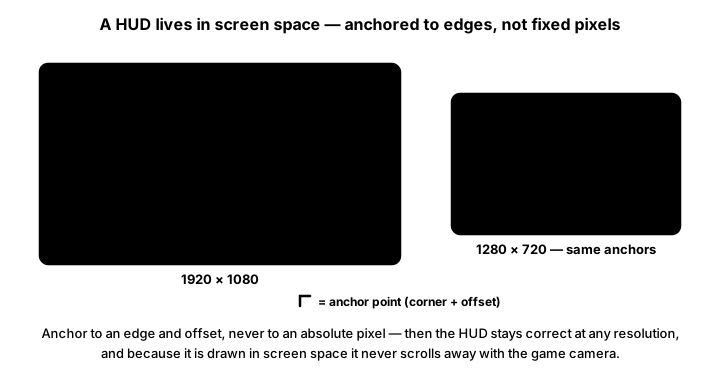
⚓ Anchoring to Edges
If you place the minimap at x = 1760 because that looked right on your monitor, it vanishes off the side of a 1280-pixel window. Instead, describe each element the way you would to a friend: "top-right corner, 16 pixels in". That is an anchor (the corner or edge) plus a margin (the offset).
pygame.Rect already has names for every anchor point: topleft, midtop, topright, midleft, center, midright, bottomleft, midbottom and bottomright. Shrink the screen rectangle by the margin with inflate(), then copy the same-named point across with getattr() and setattr(), which read and write an attribute whose name is in a string:
import pygame

MARGIN = 16


def anchor_rect(size, anchor, screen_size, margin=MARGIN):
    """Return a Rect of `size` stuck to one edge or corner of the screen."""
    rect = pygame.Rect((0, 0), size)
    inner = pygame.Rect((0, 0), screen_size).inflate(-2 * margin, -2 * margin)
    setattr(rect, anchor, getattr(inner, anchor))    # e.g. rect.topright = inner.topright
    return rect


def layout(screen_size):
    """Every HUD rect, worked out from the current window size."""
    return {
        "health": anchor_rect((240, 28), "topleft", screen_size),
        "minimap": anchor_rect((180, 120), "topright", screen_size),
        "ammo": anchor_rect((140, 40), "bottomright", screen_size),
        "dialog": anchor_rect((560, 150), "midbottom", screen_size),
    }


pygame.init()
screen = pygame.display.set_mode((960, 540), pygame.RESIZABLE)
pygame.display.set_caption("Drag the window edge: the HUD follows")
clock = pygame.time.Clock()
font = pygame.font.Font(None, 26)                    # created once, before the loop
hud = layout(screen.get_size())

running = True
while running:
    clock.tick(60)
    for event in pygame.event.get():
        if event.type == pygame.QUIT:
            running = False
        elif event.type == pygame.VIDEORESIZE:
            hud = layout(screen.get_size())           # recompute once, when the size changes

    screen.fill((30, 36, 50))
    for name, rect in hud.items():
        pygame.draw.rect(screen, (70, 90, 130), rect, border_radius=6)
        label = font.render(name, True, (240, 240, 245))
        screen.blit(label, label.get_rect(center=rect.center))
    pygame.display.flip()

pygame.quit()
Run it and drag a corner of the window. The four boxes keep their distance from their edges, however big or small you make it. With pygame.RESIZABLE, pygame-ce resizes the screen surface for you, sends a VIDEORESIZE event, and all you do is rebuild the layout.
💡 Why this matters
Players run your game on laptops, big monitors and in windows of every shape. One anchor function and one layout() call means you design the HUD once and it holds everywhere. It also keeps all the numbers in one place, so moving the minimap to the other corner is a one-word change.
🔤 Text Without Waste
Two rules keep HUD text cheap. The first is one you already know: create each pygame.font.Font once, before the loop. Loading a font inside the loop reads and prepares the font file again every frame.
The second: font.render() builds a brand-new Surface every time you call it, while blit() only copies pixels from a Surface you already have. For labels that rarely change ("Inventory", "Quest Log", a button caption), render once and reuse the Surface. A small dictionary does the job:
text_cache = {}


def text_surface(font, text, color):
    """Render a label once; later calls with the same text reuse the Surface."""
    key = (id(font), text, color)
    if key not in text_cache:
        text_cache[key] = font.render(text, True, color)
    return text_cache[key]
Don't cache text that changes all the time, like a timer with milliseconds: every new string would add another entry to the dictionary forever. Rendering a few short changing strings each frame, such as f"HP {hp} / {max_hp}", is completely normal.
Two more small rules from earlier lessons apply here too. Colors you compute must be clamped to 0–255, and Font(None, size), pygame's built-in font, cannot draw emoji: use plain text or draw icons with shapes.
❤️ A Health Bar That Feels Right
When a hit lands, the bar should drop quickly enough to feel immediate, but not so instantly that your eye misses it. Many action games add a pale "chip" trail that shows how much you just lost, then drains after a short pause. Try the three styles below: snap jumps straight to the new value, constant speed drains at a fixed rate, and smooth uses exponential smoothing plus a chip trail.
The smooth bar uses the frame-rate-independent smoothing from the Interpolation & Easing lesson. Each frame it keeps a fixed fraction of the remaining gap, and that fraction depends on dt:
def smooth_toward(current, target, rate, dt):
    """Move `current` toward `target`; frame-rate independent and never overshoots."""
    return target + (current - target) * math.exp(-rate * dt)
Because math.exp(-rate * dt) is always between 0 and 1, the new value always lands between the old value and the target: it can never shoot past, even when one frame takes half a second. The popular shortcut shown += (target - shown) * rate * dt looks similar, but once rate * dt is bigger than 1 it jumps past the target, and bigger than 2 it swings further away every frame.
Here is a complete bar. Notice the order inside set_health(): when a level-up raises the maximum and heals in one call, the maximum has to change first. Clamp first, and a heal to 130 on a bar whose old maximum was 100 is cut down to 100.
import math

import pygame


def clamp_color(r, g, b):
    return tuple(max(0, min(255, int(c))) for c in (r, g, b))


def smooth_toward(current, target, rate, dt):
    return target + (current - target) * math.exp(-rate * dt)


class HealthBar:
    def __init__(self, max_hp):
        self.max_hp = max_hp
        self.hp = max_hp
        self.shown = float(max_hp)       # the colored fill
        self.chip = float(max_hp)        # the pale trail of recent damage
        self.chip_delay = 0.0            # seconds before the trail drains

    def set_health(self, value, max_hp=None):
        if max_hp is not None:           # 1. change the maximum first...
            self.max_hp = max(1, max_hp)
        old = self.hp
        self.hp = max(0, min(value, self.max_hp))    # 2. ...then clamp to it
        if self.hp < old:
            self.chip_delay = 0.4

    def update(self, dt):
        self.shown = smooth_toward(self.shown, self.hp, 12, dt)
        if self.chip_delay > 0:
            self.chip_delay -= dt
        else:
            self.chip = smooth_toward(self.chip, self.hp, 4, dt)
        self.chip = max(self.chip, self.shown)       # after a heal, no trail

    def draw(self, surface, rect, font):
        pygame.draw.rect(surface, (30, 30, 40), rect)
        inner = rect.inflate(-4, -4)
        chip_w = inner.width * self.chip / self.max_hp
        fill_w = inner.width * self.shown / self.max_hp
        pygame.draw.rect(surface, (250, 230, 150), (inner.x, inner.y, chip_w, inner.height))
        frac = self.shown / self.max_hp
        color = clamp_color(255 * (1 - frac) + 40, 200 * frac + 30, 60)   # green to red
        pygame.draw.rect(surface, color, (inner.x, inner.y, fill_w, inner.height))
        pygame.draw.rect(surface, (220, 220, 230), rect, 2)
        label = font.render(f"HP {self.hp} / {self.max_hp}", True, (255, 255, 255))
        surface.blit(label, label.get_rect(center=rect.center))


pygame.init()
screen = pygame.display.set_mode((640, 200))
pygame.display.set_caption("Space: hit   H: heal   L: level up")
clock = pygame.time.Clock()
font = pygame.font.Font(None, 24)
bar = HealthBar(100)
bar_rect = pygame.Rect(20, 20, 300, 30)

running = True
while running:
    dt = clock.tick(60) / 1000
    for event in pygame.event.get():
        if event.type == pygame.QUIT:
            running = False
        elif event.type == pygame.KEYDOWN:
            if event.key == pygame.K_SPACE:
                bar.set_health(bar.hp - 20)
            elif event.key == pygame.K_h:
                bar.set_health(bar.hp + 15)
            elif event.key == pygame.K_l:
                bar.set_health(bar.hp + 30, max_hp=bar.max_hp + 30)   # bigger bar AND a heal

    bar.update(dt)
    screen.fill((24, 26, 36))
    bar.draw(screen, bar_rect, font)
    pygame.display.flip()

pygame.quit()
🔮 Predict, then run
Press Space three times quickly, then watch. Predict which part of the bar moves first: the colored fill or the pale trail? Then swap the two lines in set_health() so the clamp runs before the maximum changes, press L, and read the label. What went missing?
🗺️ The Minimap
The camera shows a small slice of the world at full size. The minimap does the opposite: it shows the whole world, squashed down. Its math is one multiplication per axis:
sx = map_width / world_width          # for a 2400 x 1600 world on a 180 x 120 map: 0.075
sy = map_height / world_height
map_x, map_y = world_x * sx, world_y * sy
Draw the minimap on its own small Surface, then blit that Surface into the HUD corner. That keeps two coordinate systems cleanly apart: everything drawn on the minimap uses local coordinates, where (0, 0) is the minimap's own top-left corner. The classic bug is adding the minimap's screen position inside world_to_map(): the dots then land far outside the 180 × 120 surface, get clipped away, and the minimap looks empty.
class Minimap:
    def __init__(self, size, world_size):
        self.surface = pygame.Surface(size, pygame.SRCALPHA)   # made once, reused
        self.sx = size[0] / world_size[0]
        self.sy = size[1] / world_size[1]

    def world_to_map(self, x, y):
        return x * self.sx, y * self.sy      # LOCAL: no screen offset here

    def scale_rect(self, rect):
        x, y = self.world_to_map(rect.x, rect.y)
        return pygame.FRect(x, y, rect.width * self.sx, rect.height * self.sy)

    def draw(self, target, dest_rect, player, camera):
        self.surface.fill((10, 14, 24, 190))                  # see-through background
        pygame.draw.rect(self.surface, (255, 255, 255, 255), self.scale_rect(camera), 1)
        pygame.draw.circle(self.surface, (90, 230, 120, 255), self.world_to_map(*player), 4)
        target.blit(self.surface, dest_rect)                  # the screen offset lives HERE
Three details make it read well. The white outline is the camera rectangle scaled down, so players see which part of the world is on screen. The Surface is created with pygame.SRCALPHA, so the fourth number in each color is real transparency; on an ordinary Surface it would be ignored. And the Surface is made once in __init__ and just cleared with fill() every frame, instead of allocating a new one each frame.
Keep the world and minimap the same shape (here 3 : 2) so circles stay round. For a world of a different shape, use the smaller of the two scales for both axes.
✅ Growth Mindset: A Blank Minimap Is a Coordinate Clue
If your minimap shows nothing, the drawing code almost always works: it is drawing somewhere you can't see. You are juggling three coordinate systems now (world, screen and minimap-local), and mixing them up is normal while they are new. Print one position in each system for the same object, like print(player, player - camera.topleft, minimap.world_to_map(*player)), and check each number against the size of the surface it is drawn on. You can't see the mistake yet; the printout will show you.
💬 A Dialog Box With Choices
A dialog box has three jobs: reveal the text a little at a time (the "typewriter" effect), let impatient players skip to the end, and then let them pick an answer.
Typewriter. Store progress as a float and advance it by characters per second times dt, just like a position. Show int(progress) characters.
Wrap once. Split the text into lines when the dialog opens, by measuring candidate lines with font.size(text)[0]. If you wrapped only the visible part every frame, a long word would start on one line and jump to the next as it was typed.
def wrap_text(text, font, max_width):
    """Split text into lines that fit inside max_width pixels."""
    lines, line = [], ""
    for word in text.split():
        test = word if not line else line + " " + word
        if font.size(test)[0] <= max_width or not line:
            line = test
        else:
            lines.append(line)
            line = word
    if line:
        lines.append(line)
    return lines
Choices. Once the text is fully shown, Up and Down move a highlight through the choices (wrapping around with %) and Enter confirms. The box returns the chosen index, and the game decides what it means:
def handle_key(self, key):
    """Return the chosen index when a choice is confirmed, otherwise None."""
    if not self.active:
        return None
    if not self.typing_done():
        if key in (pygame.K_SPACE, pygame.K_RETURN):
            self.progress = self.total_chars()      # skip to the full text
        return None
    if key in (pygame.K_UP, pygame.K_w):
        self.selected = (self.selected - 1) % len(self.choices)
    elif key in (pygame.K_DOWN, pygame.K_s):
        self.selected = (self.selected + 1) % len(self.choices)
    elif key in (pygame.K_RETURN, pygame.K_SPACE):
        self.active = False
        return self.selected
    return None
Input routing. While the dialog is open it owns the keyboard: the game loop sends key presses to dialog.handle_key() and skips player movement. Otherwise the Down arrow would pick a choice and walk the player away from the merchant at the same time. The same rule applies to mouse clicks on any HUD panel: check panel_rect.collidepoint(event.pos) first, and only pass the click to the world if the HUD didn't use it.
if dialog.active:
    choice = dialog.handle_key(event.key)
    if choice == 0:
        health.set_health(health.hp + 30)          # "Buy a potion"
elif event.key == pygame.K_e and player.distance_to(npc) <= TALK_RANGE:
    dialog.open("Merchant", "Welcome, traveler!", ["Buy a potion (+30 HP)", "Goodbye"])
✅ Growth Mindset: UI Always Takes Longer Than You Think
Professional developers are regularly surprised by how long a "simple" menu takes: word wrapping, skipping, keyboard focus, edge cases like an empty choice list. If your dialog box needs three tries, you are doing the job the way everyone does. Build one feature, test it with the most awkward input you can think of (a very long word, pressing Enter twenty times), and only then add the next.
🏋️ Practice Exercise: HUD Overlay
Objective: finish the HUD for a world bigger than the window: an anchored health bar that drains smoothly, a minimap with the camera's view on it, and a merchant dialog whose choices do something.
Time: about 45 minutes. Starter file: hud_overlay_starter.py (your instructor has it). The world, camera and drawing already work. Each step below names what to change, and the starter marks each spot with a numbered to-do comment (the numbers are labels, not step numbers).
- Run the starter. The player walks around, but every HUD element is stuck in the top-left corner. Finish
anchor_rect()withinflate(),getattr()andsetattr(). (≈ 8 min) - Press H: the bar snaps. Make
smooth_toward()return the exponential-smoothing formula, and watch the fill and the pale chip trail drain. (≈ 5 min) - Fix the order in
HealthBar.set_health()so the maximum changes before the clamp. (≈ 5 min) - The minimap shows only a dot in its corner. Make
world_to_map()return local coordinates by scaling withsxandsy. (≈ 7 min) - Walk to the merchant and press E. Finish
DialogBox.handle_key()so Up/Down move the highlight and Enter returns the choice. (≈ 12 min) - Play: take damage, buy a potion, ask about the ruins, and walk far enough that the minimap's view rectangle moves. (≈ 5 min)
You are done when:
- the health bar, minimap and dialog box sit at the top-left, top-right and bottom-center, 16 pixels from the edges;
- taking damage drains the bar smoothly with a pale trail, and healing never shows a trail;
- the minimap shows the walls, the merchant, the player and a white rectangle that follows the camera;
- "Buy a potion" heals 30, "Ask about the ruins" opens a second message, and the player can't walk while the dialog is open;
- closing the window prints your final HP and the choices you picked.
💡 Hint
For anchor_rect(), try it on paper: for a 960 × 540 screen and a margin of 16, inner is Rect(16, 16, 928, 508), so its topright is (944, 16). For the dialog, test handle_key() in your head with three choices: pressing Up from choice 0 should give (0 - 1) % 3, which is 2.
✅ Example Solution
If your instructor hands you the lab file, you will see a few extra lines marked lab runtime near the top, plus an extra and frame_budget() condition on the main loop. They let the instructor's checker run the program automatically for a fixed number of frames; when you run it yourself they do nothing. You never need to write them.
"""HUD Overlay: Intermediate Lesson 17 practice exercise (solution).

Walk around a world that is bigger than the window while the HUD stays put:
an anchored health bar that drains smoothly, a minimap drawn in its own local
coordinates, and a dialog box with choices you pick from the keyboard.

Keys: arrows or WASD move, H takes damage, J heals, E talks to the merchant,
Up/Down choose, Enter or Space confirm (Space also skips the typing).
"""
import math

import pygame


WIDTH, HEIGHT = 960, 540
WORLD_W, WORLD_H = 2400, 1600
PLAYER_SPEED = 260                  # pixels per second
TALK_RANGE = 90                     # pixels
MARGIN = 16                         # HUD distance from the screen edges

WALLS = [pygame.Rect(600, 200, 80, 600), pygame.Rect(1200, 900, 700, 80),
         pygame.Rect(300, 1200, 500, 60), pygame.Rect(1800, 250, 90, 450)]


def clamp_color(r, g, b):
    """Keep every channel a whole number from 0 to 255."""
    return tuple(max(0, min(255, int(c))) for c in (r, g, b))


def anchor_rect(size, anchor, screen_size, margin=MARGIN):
    """Return a Rect of `size` stuck to one edge or corner of the screen.

    `anchor` is any Rect position name: "topleft", "topright", "midbottom"...
    """
    rect = pygame.Rect((0, 0), size)
    inner = pygame.Rect((0, 0), screen_size).inflate(-2 * margin, -2 * margin)
    setattr(rect, anchor, getattr(inner, anchor))
    return rect


def smooth_toward(current, target, rate, dt):
    """Move `current` toward `target`; frame-rate independent and never overshoots."""
    return target + (current - target) * math.exp(-rate * dt)


def wrap_text(text, font, max_width):
    """Split text into lines that fit inside max_width pixels."""
    lines, line = [], ""
    for word in text.split():
        test = word if not line else line + " " + word
        if font.size(test)[0] <= max_width or not line:
            line = test
        else:
            lines.append(line)
            line = word
    if line:
        lines.append(line)
    return lines


class HealthBar:
    """Health value plus the smoothed numbers the bar actually draws."""

    def __init__(self, max_hp):
        self.max_hp = max_hp
        self.hp = max_hp
        self.shown = float(max_hp)      # the red/green fill: follows hp quickly
        self.chip = float(max_hp)       # the pale "damage taken" trail: waits, then drains
        self.chip_delay = 0.0

    def set_health(self, value, max_hp=None):
        if max_hp is not None:          # 1. change the maximum first...
            self.max_hp = max(1, max_hp)
        old = self.hp
        self.hp = max(0, min(value, self.max_hp))   # 2. ...then clamp to the new maximum
        if self.hp < old:
            self.chip_delay = 0.4       # seconds before the trail starts draining

    def update(self, dt):
        self.shown = smooth_toward(self.shown, self.hp, 12, dt)
        if self.chip_delay > 0:
            self.chip_delay -= dt
        else:
            self.chip = smooth_toward(self.chip, self.hp, 4, dt)
        self.chip = max(self.chip, self.shown)      # after a heal the trail never lags behind

    def draw(self, surface, rect, font):
        pygame.draw.rect(surface, (30, 30, 40), rect)
        inner = rect.inflate(-4, -4)
        chip_w = inner.width * self.chip / self.max_hp
        fill_w = inner.width * self.shown / self.max_hp
        pygame.draw.rect(surface, (250, 230, 150), (inner.x, inner.y, chip_w, inner.height))
        frac = self.shown / self.max_hp
        color = clamp_color(255 * (1 - frac) + 40, 200 * frac + 30, 60)
        pygame.draw.rect(surface, color, (inner.x, inner.y, fill_w, inner.height))
        pygame.draw.rect(surface, (220, 220, 230), rect, 2)
        label = font.render(f"HP {self.hp} / {self.max_hp}", True, (255, 255, 255))
        surface.blit(label, label.get_rect(center=rect.center))


class Minimap:
    """The whole world, scaled down onto its own small surface."""

    def __init__(self, size, world_size):
        self.surface = pygame.Surface(size, pygame.SRCALPHA)   # made once, reused every frame
        self.sx = size[0] / world_size[0]
        self.sy = size[1] / world_size[1]

    def world_to_map(self, x, y):
        """World position -> LOCAL position on the minimap surface (0, 0 is its corner)."""
        return x * self.sx, y * self.sy

    def scale_rect(self, rect):
        x, y = self.world_to_map(rect.x, rect.y)
        return pygame.FRect(x, y, rect.width * self.sx, rect.height * self.sy)

    def draw(self, target, dest_rect, player, npc, camera):
        surf = self.surface
        surf.fill((10, 14, 24, 190))
        for wall in WALLS:
            pygame.draw.rect(surf, (120, 130, 150, 255), self.scale_rect(wall))
        pygame.draw.rect(surf, (255, 255, 255, 255), self.scale_rect(camera), 1)
        pygame.draw.circle(surf, (250, 200, 80, 255), self.world_to_map(*npc), 3)
        pygame.draw.circle(surf, (90, 230, 120, 255), self.world_to_map(*player), 4)
        pygame.draw.rect(surf, (200, 200, 210, 255), surf.get_rect(), 2)
        target.blit(surf, dest_rect)


class DialogBox:
    """Typewriter text, then a list of choices picked with the keyboard."""

    CHARS_PER_SECOND = 45

    def __init__(self, font, width):
        self.font = font
        self.width = width
        self.active = False
        self.lines, self.choices = [], []
        self.speaker = ""
        self.progress = 0.0
        self.selected = 0

    def open(self, speaker, text, choices):
        self.speaker = speaker
        self.lines = wrap_text(text, self.font, self.width - 32)   # wrap once, not every frame
        self.choices = choices
        self.progress = 0.0
        self.selected = 0
        self.active = True

    def total_chars(self):
        return sum(len(line) for line in self.lines)

    def typing_done(self):
        return self.progress >= self.total_chars()

    def update(self, dt):
        if self.active and not self.typing_done():
            self.progress = min(self.total_chars(), self.progress + self.CHARS_PER_SECOND * dt)

    def handle_key(self, key):
        """Return the chosen index when a choice is confirmed, otherwise None."""
        if not self.active:
            return None
        if not self.typing_done():
            if key in (pygame.K_SPACE, pygame.K_RETURN):
                self.progress = self.total_chars()      # skip to the full text
            return None
        if key in (pygame.K_UP, pygame.K_w):
            self.selected = (self.selected - 1) % len(self.choices)
        elif key in (pygame.K_DOWN, pygame.K_s):
            self.selected = (self.selected + 1) % len(self.choices)
        elif key in (pygame.K_RETURN, pygame.K_SPACE):
            self.active = False
            return self.selected
        return None

    def draw(self, surface, rect, title_font):
        if not self.active:
            return
        pygame.draw.rect(surface, (20, 22, 34), rect, border_radius=8)
        pygame.draw.rect(surface, (180, 150, 100), rect, 3, border_radius=8)
        surface.blit(title_font.render(self.speaker, True, (255, 215, 90)), (rect.x + 16, rect.y + 10))
        y = rect.y + 40
        remaining = int(self.progress)
        for line in self.lines:
            part = line[:remaining]
            remaining -= len(part)
            surface.blit(self.font.render(part, True, (235, 235, 240)), (rect.x + 16, y))
            y += self.font.get_linesize()
        if self.typing_done():
            y += 6
            for i, choice in enumerate(self.choices):
                picked = i == self.selected
                color = (255, 215, 90) if picked else (170, 170, 180)
                text = ("> " if picked else "  ") + choice
                surface.blit(self.font.render(text, True, color), (rect.x + 24, y))
                y += self.font.get_linesize()


def main():
    pygame.init()
    screen = pygame.display.set_mode((WIDTH, HEIGHT))
    pygame.display.set_caption("HUD Overlay")
    clock = pygame.time.Clock()
    font = pygame.font.Font(None, 24)           # fonts are created once, here
    title_font = pygame.font.Font(None, 28)

    world_rect = pygame.Rect(0, 0, WORLD_W, WORLD_H)
    player = pygame.Vector2(420, 320)
    npc = pygame.Vector2(480, 320)
    camera = pygame.FRect(0, 0, WIDTH, HEIGHT)
    held = set()

    health = HealthBar(100)
    minimap = Minimap((180, 120), (WORLD_W, WORLD_H))
    dialog = DialogBox(font, 620)
    picked = []

    # Layout: every HUD rect is anchored to an edge, so a different window size still works.
    bar_rect = anchor_rect((240, 28), "topleft", (WIDTH, HEIGHT))
    map_rect = anchor_rect((180, 120), "topright", (WIDTH, HEIGHT))
    dialog_rect = anchor_rect((620, 170), "midbottom", (WIDTH, HEIGHT))

    running = True
    while running:
        dt = clock.tick(60) / 1000
        for event in pygame.event.get():
            if event.type == pygame.QUIT:
                running = False
            elif event.type == pygame.KEYUP:
                held.discard(event.key)
            elif event.type == pygame.KEYDOWN:
                held.add(event.key)
                if dialog.active:
                    choice = dialog.handle_key(event.key)
                    if choice is not None:
                        picked.append(dialog.choices[choice])
                        if choice == 0:
                            health.set_health(health.hp + 30)
                        elif choice == 1:
                            dialog.open("Merchant", "The old ruins are north-east, past the long wall. "
                                        "Bring a torch.", ["Thanks!"])
                elif event.key == pygame.K_h:
                    health.set_health(health.hp - 15)
                elif event.key == pygame.K_j:
                    health.set_health(health.hp + 10)
                elif event.key == pygame.K_e and player.distance_to(npc) <= TALK_RANGE:
                    dialog.open("Merchant", "Welcome, traveler! My potions are the finest in the "
                                "valley. What can I do for you today?",
                                ["Buy a potion (+30 HP)", "Ask about the ruins", "Goodbye"])

        # Update: no walking while the dialog box has the keyboard.
        if not dialog.active:
            move = pygame.Vector2(
                (pygame.K_RIGHT in held or pygame.K_d in held) - (pygame.K_LEFT in held or pygame.K_a in held),
                (pygame.K_DOWN in held or pygame.K_s in held) - (pygame.K_UP in held or pygame.K_w in held))
            if move.length_squared() > 0:
                player += move.normalize() * PLAYER_SPEED * dt
            player.x = max(0, min(WORLD_W, player.x))
            player.y = max(0, min(WORLD_H, player.y))
        health.update(dt)
        dialog.update(dt)
        camera.center = player
        camera.clamp_ip(world_rect)

        # Draw the world first (world -> screen: subtract the camera's top-left)...
        screen.fill((34, 46, 40))
        for x in range(0, WORLD_W, 100):
            pygame.draw.line(screen, (44, 58, 50), (x - camera.x, 0), (x - camera.x, HEIGHT))
        for wall in WALLS:
            pygame.draw.rect(screen, (90, 96, 110), wall.move(-camera.x, -camera.y))
        pygame.draw.circle(screen, (250, 200, 80), npc - camera.topleft, 16)
        pygame.draw.circle(screen, (90, 230, 120), player - camera.topleft, 14)
        if player.distance_to(npc) <= TALK_RANGE and not dialog.active:
            hint = font.render("E: talk", True, (255, 255, 255))
            screen.blit(hint, hint.get_rect(midbottom=npc - camera.topleft - (0, 24)))

        # ...then the HUD on top, in screen space.
        health.draw(screen, bar_rect, font)
        minimap.draw(screen, map_rect, player, npc, camera)
        dialog.draw(screen, dialog_rect, title_font)
        pygame.display.flip()

    pygame.quit()
    print(f"Final HP: {health.hp} / {health.max_hp}")
    print("Dialog choices:", ", ".join(picked) if picked else "none")


if __name__ == "__main__":
    main()
📓 Learning Journal
Take five minutes to write in your learning journal (a notebook or a plain text file works). Jot down:
- Key concepts you learned today
- Techniques that clicked (and the ones that haven't, yet)
- Questions or confusion to bring to the next session
- Ideas to try in your own game
- Progress and feelings: how did this lesson go for you?
✍️ This lesson's prompts:
- Pick a game you love and sketch its HUD from memory. Which elements are anchored to which corner, and which are diegetic (part of the world)?
- Explain in your own words why the minimap draws in local coordinates. What would you print to debug a blank minimap?
- Which piece of information does the player of your game need most often? Where on the screen would you put it, and why?
📝 Summary
You split drawing into two layers: the world, shifted by the camera, and the HUD, drawn last in plain screen pixels. An anchor function placed each element by edge and margin, so one layout fits every window. The health bar used exponential smoothing, which can never overshoot and behaves the same at any frame rate, and it updates its maximum before clamping. The minimap drew the whole world on its own small Surface in local coordinates, and the dialog box typed, skipped and took keyboard choices while holding on to the keyboard.
🎓 Key Takeaways
- Draw the world with the camera offset, then the HUD on top without it.
- Anchor HUD rects to an edge or corner plus a margin; recompute the layout when the window size changes.
- Create fonts once, and cache rendered labels that rarely change.
target + (current - target) * math.exp(-rate * dt)smooths a value without overshooting at any frame rate.- A minimap is a scale, not a camera: draw it on its own Surface in local coordinates, then blit it into place.
- While a dialog is open it owns the input; confirm a choice by returning its index.
🔭 Looking Ahead
Next, in Building a Level Editor, you turn the tools around: instead of drawing information for players, you build a small editor with painting, undo and save, so you can design levels instead of typing them in by hand.
❓ Common Questions
Should I use a UI library instead of drawing everything myself?
For menus with many buttons, sliders and text fields, a library can save a lot of time; pygame_gui is a well-known one, so check its documentation for pygame-ce support. Building a HUD yourself first is still worth it: you learn what those libraries do for you, and in-game HUDs are usually custom anyway.
Why is my see-through panel completely solid?
An alpha value in a color only works when you draw onto a Surface made with pygame.SRCALPHA. On an ordinary Surface the alpha is ignored. You can also fade a whole ordinary Surface at once with surface.set_alpha(150).
What about fullscreen and very different screen sizes?
Anchoring handles different sizes and shapes. Another option is pygame.display.set_mode((960, 540), pygame.SCALED), which draws at a fixed size and lets pygame-ce scale the whole window up. Many pixel-art games use it, and anchoring still helps when the aspect ratio changes.
A mouse click on my HUD button also fires my gun. How do I stop that?
Give the HUD the first chance at every click. If button_rect.collidepoint(event.pos) is true, handle the click and skip the world's click code for that event. That is the same routing idea the dialog box uses for keys.
Doesn't font.render() have its own word wrap?
Yes: pygame-ce's font.render() takes an optional wraplength in pixels and returns one Surface with the text already wrapped. That is handy for static text. The dialog box wraps by hand because the typewriter needs the list of lines, to reveal them one character at a time.
Can I show icons like hearts?
Not as emoji with Font(None, size); the default font has no emoji. Draw a heart with circles and a triangle, or load a small image once with convert_alpha() and blit it next to the bar.
🎯 Quick Quiz
Question 1: Why do world objects subtract the camera offset while HUD elements don't?
Question 2: A bar has max_hp = 100 and hp = 100. set_health(130, max_hp=150) clamps before changing the maximum. What is hp afterward?
Question 3: Your world_to_map() adds the minimap's screen position, and you draw the dots on the minimap's own 180 × 120 Surface. What happens?
Question 4: Why smooth with target + (current - target) * math.exp(-rate * dt) instead of current += (target - current) * rate * dt?
Question 5: When should a typewriter dialog box wrap its text into lines?
🌟 Going Further
- Floating damage numbers: when the player is hit, spawn a "−15" that rises 40 px/s and fades out over one second. Keep them in a list and remove the ones whose timer has run out.
- Resizable HUD Overlay: add
pygame.RESIZABLEto the exercise and recompute the three anchored rects onVIDEORESIZE. Remember to resize the camera rectangle too. - Notification feed: show "Potion bought!" messages stacked under the health bar that disappear after three seconds.
- Accessibility: add a key that doubles the HUD font size, and show health as a number as well as a color, so players who can't tell red from green still know where they stand.
- Read the docs: the pygame-ce pages for pygame.Rect (every anchor attribute) and pygame.font.
- Coming up in Game Dev III: Advanced: Event Systems shows how the HUD can react to "player damaged" events instead of checking the player's health every frame.