Lesson 3: Keyboard, Mouse & Gamepad
A game without input is a movie; input is what turns your drawings into something a player controls. In this lesson you read keys, clicks, the mouse wheel and gamepads, and learn the one distinction that makes controls feel right: events for things that happen once, state for things that last.
🎯 Learning Objectives
By the end of this lesson, you will be able to:
- Explain the difference between event-based input (
KEYDOWN,MOUSEBUTTONDOWN) and state-based input (pygame.key.get_pressed()), and choose the right one for an action. - Move a player smoothly in pixels per second with held keys, without diagonal moves being faster.
- Handle mouse clicks, dragging and the mouse wheel with
MOUSEWHEEL. - Support gamepads that are plugged in before or during the game, with a dead zone for the sticks.
- Debug the classic input bugs: jumps that repeat, movement that stutters and wheel scrolls that count as clicks.
Project: Move and Jump, a square that slides with the arrow keys, jumps exactly once per Space press and changes color with the mouse wheel.
In This Lesson
🔔 Events and State: Two Ways to Listen
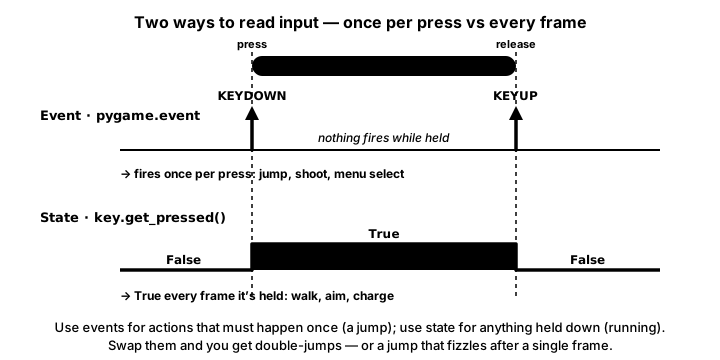
Imagine you are waiting for a friend. You can listen for the doorbell: it rings once, at the moment they arrive, and you react. Or you can look out the window whenever you like and see whether someone is standing there right now. pygame gives you both kinds of input:
- Events are doorbells.
KEYDOWNarrives once when a key goes down,KEYUPonce when it comes back up, andMOUSEBUTTONDOWNonce per click. You read them in thefor event in pygame.event.get()loop. Use them for one-shot actions: jump, shoot, open a menu, pick a color. - State is the window.
pygame.key.get_pressed()tells you which keys are down right now, andpygame.mouse.get_pos()where the cursor is right now. You check them every frame. Use them for actions that last: walking while a key is held, aiming at the cursor.
Feel the difference in the demo. Both squares "jump when Space is pressed", but the left one listens for the KEYDOWN event and the right one checks the key's state every frame. Tap Space, then hold it down.
Hold Space for a few seconds and compare the counters. The left square jumped once. The right one jumps again every time it lands, because "is Space held?" is true on every frame, including the frame it touches the ground. That is the bug players call bunny-hopping, and it is why a jump belongs in the event loop.
⌨️ Keyboard Events
Every key press puts a KEYDOWN event in the queue, and every release a KEYUP. The event's key attribute says which key, as a constant such as pygame.K_SPACE. Run this program and watch the terminal as you press and release keys:
import pygame

pygame.init()
screen = pygame.display.set_mode((640, 360))
pygame.display.set_caption("Keyboard Events")
clock = pygame.time.Clock()
font = pygame.font.Font(None, 36)
message = "Press Space, Enter or Escape"

running = True
while running:
    clock.tick(60)
    for event in pygame.event.get():
        if event.type == pygame.QUIT:
            running = False
        elif event.type == pygame.KEYDOWN:
            if event.key == pygame.K_SPACE:
                message = "Space pressed: jump!"
            elif event.key == pygame.K_RETURN:
                message = "Enter pressed: start the game"
            elif event.key == pygame.K_ESCAPE:
                message = "Escape pressed: open the menu"
            print("KEYDOWN", pygame.key.name(event.key))
        elif event.type == pygame.KEYUP:
            print("KEYUP  ", pygame.key.name(event.key))

    screen.fill((20, 20, 30))
    screen.blit(font.render(message, True, (230, 230, 230)), (30, 160))
    pygame.display.flip()

pygame.quit()
Hold a key down: you get one KEYDOWN, then nothing at all for as long as you hold it, and then one KEYUP when you let go. pygame starts with key repeat switched off, so a held key does not keep sending KEYDOWN. (A text box might want repeats; pygame.key.set_repeat(400, 40) turns them on, with times in milliseconds.) pygame.key.name(event.key) turns a key constant into a readable name such as "space", which is handy for debugging.
| Key | Constant | Key | Constant |
|---|---|---|---|
| Letters | K_a … K_z | Digits | K_0 … K_9 |
| Arrows | K_UP, K_DOWN, K_LEFT, K_RIGHT | Space | K_SPACE |
| Enter | K_RETURN | Escape | K_ESCAPE |
| Shift | K_LSHIFT, K_RSHIFT | Control | K_LCTRL, K_RCTRL |
| Tab | K_TAB | Backspace | K_BACKSPACE |
All of them live on the pygame module, so you write pygame.K_SPACE. Letter constants are lowercase (K_a) even when Shift is held.
🏃 Held Keys and Smooth Movement
pygame.key.get_pressed() returns a big list-like object with one True/False entry per key, indexed by the same constants: keys[pygame.K_LEFT] is True while Left is held. Call it once per frame, after the event loop (pygame updates it while it processes events), and move by speed * dt as in The Game Loop:
import pygame

WIDTH, HEIGHT = 800, 600
SIZE = 40
SPEED = 300                     # pixels per second

pygame.init()
screen = pygame.display.set_mode((WIDTH, HEIGHT))
pygame.display.set_caption("Glide")
clock = pygame.time.Clock()

x, y = 380.0, 280.0             # floats, so small steps add up

running = True
while running:
    dt = clock.tick(60) / 1000
    for event in pygame.event.get():
        if event.type == pygame.QUIT:
            running = False

    keys = pygame.key.get_pressed()
    dx = dy = 0
    if keys[pygame.K_LEFT] or keys[pygame.K_a]:
        dx -= 1
    if keys[pygame.K_RIGHT] or keys[pygame.K_d]:
        dx += 1
    if keys[pygame.K_UP] or keys[pygame.K_w]:
        dy -= 1
    if keys[pygame.K_DOWN] or keys[pygame.K_s]:
        dy += 1

    if dx != 0 and dy != 0:     # moving diagonally?
        dx *= 0.7071            # 1 / sqrt(2): same speed as a straight move
        dy *= 0.7071

    x += dx * SPEED * dt
    y += dy * SPEED * dt
    x = max(0, min(WIDTH - SIZE, x))     # stay inside the window
    y = max(0, min(HEIGHT - SIZE, y))

    screen.fill((20, 20, 30))
    pygame.draw.rect(screen, (80, 200, 240), (x, y, SIZE, SIZE))
    pygame.display.flip()

pygame.quit()
Three details make this feel good:
- Left and right cancel out. Holding both leaves
dxat 0, so the square stops instead of jittering. - Diagonals are not faster. One step right plus one step down covers about 1.414 steps (the diagonal of a square, by Pythagoras). Multiplying both parts by 0.7071, which is 1 divided by 1.414, brings the diagonal speed back to
SPEED. - The square stays on screen.
max(0, min(limit, x))clamps the position, the same trickclamp_color()uses on color channels.
✅ Growth Mindset: "Nothing Happens" Is a Clue
Pressing a key and seeing nothing is one of the most common moments in game programming, and it always has a findable cause. Work through it like a detective: add print(keys[pygame.K_LEFT]) or print(event) and look at the terminal. Is the window focused (click it)? Is the check inside the loop? Is dt zero? Each print rules out one suspect. You are not stuck; you are narrowing it down.
🖱️ The Mouse and the Wheel
The mouse has events and state too:
| What | How | Useful attributes |
|---|---|---|
| Button pressed / released (event) | MOUSEBUTTONDOWN, MOUSEBUTTONUP | event.button: 1 left, 2 middle, 3 right; event.pos: where |
| Mouse moved (event) | MOUSEMOTION | event.pos, event.rel (how far it moved), event.buttons (which are held) |
| Wheel rolled (event) | MOUSEWHEEL | event.y: positive when rolled away from you (up), negative toward you; event.x for sideways scrolling |
| Where is it now? (state) | pygame.mouse.get_pos() | an (x, y) tuple |
| Which buttons are held? (state) | pygame.mouse.get_pressed() | a tuple: (left, middle, right) |
Use MOUSEWHEEL for scrolling. Older tutorials read the wheel as mouse "buttons" 4 and 5, and pygame still sends those MOUSEBUTTONDOWN events for backward compatibility. That has a practical side effect: if your click code doesn't check event.button == 1, rolling the wheel counts as a click.
Here is a small paint program that uses all of it: drag with the left button to paint, roll the wheel to change the brush size, press 1 to 6 to pick a color, and C to clear. The painting lives on its own Surface, built once, exactly like the trees and clouds in Drawing Shapes & Surfaces.
import pygame

WIDTH, HEIGHT = 800, 600
WHITE = (255, 255, 255)
COLORS = [(20, 20, 20), (230, 57, 70), (42, 157, 143), (69, 123, 157), (244, 162, 97), WHITE]
HIGHLIGHT = (255, 190, 0)       # gold: visible around dark AND light swatches

pygame.init()
screen = pygame.display.set_mode((WIDTH, HEIGHT))
pygame.display.set_caption("Paint")
clock = pygame.time.Clock()
font = pygame.font.Font(None, 24)

canvas = pygame.Surface((WIDTH, HEIGHT))    # the painting, kept between frames
canvas.fill(WHITE)
color_index = 0
brush = 8
drawing = False
last_pos = None

running = True
while running:
    clock.tick(60)
    for event in pygame.event.get():
        if event.type == pygame.QUIT:
            running = False
        elif event.type == pygame.KEYDOWN:
            if pygame.K_1 <= event.key <= pygame.K_6:
                color_index = event.key - pygame.K_1     # K_1 to K_6 are consecutive numbers
            elif event.key == pygame.K_c:
                canvas.fill(WHITE)
        elif event.type == pygame.MOUSEBUTTONDOWN and event.button == 1:
            drawing = True
            last_pos = event.pos
            pygame.draw.circle(canvas, COLORS[color_index], event.pos, brush // 2)
        elif event.type == pygame.MOUSEBUTTONUP and event.button == 1:
            drawing = False
            last_pos = None
        elif event.type == pygame.MOUSEMOTION and drawing:
            pygame.draw.line(canvas, COLORS[color_index], last_pos, event.pos, brush)
            last_pos = event.pos
        elif event.type == pygame.MOUSEWHEEL:
            brush = max(1, min(40, brush + event.y * 2))

    screen.blit(canvas, (0, 0))

    # Palette: one swatch per color, the chosen one ringed in gold.
    for i, color in enumerate(COLORS):
        swatch = (12 + i * 44, 12, 32, 32)
        pygame.draw.rect(screen, color, swatch)
        pygame.draw.rect(screen, (90, 90, 90), swatch, 1)
        if i == color_index:
            pygame.draw.rect(screen, HIGHLIGHT, (8 + i * 44, 8, 40, 40), 3)

    # Brush preview follows the cursor (state: where is the mouse now?).
    pygame.draw.circle(screen, (120, 120, 120), pygame.mouse.get_pos(), brush // 2 + 1, 1)

    help_text = f"Brush {brush} (wheel)   Colors: 1-6   Clear: C   Drag to paint"
    screen.blit(font.render(help_text, True, (60, 60, 60)), (12, HEIGHT - 28))
    pygame.display.flip()

pygame.quit()
Notice which input style each feature uses. Picking a color, clearing and changing the brush are one-shot actions, so they are events. The brush preview must follow the cursor every frame, so it reads state with pygame.mouse.get_pos(). Painting uses both: the button events switch drawing on and off, and each MOUSEMOTION event draws a line from the last position to the new one, so fast strokes have no gaps.
🕹️ Gamepads and Hot-Plugging
pygame reads gamepads through pygame.joystick. Players plug controllers in and out while a game is running, so don't just count controllers once at startup. Listen for two events instead:
JOYDEVICEADDEDarrives when a pad is connected, and pygame-ce also sends one at startup for every pad that is already plugged in. Create the joystick fromevent.device_indexand store it by its instance id.JOYDEVICEREMOVEDarrives when a pad is unplugged; itsevent.instance_idtells you which one to forget.
The program below runs happily without any gamepad (it just says so), and picks one up the moment you plug it in:
import pygame

WIDTH, HEIGHT = 800, 600
SPEED = 300          # pixels per second at full stick
DEAD_ZONE = 0.15     # ignore tiny stick readings near the center

pygame.init()
screen = pygame.display.set_mode((WIDTH, HEIGHT))
pygame.display.set_caption("Gamepad")
clock = pygame.time.Clock()
font = pygame.font.Font(None, 30)

joysticks = {}       # instance id -> Joystick
x, y = WIDTH / 2, HEIGHT / 2

running = True
while running:
    dt = clock.tick(60) / 1000
    for event in pygame.event.get():
        if event.type == pygame.QUIT:
            running = False
        elif event.type == pygame.JOYDEVICEADDED:
            joy = pygame.joystick.Joystick(event.device_index)
            joysticks[joy.get_instance_id()] = joy
            print("Connected:", joy.get_name())
        elif event.type == pygame.JOYDEVICEREMOVED:
            joysticks.pop(event.instance_id, None)
            print("Disconnected a gamepad")
        elif event.type == pygame.JOYBUTTONDOWN:
            print("Button", event.button, "pressed")     # a one-shot action

    move_x = move_y = 0.0
    for joy in joysticks.values():
        stick_x, stick_y = joy.get_axis(0), joy.get_axis(1)   # usually the left stick
        if abs(stick_x) > DEAD_ZONE:
            move_x += stick_x
        if abs(stick_y) > DEAD_ZONE:
            move_y += stick_y
        if joy.get_numhats() > 0:                     # a D-pad, if the pad reports one
            hat_x, hat_y = joy.get_hat(0)
            move_x += hat_x
            move_y -= hat_y                            # the hat says +1 for UP

    x = max(20, min(WIDTH - 20, x + move_x * SPEED * dt))
    y = max(20, min(HEIGHT - 20, y + move_y * SPEED * dt))

    screen.fill((20, 20, 30))
    pygame.draw.circle(screen, (250, 204, 21), (x, y), 20)
    status = f"Gamepads connected: {len(joysticks)}"
    if not joysticks:
        status += "  (plug one in any time)"
    screen.blit(font.render(status, True, (230, 230, 230)), (12, 12))
    pygame.display.flip()

pygame.quit()- Axes go from -1.0 to 1.0, with 0 in the middle. Sticks rarely rest at exactly 0, and the pygame docs warn that drift can keep them a little off center, so ignore small values: that is the dead zone. Without it, a character creeps across the screen while nobody touches the pad.
- Buttons send
JOYBUTTONDOWN/JOYBUTTONUPevents (use them for jumps), andjoy.get_button(n)gives their state. - Which number is which button or axis depends on the controller and the system, so print them while you press things. pygame-ce also has an experimental
pygame._sdl2.controllermodule that maps many popular pads to one standard layout; look it up when you want "the A button" to mean the same thing on every pad.
🧰 Common Input Bugs
| Symptom | Cause | Fix |
|---|---|---|
| Holding jump makes the player bunny-hop | Jump checked with get_pressed() | Jump on the KEYDOWN event, and only when on the ground |
| Movement goes one step per key press | Movement done on KEYDOWN | Move every frame from get_pressed() |
| Diagonal movement is faster | x and y both get full speed | Multiply both by 0.7071 when moving diagonally |
| Rolling the wheel fires the gun | Wheel sends legacy button 4/5 clicks | Check event.button == 1; read the wheel from MOUSEWHEEL |
| Speed changes with frame rate | Moving a fixed number of pixels per frame | Move by speed * dt |
| Character creeps with the pad untouched | Stick drift | Apply a dead zone |
| Keys do nothing at all | The window isn't focused | Click the game window first |
💡 Why this matters
Players never see your code, but they feel your input handling in every second of play. A jump that fires twice or a stick that drifts makes a game feel "off" even when players can't say why. Getting events and state right is the cheapest way to make a game feel responsive.
✅ Growth Mindset: Feel It, Then Fix It
Controls are tuned by playing them, not by getting the numbers right on paper. Your first jump will feel floaty or stiff, and that is expected. Change one number (JUMP_SPEED, GRAVITY, SPEED), play for ten seconds, and write down what changed. Game designers do exactly this, over and over. Every adjustment teaches your hands and your head something.
🏋️ Practice Exercise: Move and Jump
Objective: make a square slide left and right while an arrow key is held, jump exactly once each time Space is pressed, and change color when you roll the mouse wheel.
Time: about 40 minutes. Starter file: move_and_jump_starter.py (your instructor has it). It draws the square on the ground and a jump counter; its numbered comments match the steps below.
- Run the starter. The square sits still on the ground, and the close button works. (≈ 2 min)
- After the event loop, call
pygame.key.get_pressed()and setdirectionto -1, 0 or +1 from Left/A and Right/D. Inmove_sideways(), adddirection * SPEED * dttox. (≈ 8 min) - Keep the square inside the window: clamp
xbetween 0 andWIDTH - SIZE. (≈ 4 min) - In the event loop, on
KEYDOWNwithpygame.K_SPACE, and only ifon_ground(y), setvy = -JUMP_SPEEDand add 1 tojumps. Nothing moves yet, because gravity isn't written. (≈ 6 min) - Write
fall(): addGRAVITY * dttovy, thenvy * dttoy, and land back onGROUND_Ywithvy = 0.0. Now the square jumps. Hold Space: it should jump once, not bunny-hop. (≈ 10 min) - On
MOUSEWHEEL, changecolor_indexbyevent.yand wrap it with% len(COLORS). (≈ 5 min) - Play with the feel: try
JUMP_SPEED = 650andGRAVITY = 1500. Write down which feels better, then put your favorite numbers back. (≈ 5 min)
You are done when:
- holding Left or Right slides the square smoothly, and it stops at both edges of the window;
- each Space press makes exactly one jump, holding Space never re-jumps, and pressing Space in mid-air does nothing;
- rolling the wheel either way cycles the color;
- closing the window prints a line like
Jumps: 7that matches the number of jumps you saw.
💡 Hint
Remember that y grows downward, so "up" is negative: a jump sets vy to a negative number and gravity adds a positive amount every frame until the square falls back. If the square vanishes off the top, check that fall() adds GRAVITY * dt to vy (not y). If it sinks into the floor, check the landing test: if y >= GROUND_Y: then put it back. For the wheel, Python's % already wraps negative numbers: -1 % 4 is 3.
✅ Example Solution
If your instructor hands you the lab file, you will see a few extra lines marked lab runtime near the top and and frame_budget() in the loop. They let the instructor's checker run the program automatically for a fixed number of frames; when you run it yourself they do nothing. You never need to write them.
"""Move and Jump: Intro Lesson 3 practice exercise (solution).

Hold Left/Right (or A/D) to slide the square: state-based input, checked
every frame. Tap Space to jump: event-based input, once per press, and
only from the ground. Roll the mouse wheel to change the square's color.
Close the window to quit.
"""
import pygame


WIDTH, HEIGHT = 800, 600
FPS = 60
SIZE = 40                  # the square is SIZE x SIZE pixels
SPEED = 300                # pixels per second, sideways
JUMP_SPEED = 520           # pixels per second, upward, at take-off
GRAVITY = 980              # pixels per second, per second
GROUND_Y = 500             # the square's top y while it stands on the ground
BG_COLOR = (20, 20, 30)
GROUND_COLOR = (120, 120, 120)
TEXT_COLOR = (230, 230, 230)
COLORS = [(80, 200, 240), (255, 107, 107), (250, 204, 21), (74, 222, 128)]


def move_sideways(x, direction, dt):
    """Move left (direction -1), right (+1) or not at all (0); stay inside the window."""
    x += direction * SPEED * dt
    return max(0, min(WIDTH - SIZE, x))


def on_ground(y):
    return y >= GROUND_Y


def fall(y, vy, dt):
    """Apply gravity for one frame. Returns the new (y, vy); lands on GROUND_Y."""
    vy += GRAVITY * dt
    y += vy * dt
    if y >= GROUND_Y:
        y = GROUND_Y
        vy = 0.0
    return y, vy


def main():
    pygame.init()
    screen = pygame.display.set_mode((WIDTH, HEIGHT))
    pygame.display.set_caption("Move and Jump")
    clock = pygame.time.Clock()
    font = pygame.font.Font(None, 28)

    x, y, vy = WIDTH / 2 - SIZE / 2, GROUND_Y, 0.0
    color_index = 0
    jumps = 0

    running = True
    while running:
        dt = clock.tick(FPS) / 1000

        # 1. Events: one-shot actions
        for event in pygame.event.get():
            if event.type == pygame.QUIT:
                running = False
            elif event.type == pygame.KEYDOWN:
                if event.key == pygame.K_SPACE and on_ground(y):
                    vy = -JUMP_SPEED            # fires once per press
                    jumps += 1
            elif event.type == pygame.MOUSEWHEEL:
                color_index = (color_index + event.y) % len(COLORS)

        # 2. State: held keys, checked every frame
        keys = pygame.key.get_pressed()
        direction = 0
        if keys[pygame.K_LEFT] or keys[pygame.K_a]:
            direction -= 1
        if keys[pygame.K_RIGHT] or keys[pygame.K_d]:
            direction += 1

        # 3. Update
        x = move_sideways(x, direction, dt)
        y, vy = fall(y, vy, dt)

        # 4. Draw
        screen.fill(BG_COLOR)
        pygame.draw.line(screen, GROUND_COLOR, (0, GROUND_Y + SIZE), (WIDTH, GROUND_Y + SIZE), 2)
        pygame.draw.rect(screen, COLORS[color_index], (x, y, SIZE, SIZE))
        hud = font.render(f"Jumps: {jumps}   (arrows move, Space jumps, wheel = color)", True, TEXT_COLOR)
        screen.blit(hud, (10, 10))
        pygame.display.flip()

    pygame.quit()
    print(f"Jumps: {jumps}")


if __name__ == "__main__":
    main()
📓 Learning Journal
Take five minutes to write in your learning journal (a notebook or a plain text file works). Jot down:
- Key concepts you learned today
- Techniques that clicked (and the ones that haven't, yet)
- Questions or confusion to bring to the next session
- Ideas to try in your own game
- Progress and feelings: how did this lesson go for you?
✍️ This lesson's prompts:
- List five actions from a game you know (for example: walk, jump, open the map, aim, pause). Label each one "event" or "state" and explain your choice in one sentence.
- Which jump numbers did you settle on, and how would you describe the feel in words a player would use?
- Think of a game whose controls annoyed you. Which of today's bugs might have caused it?
📝 Summary
Input comes in two flavors. Events such as KEYDOWN, MOUSEBUTTONDOWN, MOUSEWHEEL and JOYBUTTONDOWN arrive once per action and belong in the event loop; they are perfect for jumps, shots and menu choices. State from pygame.key.get_pressed(), pygame.mouse.get_pos() and joystick axes is checked every frame; it is perfect for movement and aiming. You moved a square in pixels per second with the diagonal fixed, painted with the mouse, read the wheel the modern way, and wrote gamepad code that copes with controllers being plugged in and out.
🎓 Key Takeaways
- Events fire once per action: use them for one-shot actions like jump, shoot and select.
- State is true for as long as a key or button is held: use it for movement and aiming, every frame, times
dt. - Scale diagonal movement by 0.7071 so it isn't faster than straight movement, and clamp positions to keep things on screen.
- Read the wheel with
MOUSEWHEEL(event.y), and checkevent.button == 1so wheel "clicks" don't count. - Handle
JOYDEVICEADDED/JOYDEVICEREMOVEDfor gamepads, and ignore stick values inside a dead zone.
🔭 Looking Ahead
Your square moves around one window, but many games have worlds far bigger than the screen. In the next lesson, Coordinate Systems, you separate where things are in the world from where they appear on screen, and build a camera that pans across a big level.
❓ Common Questions
Should I use events or get_pressed() for my action?
Ask "does this happen once, or does it last?" Once (jump, shoot, open a door, pick a menu item) means an event. Lasts (walk, steer, charge a shot, aim) means state. Many actions use both: a charged shot starts on KEYDOWN, grows while the key is held, and fires on KEYUP.
Is there a "pressed this frame" check without writing an event handler?
Yes. pygame-ce has pygame.key.get_just_pressed() and pygame.key.get_just_released(), which you index like get_pressed() but which are only True on the frame the key changed. They are handy for quick prototypes; the event loop is still the most precise, because it keeps every press in order.
Why check the wheel with MOUSEWHEEL instead of buttons 4 and 5?
MOUSEWHEEL is the modern event: it tells you the direction and amount in event.y, and it also reports sideways scrolling in event.x, which buttons 4 and 5 can't. The button events are still sent for older code, which is exactly why your click handler should check event.button == 1.
My arrow keys scroll the page or do nothing. What's wrong?
Keyboard input goes to whichever window has focus. Click your pygame window once before pressing keys. (The demo on this page works the same way: click it first.)
Can I hide the mouse cursor, for example in an aiming game?
Yes: pygame.mouse.set_visible(False), called after pygame.display.set_mode(). Then draw your own crosshair at pygame.mouse.get_pos() every frame.
My gamepad isn't detected at all.
Make sure you are handling JOYDEVICEADDED in the event loop, and that the pad works in another program. Some wireless pads need to be paired with the system first. Printing pygame.joystick.get_count() shows how many pads pygame can see.
🎯 Quick Quiz
Question 1: Which of these actions should be handled with an event such as KEYDOWN?
Question 2: What does pygame.key.get_pressed()[pygame.K_LEFT] tell you?
Question 3: A player's jump is written as if keys[pygame.K_SPACE] and on_ground(y): vy = -JUMP_SPEED. What happens while Space is held?
Question 4: How should you read the mouse wheel in pygame-ce?
Question 5: Why does the gamepad program ignore stick values smaller than DEAD_ZONE?
🌟 Going Further
- Variable jump height: on
KEYUPfor Space, if the square is still rising (vy < 0), cut its speed in half. Tapping gives a short hop and holding gives a full jump. - Click to teleport: on
MOUSEBUTTONDOWNwithevent.button == 1, move the square'sxto the click position, clamped to the window. - Gamepad support: add the hot-plug code from Gamepads and Hot-Plugging to Move and Jump, so the stick moves the square and a pad button jumps.
- Remappable keys: store your controls in a dictionary such as
{"left": pygame.K_LEFT, "jump": pygame.K_SPACE}and read from it, so a player could change them later. - Read the docs: skim the pygame-ce pages for pygame.key, pygame.mouse and pygame.joystick.
- Coming up in Game Dev II: Intermediate: Gravity & Jumping and Character Controllers turn this simple jump into platformer movement with coyote time and jump buffering.