Lesson 5: Vectors with pygame.math.Vector2
By the end of this lesson you will move players, enemies and bullets with pygame.Vector2, so diagonal movement is fair, chasers keep a steady speed and slow objects never get stuck. Vectors are the everyday language of game movement, and your first small class will hold one.
🎯 Learning Objectives
By the end of this lesson, you will be able to:
- Create
pygame.Vector2objects and add, subtract and scale them to move things. - Explain why a direction must be normalized before you multiply it by a speed, and guard against the zero vector.
- Use subtraction and the dot product to find the direction to a target and whether it is in front or behind.
- Build a game object as a small class that keeps a float
Vector2position and aRectthat follows it. - Debug the classic vector bugs: fast diagonals, a crash on
normalize()and a sprite that never moves.
Project: Predator and Prey, a chase where three hunters see you only when you are in front of them.
In This Lesson
🏹 What Is a Vector?
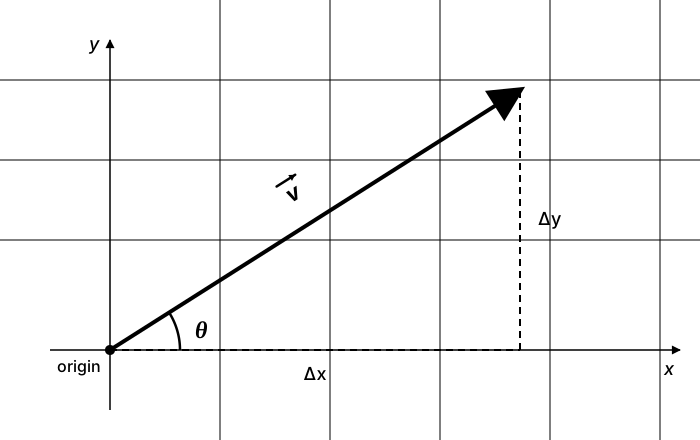
Picture an archer's arrow lying on a map. It has a length (how far) and it points somewhere (which way). You can also describe the same arrow as "so many steps right, so many steps down": its x and y components. That is all a 2D vector is: a pair of numbers (x, y) that you can read either as a point or as an arrow.
Games use that one idea for three different jobs:
- Position: where something is, measured from the top-left corner of the screen, such as
(400, 300). - Displacement: how to get from one place to another, such as "120 right and 80 up".
- Velocity: how far something moves each second, such as
(240, 0)for 240 pixels per second to the right.
💡 Why this matters
Until now you moved things with separate x and y variables and wrote every calculation twice. A vector keeps the pair together, so "move by velocity times dt" becomes one line, and questions like "which way is the player?" and "how far away is it?" each become one method call.
🧮 Meet pygame.Vector2
pygame-ce ships a ready-made vector type, pygame.Vector2 (the same class is also available as pygame.math.Vector2). It stores two floats, x and y, and understands arithmetic. Run this short program; it opens no window, it just prints:
import pygame

position = pygame.Vector2(100, 200)     # x = 100, y = 200
velocity = pygame.Vector2(3, -4)        # 3 right, 4 UP (y grows downward)

print(position.x, position.y)           # 100.0 200.0
print(position + velocity)              # [103, 196]
print(position - velocity)              # [97, 204]
print(velocity * 2)                     # [6, -8]
print(velocity.length())                # 5.0
print(position + (10, 0))               # tuples work too: [110, 200]
What each operation means in a game:
| Code | Meaning | Typical use |
|---|---|---|
a + b | Put the arrows tip to tail | Move a position by a displacement; combine a push and a velocity |
b - a | The arrow from a to b | "Which way, and how far, is the player from this enemy?" |
v * 2, v / 2 | Same direction, longer or shorter | Turn a direction into a velocity; half speed in water |
-v | Same length, opposite way | Run away instead of chasing |
v.length() | How long the arrow is | Speed, distance |
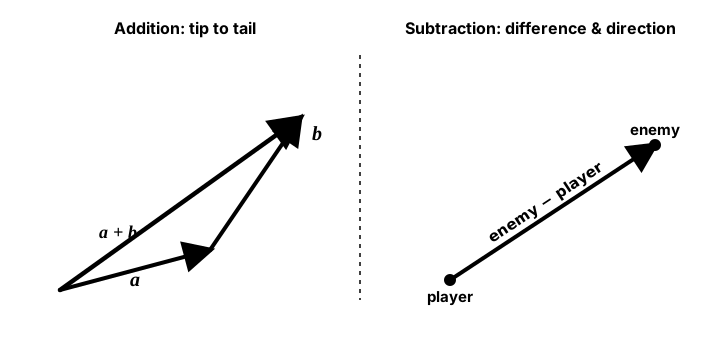
enemy - player is the arrow pointing from the player to the enemy.Try it yourself. Drag the tips of the blue arrow a and the orange arrow b, then switch between the operations. The readouts use screen coordinates, so pulling a tip upward makes its y negative.
One trap: = does not copy a vector
A Vector2 can be changed in place (pos.x += 5, pos += velocity). That is handy, but it means two names can share one vector without you noticing:
import pygame

start = pygame.Vector2(400, 300)
player = start               # NOT a copy: both names point at the same vector
player.x += 50
print(start)                 # [450, 300]  start moved too!

player = start.copy()        # a separate vector; pygame.Vector2(start) also works
player.x += 50
print(start, player)         # [450, 300] [500, 300]
Whenever you want a vector to remember a starting point (a respawn spot, the middle of the screen), store a .copy().
📏 Length and Normalize: Fair Diagonals
Suppose you move a player with the arrow keys by adding to x and y separately, using pygame.key.get_pressed() from the Keyboard, Mouse & Gamepad lesson. Hold Right and Down together and something unfair happens: the player moves right at full speed and down at full speed, so the diagonal step is longer than a straight one.
| Keys held | Direction vector | length() | Speed if you multiply by 200 |
|---|---|---|---|
| Right | (1, 0) | 1.0 | 200 px/s |
| Right + Down | (1, 1) | 1.414… | about 283 px/s, 41% too fast |
| Right + Down, normalized | (0.707, 0.707) | 1.0 | 200 px/s |
Normalizing keeps a vector's direction but sets its length to exactly 1. A length-1 vector is called a unit vector, and it is the perfect "which way" value: multiply it by any speed and you get a velocity of exactly that speed.
keys = pygame.key.get_pressed()
direction = pygame.Vector2(keys[pygame.K_RIGHT] - keys[pygame.K_LEFT],
                           keys[pygame.K_DOWN] - keys[pygame.K_UP])
if direction.length_squared() > 0:     # a zero vector cannot be normalized
    direction = direction.normalize()
pos += direction * SPEED * dt          # SPEED in pixels per second
Why the if? When no key is held, direction is (0, 0). A zero-length arrow has no direction, so normalize() raises ValueError: Can't normalize Vector of length zero. Checking length_squared() > 0 first avoids the crash. (Use the length check, not if direction:. A zero vector does count as false, but the explicit check says what you mean and reads the same everywhere you need it.)
✅ Growth Mindset: "Can't normalize Vector of length zero" Is a Rite of Passage
Nearly everyone who learns vectors crashes on this error, usually the first time the player stands still or an enemy reaches its target exactly. It does not mean you misunderstand vectors; it means your code met the one input that has no direction. Read the traceback's last line, find the normalize() it points to, and ask "could this vector be zero here?" Adding that guard is a habit you are building, not a mistake you should have avoided.
🎯 Direction and Distance to a Target
Every chaser, homing missile and "walk to where I clicked" needs the same two facts: which way is the target, and how far? Subtraction answers both at once.
to_target = target - enemy_pos            # the arrow from the enemy to the target
distance = to_target.length()             # same value as enemy_pos.distance_to(target)
if distance > 0:
    step = min(ENEMY_SPEED * dt, distance)        # never step past the target
    enemy_pos += to_target.normalize() * step
The recipe is subtract, normalize, then scale. If you skip the normalize and write enemy_pos += to_target * 0.05, the step is proportional to the distance: far-away enemies rocket toward you and close ones crawl. Normalizing throws the distance away and keeps only the direction, so the speed is whatever you choose.
The min(…, distance) stops the enemy from overshooting and jittering back and forth across the target. pygame-ce has a built-in for exactly this pattern: enemy_pos.move_towards_ip(target, ENEMY_SPEED * dt) moves the vector in place by at most that many pixels. Here it is in a complete program where a dot follows your mouse at a steady 250 pixels per second:
import pygame

pygame.init()
screen = pygame.display.set_mode((800, 600))
pygame.display.set_caption("Follow the Mouse")
clock = pygame.time.Clock()

SPEED = 250                              # pixels per second
dot = pygame.Vector2(400, 300)

running = True
while running:
    dt = clock.tick(60) / 1000
    for event in pygame.event.get():
        if event.type == pygame.QUIT:
            running = False

    target = pygame.Vector2(pygame.mouse.get_pos())
    dot.move_towards_ip(target, SPEED * dt)       # at most SPEED * dt pixels, no overshoot

    screen.fill((17, 24, 39))
    pygame.draw.line(screen, (75, 85, 99), dot, target)
    pygame.draw.circle(screen, (96, 165, 250), dot, 14)
    pygame.display.flip()

pygame.quit()
Comparing distances
To ask "is the enemy within 50 pixels?", compare a distance with a number:
if enemy_pos.distance_to(player_pos) < 50:
    print("Too close!")

# Same answer without the square root: compare squared distance with the squared radius.
if enemy_pos.distance_squared_to(player_pos) < 50 * 50:
    print("Too close!")
Both lines give the same answer, because for positive numbers, a smaller distance always has a smaller square. You will see the squared version in a lot of game code because it skips the square root. If you use it, remember to square the radius too; comparing a squared distance with plain 50 makes the radius about 7 pixels. For a handful of objects, pick whichever reads more clearly to you.
Subtraction also gives you the camera trick from the Coordinate Systems lesson in one line: screen_pos = world_pos - camera, where both are vectors.
👀 The Dot Product: In Front or Behind?
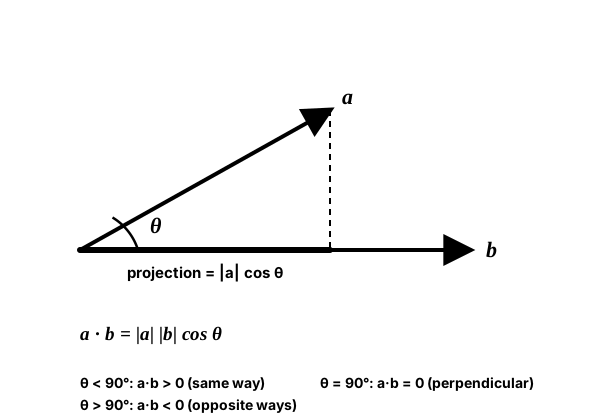
A guard should only notice you when you are in front of it. You could work out angles, but there is a simpler tool: the dot product. For two vectors it is a.x * b.x + a.y * b.y, one number, and pygame-ce computes it with a.dot(b).
def is_in_front(observer_pos, facing, target_pos):
    """facing is a unit vector pointing where the observer looks."""
    to_target = target_pos - observer_pos
    return facing.dot(to_target) > 0     # positive: the target is in the front half
Notice that to_target is not normalized. Normalizing only divides by a positive length, and dividing by a positive number never changes a sign, so the check gives the same answer either way. In the playground above, choose a.dot(b) and swing b around a: the number turns negative the moment b passes 90° away.
facing | to_target | facing.dot(to_target) | Verdict |
|---|---|---|---|
(1, 0) looking right | (200, 50) | 200 | In front |
(1, 0) | (0, 120) | 0 | Exactly to the side |
(1, 0) | (-50, 20) | −50 | Behind |
🧱 Float Positions and Your First Class
You have drawn things with pygame.Rect, and it is tempting to store a player's position in its rect and write rect.x += speed * dt. There is a catch: a Rect holds whole numbers only. Every time you store a fraction, it is cut off toward zero. At 60 FPS, something moving 20 pixels per second should move about 0.33 pixels a frame, and a rect cuts every one of those steps to nothing. Run this and watch:
import pygame

pygame.init()
screen = pygame.display.set_mode((800, 200))
pygame.display.set_caption("Rect vs Vector2")
clock = pygame.time.Clock()
SPEED = 20                                   # a slow 20 pixels per second

rect_only = pygame.Rect(20, 40, 40, 40)      # position stored in the Rect: whole numbers
pos = pygame.Vector2(40, 140)                # float position...
rect_follow = pygame.Rect(0, 0, 40, 40)      # ...and a Rect that follows it
rect_follow.center = pos

running = True
while running:
    dt = clock.tick(60) / 1000
    for event in pygame.event.get():
        if event.type == pygame.QUIT:
            running = False

    rect_only.x += SPEED * dt                # about 0.33 px a frame, cut back to a whole number
    pos.x += SPEED * dt                      # about 0.33 px a frame, and it adds up
    rect_follow.center = pos                 # the Rect follows the float position

    screen.fill((17, 24, 39))
    pygame.draw.rect(screen, (248, 113, 113), rect_only)
    pygame.draw.rect(screen, (74, 222, 128), rect_follow)
    pygame.display.flip()

pygame.quit()
The red square never moves. (Moving left is broken the other way: cutting toward zero turns each −0.33 step into a full −1, so it moves about three times too fast.) The green square works because of the pattern this course uses from now on:
📌 The float-position pattern
- Keep the real position in a
Vector2(floats). - Move the vector:
pos += velocity * dt. - Copy it into the rect every frame:
rect.center = pos. The rect is only for drawing (and, later, collisions); the vector is the truth.
A player now has a position, a velocity, a rect and some code that updates and draws them. Keeping all of that in loose variables gets messy the moment you want three enemies. This is where a class helps: it bundles one object's data with the functions that work on it.
Here is the float-position pattern wrapped in a class. Each Mover keeps its own vector and rect, and the game loop just calls update and draw on each one:
import pygame

WIDTH, HEIGHT = 800, 400


class Mover:
    """A square with a float position that bounces between the side walls."""

    def __init__(self, x, y, speed, color):
        self.pos = pygame.Vector2(x, y)          # the real position (floats)
        self.vel = pygame.Vector2(speed, 0)      # pixels per second
        self.color = color
        self.rect = pygame.Rect(0, 0, 40, 40)    # for drawing only
        self.rect.center = self.pos

    def update(self, dt):
        self.pos += self.vel * dt
        if self.pos.x < 20 or self.pos.x > WIDTH - 20:
            self.pos.x = max(20, min(WIDTH - 20, self.pos.x))   # back inside
            self.vel = -self.vel                                # turn around
        self.rect.center = self.pos              # the rect follows, every frame

    def draw(self, screen):
        pygame.draw.rect(screen, self.color, self.rect, border_radius=6)


pygame.init()
screen = pygame.display.set_mode((WIDTH, HEIGHT))
pygame.display.set_caption("Movers")
clock = pygame.time.Clock()
movers = [Mover(100, 100, 30, (248, 113, 113)),
          Mover(200, 200, 150, (250, 204, 21)),
          Mover(300, 300, 400, (74, 222, 128))]

running = True
while running:
    dt = clock.tick(60) / 1000
    for event in pygame.event.get():
        if event.type == pygame.QUIT:
            running = False

    for mover in movers:
        mover.update(dt)

    screen.fill((17, 24, 39))
    for mover in movers:
        mover.draw(screen)
    pygame.display.flip()

pygame.quit()
Even the slow red square at 30 pixels per second glides smoothly, because its position is a float.
✅ Growth Mindset: Classes Feel Strange at First, and That Is Normal
If self looks like noise right now, you are in the same place every programmer was the week they met classes. You do not need to understand everything about them yet. Use the pattern: attributes are set with self. in __init__, methods take self first, and each object keeps its own data. After you have written two or three classes in this course, re-read the sidebar; it will read very differently.
🔧 How It Works: Build Your Own Vector
This part is optional. You will always use pygame.Vector2 in this course, but seeing a vector class written out takes the magic away.
Show the hand-written vector class
Python lets a class decide what operators mean. When you write a + b, Python calls a.__add__(b); -a calls a.__neg__(); print(a) uses __repr__. These double-underscore methods are called special methods (or "dunder" methods). Here is a small vector that supports the operations from this lesson:
import math


class Vec:
    """A tiny 2D vector, to show what pygame.Vector2 does for you."""

    def __init__(self, x=0.0, y=0.0):
        self.x = x
        self.y = y

    def __repr__(self):                 # how print() shows it
        return f"Vec({self.x}, {self.y})"

    def __add__(self, other):           # a + b
        return Vec(self.x + other.x, self.y + other.y)

    def __sub__(self, other):           # a - b
        return Vec(self.x - other.x, self.y - other.y)

    def __mul__(self, number):          # a * 2
        return Vec(self.x * number, self.y * number)

    def __rmul__(self, number):         # 2 * a
        return self * number

    def __neg__(self):                  # -a
        return Vec(-self.x, -self.y)

    def length(self):
        return math.sqrt(self.x * self.x + self.y * self.y)

    def normalize(self):
        size = self.length()
        if size == 0:
            raise ValueError("can't normalize a zero vector")   # the same rule as pygame
        return Vec(self.x / size, self.y / size)

    def dot(self, other):
        return self.x * other.x + self.y * other.y


a = Vec(3, 4)
b = Vec(1, 0)
print(a + b, a - b, 2 * a, -a)     # Vec(4, 4) Vec(2, 4) Vec(6, 8) Vec(-3, -4)
print(a.length(), a.normalize())   # 5.0 Vec(0.6, 0.8)
print(a.dot(b))                    # 3
pygame.Vector2 does all of this and more, written in C, and it also accepts plain tuples wherever a vector is expected. For the full treatment of special methods, see Intermediate Python, Lesson 3: Magic Methods & Operator Overloading.
🏋️ Practice Exercise: Predator and Prey
Objective: build a chase where you steer the prey with the keyboard and three hunters chase you at a steady speed, but only while you are in front of them.
Time: about 40 minutes. Starter file: predator_prey_starter.py (your instructor has it). It opens the window, moves the prey (too fast on diagonals) and lets the predators wander. Its numbered comments match the steps below. A 10-minute warm-up, slow_mover_starter.py, practices the float-position pattern first.
- Run the starter. The blue prey is stuck in the top-left corner even though you are moving it. Make its rect follow the float position with
prey_rect.center = prey_pos. (≈ 3 min) - In
read_direction(), normalize the direction when it is not a zero vector. Hold two keys and check that diagonals are no faster. (≈ 5 min) - In
Predator.can_see(), subtract to get the vector from the predator to the target and return whether its dot product withself.facingis greater than 0. (≈ 8 min) - In
Predator.update(), when the prey is seen: pointself.facingat the prey (subtract, guard, normalize), then moveself.posalong it atCHASE_SPEEDpixels per second. (≈ 12 min) - In
caught(), return whether the two positions are closer thanCATCH_RADIUS. (≈ 5 min) - Play. Stand still in front of a predator, then behind one. Change
CHASE_SPEEDandPREY_SPEEDuntil the chase feels fair. (≈ 7 min)
You are done when:
- the prey moves at the same speed straight and diagonally, and the game never crashes when you stand still;
- a predator turns red and chases when you are in front of its facing line, and yellow when you are behind it;
- a chasing predator moves at the same speed whether you are near or far;
- getting caught adds one to the counter, and closing the window prints a line like
Caught 3 times.
💡 Hint
Every step is one of three recipes from this lesson. Direction to a target: target - self.pos. A pure direction: .normalize(), but only after length_squared() > 0. Movement: pos += direction * speed * dt. If the predators rocket toward you from far away and crawl up close, you forgot to normalize. If every predator is yellow all the time, check the sign in can_see().
✅ Example Solution
If your instructor hands you the lab file, you will see a few extra lines marked lab runtime near the top and and frame_budget() in the loop. They let the instructor's checker run the program automatically; when you run it yourself they do nothing.
"""Predator and Prey: Intro Lesson 5 practice exercise (solution).

Move the blue prey with WASD or the arrow keys. Three predators chase it,
but only while the prey is in front of them (a dot-product check); the
rest of the time they wander. Close the window to quit.
"""
import random

import pygame


WIDTH, HEIGHT = 800, 600
PREY_SPEED = 220          # pixels per second
CHASE_SPEED = 150         # pixels per second
WANDER_SPEED = 60         # pixels per second
CATCH_RADIUS = 26         # pixels
BG_COLOR = (20, 25, 35)
PREY_COLOR = (60, 180, 240)
CHASE_COLOR = (230, 70, 70)
WANDER_COLOR = (230, 200, 70)
TEXT_COLOR = (235, 235, 235)


def read_direction(keys):
    """Turn the held keys into a direction of length 1 (or a zero vector)."""
    direction = pygame.Vector2(0, 0)
    if keys[pygame.K_a] or keys[pygame.K_LEFT]:
        direction.x -= 1
    if keys[pygame.K_d] or keys[pygame.K_RIGHT]:
        direction.x += 1
    if keys[pygame.K_w] or keys[pygame.K_UP]:
        direction.y -= 1
    if keys[pygame.K_s] or keys[pygame.K_DOWN]:
        direction.y += 1
    if direction.length_squared() > 0:     # a zero vector cannot be normalized
        direction = direction.normalize()  # diagonals are no faster than straight lines
    return direction


def keep_on_screen(pos):
    """Clamp a position to the window, in place."""
    pos.x = max(0, min(WIDTH, pos.x))
    pos.y = max(0, min(HEIGHT, pos.y))


class Predator:
    """A hunter that chases what it can see and wanders otherwise."""

    def __init__(self, x, y, rng):
        self.pos = pygame.Vector2(x, y)       # float position
        self.facing = pygame.Vector2(1, 0)    # always length 1
        self.rng = rng
        self.wander_time = 0.0                # seconds until a new wander direction
        self.sees_prey = False

    def can_see(self, target):
        """True when target is in front of us (the front half of a circle)."""
        to_target = target - self.pos
        return to_target.dot(self.facing) > 0

    def pick_wander_direction(self):
        direction = pygame.Vector2(self.rng.uniform(-1, 1), self.rng.uniform(-1, 1))
        if direction.length_squared() > 0:
            self.facing = direction.normalize()
        self.wander_time = self.rng.uniform(0.5, 1.5)

    def respawn(self):
        """Jump back to a random spot along the top edge of the window."""
        self.pos = pygame.Vector2(self.rng.uniform(0, WIDTH), 0)

    def update(self, prey_pos, dt):
        self.sees_prey = self.can_see(prey_pos)
        if self.sees_prey:
            to_prey = prey_pos - self.pos
            if to_prey.length_squared() > 0:
                self.facing = to_prey.normalize()   # direction only, no distance
            self.pos += self.facing * CHASE_SPEED * dt
        else:
            self.wander_time -= dt
            if self.wander_time <= 0:
                self.pick_wander_direction()
            self.pos += self.facing * WANDER_SPEED * dt
        keep_on_screen(self.pos)

    def draw(self, screen):
        color = CHASE_COLOR if self.sees_prey else WANDER_COLOR
        pygame.draw.circle(screen, color, self.pos, 12)
        pygame.draw.line(screen, color, self.pos, self.pos + self.facing * 30, 3)


def caught(predator_pos, prey_pos):
    """True when the two positions are closer than CATCH_RADIUS."""
    return predator_pos.distance_to(prey_pos) < CATCH_RADIUS


def main():
    pygame.init()
    screen = pygame.display.set_mode((WIDTH, HEIGHT))
    pygame.display.set_caption("Predator and Prey")
    clock = pygame.time.Clock()
    font = pygame.font.Font(None, 26)       # create fonts once, before the loop
    rng = random.Random(7)                  # seeded, so every run starts the same way

    start = pygame.Vector2(WIDTH / 2, HEIGHT / 2)
    prey_pos = start.copy()                 # copy(), or both names share one vector
    prey_rect = pygame.Rect(0, 0, 28, 28)   # for drawing only; prey_pos is the truth
    predators = [Predator(rng.uniform(60, WIDTH - 60), rng.uniform(60, HEIGHT - 60), rng)
                 for _ in range(3)]
    catches = 0

    running = True
    while running:
        dt = clock.tick(60) / 1000              # seconds since the last frame
        for event in pygame.event.get():
            if event.type == pygame.QUIT:
                running = False

        # Update
        direction = read_direction(pygame.key.get_pressed())
        prey_pos += direction * PREY_SPEED * dt
        keep_on_screen(prey_pos)
        prey_rect.center = prey_pos             # the rect follows the float position

        for predator in predators:
            predator.update(prey_pos, dt)
            if caught(predator.pos, prey_pos):
                catches += 1
                prey_pos = start.copy()         # prey back to the middle
                predator.respawn()              # hunter back to the top edge

        # Draw
        screen.fill(BG_COLOR)
        pygame.draw.rect(screen, PREY_COLOR, prey_rect, border_radius=6)
        for predator in predators:
            predator.draw(screen)
        hud = font.render(f"Caught: {catches}   Red = chasing, yellow = wandering",
                          True, TEXT_COLOR)
        screen.blit(hud, (10, 10))
        pygame.display.flip()

    pygame.quit()
    print(f"Caught {catches} times.")


if __name__ == "__main__":
    main()
📓 Learning Journal
Take five minutes to write in your learning journal (a notebook or a plain text file works). Jot down:
- Key concepts you learned today
- Techniques that clicked (and the ones that haven't, yet)
- Questions or confusion to bring to the next session
- Ideas to try in your own game
- Progress and feelings: how did this lesson go for you?
✍️ This lesson's prompts:
- Explain "subtract, normalize, then scale" in your own words, as if you were telling a friend how a homing missile knows where to go.
- Think of a game you have played where an enemy only notices you from the front. How would you describe its vision check with a dot product?
- Write down one thing about classes that still feels fuzzy. You will come back to it after the Images & Sprite Classes lesson.
📝 Summary
You swapped pairs of loose x and y variables for pygame.Vector2, which adds, subtracts and scales in one line. Normalizing turned any direction into a unit vector, which fixed fast diagonals and made chasers move at a speed you choose. Subtraction gave you the arrow to a target, the dot product told you whether that target was in front, and a small class kept each game object's float position and its rect together.
🎓 Key Takeaways
- A
Vector2is a pair of floats you can read as a point or as an arrow;+,-and*work on the pair at once. target - posis the arrow fromposto the target; its length is the distance.- Normalize, then multiply by speed, and guard with
length_squared() > 0so a zero vector never reachesnormalize(). - The sign of a dot product tells you "in front" (positive), "to the side" (zero) or "behind" (negative).
- Keep positions in a
Vector2and setrect.center = posevery frame; aRectalone drops the fractions. - A class bundles attributes (set with
self.in__init__) and methods that takeselffirst.
🔭 Looking Ahead
Vectors tell you which way. In the next lesson, Trigonometry for Games, you turn directions into angles and back again, so you can orbit, bob, aim a turret at the mouse and rotate a shape to face where it is going.
❓ Common Questions
Is pygame.Vector2 different from pygame.math.Vector2?
No. They are the same class under two names. This course writes pygame.Vector2 because it is shorter.
Why does print(v) show [103, 196] in square brackets?
That is just how pygame-ce prints a vector. It is still a Vector2, not a list. repr(v) shows Vector2(103, 196), and tuple(v) gives you a real tuple if a function needs one.
I passed whole numbers. Why is v.x a float?
A Vector2 always stores floats, so Vector2(100, 200).x is 100.0. That is exactly what you want for positions: small fractional steps add up instead of being thrown away.
Can I pass a Vector2 straight to drawing functions?
Yes. pygame.draw.circle(screen, color, pos, 10), pygame.draw.line(screen, color, a, b) and rect.center = pos all accept a Vector2 anywhere they accept an (x, y) tuple.
Do I have to make a class for every game object?
No. A single player can live in a few variables. Classes pay off as soon as you have several objects of the same kind, like the three predators in the exercise, because each one keeps its own data and the loop stays short.
Should I always use distance_squared_to?
Use whichever reads more clearly. Both give the same yes/no answer when you compare them with the right radius (squared for the squared version). If you ever wonder whether one is faster in your game, measure it; guessing about speed is a habit worth avoiding.
🎯 Quick Quiz
Question 1: What does pygame.Vector2(3, 4).length() return?
Question 2: Why do you normalize a movement direction before multiplying it by a speed?
Question 3: Which expression gives the arrow pointing from the enemy to the player?
Question 4: A guard faces Vector2(1, 0). The vector from the guard to you is Vector2(-50, 20). Where are you?
Question 5: A sprite should move right at 30 pixels per second. Its position lives only in a pygame.Rect and it runs at 60 FPS. What happens?
🌟 Going Further
- Flee mode: give the predators a "scared" timer after they catch you. While it runs, they move along
-facinginstead, away from the prey. - Vision range: make predators see you only when you are in front and closer than 250 pixels. You now need both a dot product and a distance check.
- Knockback: when you are caught, push the prey away from the predator:
(prey_pos - predator.pos).normalize() * 120pixels, instead of resetting to the middle. Guard the zero vector. - Read the docs: skim the pygame-ce pygame.math page. Try
lerp()andreflect()in a tiny test program. - Coming up in Game Dev II: Intermediate: Velocity, Acceleration & Timesteps uses these vectors for speed that builds up and slows down smoothly.
- Coming up in Game Dev III: Advanced: Steering & Flocking turns "subtract, normalize, then scale" into seek, flee and arrive behaviors, and whole flocks of birds.