Lesson 8: Sprite Sheets
By the end of this lesson you will load one image holding sixteen poses of a hero, cut it into frames, and walk the hero around facing the way it moves. Nearly every 2D game keeps its characters, tiles and icons in sprite sheets like this, so reading them is a skill you will use in every project from here on.
🎯 Learning Objectives
By the end of this lesson, you will be able to:
- Compute the
Rectof any frame in a grid sheet from its column and row, or from a single frame number with%and//. - Slice a sheet into frames with
subsurface()and explain how a subsurface differs from a copy. - Prepare frames once at load time: scale them, flip them for the other direction, and handle colorkey sheets.
- Read a JSON file that describes a sheet or a packed atlas and build a dictionary of named frames from it.
- Debug the classic slicing bugs: half a character in a frame, the wrong pose and "subsurface rectangle outside surface area".
Project: Walk the Sheet, a hero who walks in four directions, choosing each frame from the sheet as it goes.
In This Lesson
📋 What Is a Sprite Sheet?
Think of a sheet of stickers: many small pictures printed on one page, lined up so you can peel off the one you want. A sprite sheet is the same idea for games: one image file holding many frames, such as every pose of a character, every tile of a level or every icon in a menu. Your code cuts out ("slices") the frame it needs.
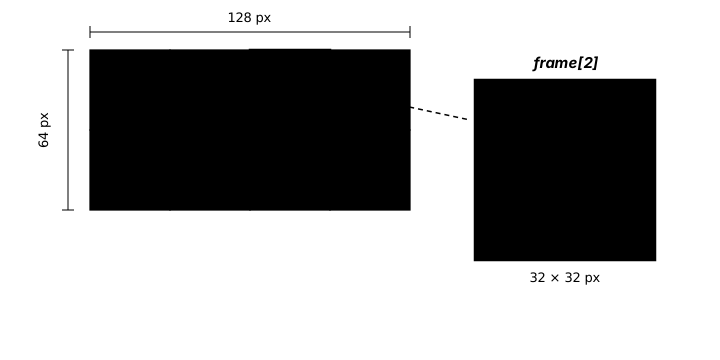
Why do artists and engines like them?
- One file instead of dozens. Sixteen poses are one load, one file to keep track of and one file to hand to a teammate.
- The frames stay together. Poses drawn side by side on one canvas line up with each other, which is exactly what an artist needs.
- A lot of downloadable game art comes this way, including many free packs, so you need to know how to read it.
You will meet three layouts: a strip (one row of frames), a grid (rows and columns of equal cells, often one row per direction or action) and a packed atlas (frames of different sizes fitted together, with a data file that lists where each one is).
🎨 Make a Test Sheet in Code
You don't need an artist to practice. This program draws a 4 × 4 sheet of a little hero and saves two files into an assets folder next to it: hero_sheet.png and hero_sheet.json, a short text file describing the grid (you will read it in the last section). The rows are the four directions the hero faces; the columns are a two-step walk: stand, step, stand, step. Run it once.
"""Make a test sprite sheet for Intro Lesson 8, Sprite Sheets.

Draws a 4 x 4 sheet of 32 x 32 frames (rows: down, left, right, up;
columns: stand, step, stand, step) and saves assets/hero_sheet.png plus
assets/hero_sheet.json, the file that describes the grid.
"""
import json
from pathlib import Path

import pygame

ASSETS = Path(__file__).parent / "assets"
FRAME = 32
DIRECTIONS = ["down", "left", "right", "up"]     # one row each, top to bottom
COLUMNS = 4


def draw_hero(surface, x, y, direction, column):
    """Draw one 32 x 32 pose with its top-left corner at (x, y)."""
    step = {0: 0, 1: -1, 2: 0, 3: 1}[column]    # columns 1 and 3 swing the legs
    skin, shirt, pants, eye = (250, 214, 170), (59, 130, 246), (55, 65, 81), (20, 20, 20)
    if direction in ("down", "up"):
        pygame.draw.rect(surface, pants, (x + 10, y + 24 + min(step, 0), 5, 7 - abs(step)))
        pygame.draw.rect(surface, pants, (x + 17, y + 24 - max(step, 0), 5, 7 - abs(step)))
    else:
        pygame.draw.rect(surface, pants, (x + 13 + 3 * step, y + 24, 5, 7))
        pygame.draw.rect(surface, pants, (x + 13 - 3 * step, y + 24, 5, 7))
    pygame.draw.rect(surface, shirt, (x + 9, y + 13, 14, 12), border_radius=3)
    pygame.draw.circle(surface, skin, (x + 16, y + 9), 7)
    if direction == "down":
        pygame.draw.circle(surface, eye, (x + 13, y + 9), 1)
        pygame.draw.circle(surface, eye, (x + 19, y + 9), 1)
    elif direction == "left":
        pygame.draw.circle(surface, eye, (x + 12, y + 9), 1)
    elif direction == "right":
        pygame.draw.circle(surface, eye, (x + 20, y + 9), 1)
    else:                                       # "up": we see the back of the head
        pygame.draw.circle(surface, (120, 72, 40), (x + 16, y + 8), 6)


def make_sheet():
    sheet = pygame.Surface((COLUMNS * FRAME, len(DIRECTIONS) * FRAME), pygame.SRCALPHA)
    for row, direction in enumerate(DIRECTIONS):
        for column in range(COLUMNS):
            draw_hero(sheet, column * FRAME, row * FRAME, direction, column)
    return sheet


if __name__ == "__main__":
    pygame.init()
    ASSETS.mkdir(exist_ok=True)
    pygame.image.save(make_sheet(), ASSETS / "hero_sheet.png")
    info = {"image": "hero_sheet.png", "frame_width": FRAME, "frame_height": FRAME,
            "columns": COLUMNS, "rows": {name: row for row, name in enumerate(DIRECTIONS)}}
    with open(ASSETS / "hero_sheet.json", "w", encoding="utf-8") as f:
        json.dump(info, f, indent=2)
    print("Saved", ASSETS / "hero_sheet.png", "and", ASSETS / "hero_sheet.json")
Two things worth noticing: the sheet is a SRCALPHA Surface, so everything around the hero is transparent, and pygame.image.save() writes any Surface to a PNG. When you get real art later, replace the PNG and keep the rest of your code.
🔢 Grid Math: From Frame Number to Rect
In a grid of equal cells, each cell's top-left corner is its column times the cell width, and its row times the cell height:
def frame_rect(column, row, width, height):
    """The Rect of the cell at (column, row) in a grid of width x height cells."""
    return pygame.Rect(column * width, row * height, width, height)


frame_rect(1, 1, 32, 32)     # Rect(32, 32, 32, 32): second column, second row
Often you know a single frame number instead, counting left to right, top to bottom. Integer division and remainder split it into a row and a column, the same way you would split 14 days into 2 weeks and 0 days:
COLUMNS = 4
index = 6
column = index % COLUMNS      # 6 % 4 = 2   (what is left over after full rows)
row = index // COLUMNS        # 6 // 4 = 1  (how many full rows came before)
Step through the frames below and watch the arithmetic, then play a row to see why a grid of poses turns into movement.
Margins and spacing
Some sheets you download leave a border around the whole image (the margin) or a gap between cells (the spacing), which makes the frames easier for people to see and edit. The art page usually says how many pixels. Add them to the formula, or your slices will creep further off with every column:
x = MARGIN + column * (FRAME_W + SPACING)
y = MARGIN + row * (FRAME_H + SPACING)
rect = pygame.Rect(x, y, FRAME_W, FRAME_H)
✂️ Slicing with subsurface()
sheet.subsurface(rect) returns a new Surface that is a window onto the sheet: it has its own size and can be blitted like any image, but it shares the sheet's pixels instead of copying them. The sheet is loaded once and every frame just looks at part of it.
from pathlib import Path

import pygame

ASSETS = Path(__file__).parent / "assets"
FRAME = 32
COLUMNS, ROWS = 4, 4

pygame.init()
screen = pygame.display.set_mode((640, 360))
pygame.display.set_caption("Sheet Viewer")
clock = pygame.time.Clock()

sheet = pygame.image.load(ASSETS / "hero_sheet.png").convert_alpha()   # one file...
frames = []                                                            # ...sixteen frames
for row in range(ROWS):
    for column in range(COLUMNS):
        rect = pygame.Rect(column * FRAME, row * FRAME, FRAME, FRAME)
        frames.append(sheet.subsurface(rect))
big_frames = [pygame.transform.scale_by(frame, 2) for frame in frames]  # scaled once

running = True
while running:
    clock.tick(60)
    for event in pygame.event.get():
        if event.type == pygame.QUIT:
            running = False

    screen.fill((34, 64, 44))
    for i, frame in enumerate(big_frames):
        column, row = i % COLUMNS, i // COLUMNS
        screen.blit(frame, (40 + column * 80, 30 + row * 80))           # spread out with gaps
    pygame.display.flip()

pygame.quit()
Run it from the folder that holds assets/ (made by the program in the previous section). You should see all sixteen poses laid out with gaps between them.
sheet.subsurface(rect) | sheet.subsurface(rect).copy() | |
|---|---|---|
| Pixels | Shared with the sheet | Its own copy |
| Draw on it | Changes the sheet (and any other view of that area) | Changes only the copy |
| Use it for | Frames you only blit (the usual case) | Frames you plan to paint on or edit |
A rect that reaches past the edge of the sheet raises ValueError: subsurface rectangle outside surface area. That error almost always means the frame size, the column count or the margin is wrong.
✅ Growth Mindset: Half a Hero Is Progress
The first time you slice a sheet, you may see half a character, two characters squeezed together, or the wrong pose. That is the normal path, not a sign that you are bad at this. It means the numbers are almost right, and each picture tells you which one: a slice that drifts further off with each column has the wrong width or is missing the spacing; a pose from the wrong row has the row numbers mixed up. Draw the sheet on screen with a rectangle around the cell you think you are cutting, like the exercise does, and let the picture debug it for you.
🪞 Scale, Flip and Colorkey, Once at Load
Frames usually need a little preparation before the game starts. Do it once, right after slicing, and keep the results in a list or dictionary, never in the game loop:
# Pixel art is drawn small: scale every frame up by a whole number, keeping hard edges.
walk_right = [pygame.transform.scale_by(frame, 3) for frame in walk_right]

# A sheet with only right-facing frames? Mirror them for the left instead of drawing them again.
walk_left = [pygame.transform.flip(frame, True, False) for frame in walk_right]

# Older sheets use a solid background color instead of transparency.
# Set the colorkey on the SHEET before slicing; the frames, and scaled or flipped copies, keep it.
old_sheet = pygame.image.load(ASSETS / "old_sheet.png").convert()
old_sheet.set_colorkey((255, 0, 255))
Note that scale_by and flip make new Surfaces, so the prepared frames are copies, not views of the sheet. That is fine: you make them once. Scaling pixel art by a whole number (2, 3, 4) keeps every pixel a crisp square.
🗂️ Describing Sheets with JSON
Hard-coding "32 pixels, 4 columns, row 2 is right" works until the art changes. Most sheets come with, or deserve, a small metadata file that describes them. You already know JSON from your intro Python course; here is the file the sheet generator wrote:
{
  "image": "hero_sheet.png",
  "frame_width": 32,
  "frame_height": 32,
  "columns": 4,
  "rows": {
    "down": 0,
    "left": 1,
    "right": 2,
    "up": 3
  }
}
Load it with json.load() and your slicing code reads every number from the file. Give the artist a new sheet with 48-pixel frames and six columns, change the JSON, and the code does not change at all:
with open(ASSETS / "hero_sheet.json", encoding="utf-8") as f:
    info = json.load(f)

frames = {}
for name, row in info["rows"].items():                 # "down", 0 / "left", 1 / ...
    frames[name] = [sheet.subsurface(frame_rect(column, row, info["frame_width"], info["frame_height"]))
                    for column in range(info["columns"])]

frames["left"][1]      # the left-facing step pose
Packed atlases
A packed atlas fits frames of different sizes together to waste less space, so there is no grid to calculate. Instead, the data file lists every frame by name with its own rectangle. Packing tools write this file for you; your job is only to read it. This program uses a JSON string and an image drawn in code as stand-ins for items.json and items.png, so it runs anywhere:
import json

import pygame

# What a packing tool might write next to items.png: each frame's name and rectangle.
ATLAS_JSON = """
{
  "frames": {
    "coin":  {"x": 0,  "y": 0,  "w": 16, "h": 16},
    "heart": {"x": 16, "y": 0,  "w": 16, "h": 14},
    "key":   {"x": 0,  "y": 16, "w": 24, "h": 10}
  }
}
"""


def load_atlas(sheet, data):
    """Return {name: frame} for every rectangle listed in the atlas data."""
    frames = {}
    for name, r in data["frames"].items():
        frames[name] = sheet.subsurface(pygame.Rect(r["x"], r["y"], r["w"], r["h"]))
    return frames


pygame.init()
screen = pygame.display.set_mode((480, 200))
pygame.display.set_caption("Packed Atlas")
clock = pygame.time.Clock()
font = pygame.font.Font(None, 28)

# Stand-in for pygame.image.load(ASSETS / "items.png").convert_alpha()
sheet = pygame.Surface((32, 32), pygame.SRCALPHA)
pygame.draw.circle(sheet, (250, 204, 21), (8, 8), 7)                                   # coin
pygame.draw.polygon(sheet, (239, 68, 68), [(16, 3), (20, 0), (24, 4), (28, 0), (31, 3), (24, 13)])   # heart
pygame.draw.rect(sheet, (148, 163, 184), (0, 19, 24, 4))                               # key
pygame.draw.circle(sheet, (148, 163, 184), (4, 21), 4)

# With real files: with open(ASSETS / "items.json", encoding="utf-8") as f: data = json.load(f)
items = load_atlas(sheet, json.loads(ATLAS_JSON))
big = {name: pygame.transform.scale_by(frame, 4) for name, frame in items.items()}
labels = {name: font.render(name, True, (230, 230, 230)) for name in items}          # render once

running = True
while running:
    clock.tick(60)
    for event in pygame.event.get():
        if event.type == pygame.QUIT:
            running = False

    screen.fill((30, 41, 59))
    for i, name in enumerate(big):
        x = 40 + i * 150
        screen.blit(big[name], (x, 40))
        screen.blit(labels[name], (x, 130))
    pygame.display.flip()

pygame.quit()
Whether a sheet is a grid or a packed atlas, the result is the same: a dictionary that maps a name you choose to a frame you can blit. The rest of your game only ever asks for frames["left"][1] or items["coin"].
🏋️ Practice Exercise: Walk the Sheet
Objective: slice a 4 × 4 hero sheet using its JSON file, then walk the hero with the arrow keys so it faces the way it moves and steps through its walk poses as it goes.
Time: about 35 minutes. Starter files: walk_the_sheet_starter.py and the assets folder with hero_sheet.png and hero_sheet.json (your instructor has them; make_sheet.py recreates them). The starter moves a gray box, because nothing is sliced yet. Its numbered comments match the steps below.
- Finish
frame_rect()so the rect starts at(column * width, row * height). (≈ 3 min) - Finish
slice_sheet(): for each row name and row number in the JSON, make a list of subsurfaces, one per column. The hero appears, tiny, and the yellow box on the small sheet shows which cell is used. (≈ 10 min) - Finish
scale_frames()so every frame is scaled bySCALE, once. (≈ 5 min) - Finish
facing_from(): choose "right", "left", "down" or "up" from the movement direction, and keep the old facing when standing still. (≈ 8 min) - Finish
walk_frame(): one column perSTRIDEpixels walked, wrapping round with%. Walk and watch the legs; stop and the hero stands. (≈ 5 min) - Change
STRIDEto 8, then 32. Which looks right for this walking speed? (≈ 4 min)
You are done when:
- the hero faces each of the four directions as you walk that way and keeps facing it after you stop;
- its legs step while it walks and it stands still when you let go;
- the yellow box on the small sheet always outlines the frame on screen, and the label shows its
Rect; - closing the window prints a line like
Walked 812 pixels, facing up.
💡 Hint
The frame is chosen by distance walked, not by time, so the feet match the ground: int(distance // STRIDE) % columns. If the hero shows the wrong row, print info["rows"] and compare it with the sheet. If you get "subsurface rectangle outside surface area", you probably swapped column and row or used the frame number as a pixel position. The keys are tracked in a set from KEYDOWN and KEYUP events, so holding two keys works.
✅ Example Solution
If your instructor hands you the lab file, you will see a few extra lines marked lab runtime near the top and and frame_budget() in the loop. They let the instructor's checker run the program automatically; when you run it yourself they do nothing.
"""Walk the Sheet: Intro Lesson 8 practice exercise (solution).

Loads a 4 x 4 sprite sheet and the JSON file that describes it, slices it
into frames with subsurface(), and walks a hero around with the arrow keys:
the row comes from the way you face, the column from how far you have walked.
Close the window to quit.
"""
import json
from pathlib import Path

import pygame


WIDTH, HEIGHT = 640, 480
ASSETS = Path(__file__).parent / "assets"
SCALE = 3                  # 32 px frames are drawn 96 px tall, scaled once at load
SPEED = 150                # pixels per second
STRIDE = 16                # pixels walked per frame of the walk cycle
BG_COLOR = (34, 64, 44)
TEXT_COLOR = (235, 235, 235)


def load_sheet_info(name):
    """Read the JSON file that says how the sheet is laid out."""
    with open(ASSETS / name, encoding="utf-8") as f:
        return json.load(f)


def frame_rect(column, row, width, height):
    """The Rect of the cell at (column, row) in a grid of width x height cells."""
    return pygame.Rect(column * width, row * height, width, height)


def slice_sheet(sheet, info):
    """Return {row name: [frames]} cut from sheet. Each frame is a subsurface (a view)."""
    width, height = info["frame_width"], info["frame_height"]
    frames = {}
    for name, row in info["rows"].items():
        frames[name] = [sheet.subsurface(frame_rect(column, row, width, height))
                        for column in range(info["columns"])]
    return frames


def scale_frames(frames, factor):
    """Scale every frame once, keeping hard pixel edges."""
    return {name: [pygame.transform.scale_by(frame, factor) for frame in row]
            for name, row in frames.items()}


def facing_from(direction, current):
    """Which row to use for a movement direction; keep the old one when standing still."""
    if direction.length_squared() == 0:
        return current
    if abs(direction.x) > abs(direction.y):
        return "right" if direction.x > 0 else "left"
    return "down" if direction.y > 0 else "up"


def walk_frame(distance, columns):
    """Which column of the walk cycle to show after walking distance pixels."""
    return int(distance // STRIDE) % columns


def main():
    pygame.init()
    screen = pygame.display.set_mode((WIDTH, HEIGHT))
    pygame.display.set_caption("Walk the Sheet")
    clock = pygame.time.Clock()
    font = pygame.font.Font(None, 24)

    info = load_sheet_info("hero_sheet.json")
    sheet = pygame.image.load(ASSETS / info["image"]).convert_alpha()   # ONE file for 16 frames
    frames = scale_frames(slice_sheet(sheet, info), SCALE)
    columns = info["columns"]

    pos = pygame.Vector2(WIDTH / 2, HEIGHT / 2)
    facing = "down"
    distance = 0.0            # pixels walked since we last stood still
    total = 0.0
    held = set()              # arrow keys held down right now

    running = True
    while running:
        dt = clock.tick(60) / 1000
        for event in pygame.event.get():
            if event.type == pygame.QUIT:
                running = False
            elif event.type == pygame.KEYDOWN:
                held.add(event.key)
            elif event.type == pygame.KEYUP:
                held.discard(event.key)

        direction = pygame.Vector2((pygame.K_RIGHT in held) - (pygame.K_LEFT in held),
                                   (pygame.K_DOWN in held) - (pygame.K_UP in held))
        facing = facing_from(direction, facing)
        if direction.length_squared() > 0:
            step = direction.normalize() * SPEED * dt
            pos += step
            pos.x = max(0, min(WIDTH, pos.x))
            pos.y = max(0, min(HEIGHT, pos.y))
            distance += step.length()
            total += step.length()
        else:
            distance = 0.0    # standing still: back to the standing pose

        column = walk_frame(distance, columns)
        image = frames[facing][column]
        rect = image.get_rect(center=pos)

        screen.fill(BG_COLOR)
        screen.blit(sheet, (10, 40))                                  # the whole sheet, small
        cell = frame_rect(column, info["rows"][facing], info["frame_width"], info["frame_height"])
        pygame.draw.rect(screen, (250, 204, 21), cell.move(10, 40), 1)   # the cell in use
        screen.blit(image, rect)
        label = font.render(f"facing {facing}, column {column}   Rect{tuple(cell)}", True, TEXT_COLOR)
        screen.blit(label, (10, 10))
        pygame.display.flip()

    pygame.quit()
    print(f"Walked {total:.0f} pixels, facing {facing}.")


if __name__ == "__main__":
    main()
📓 Learning Journal
Take five minutes to write in your learning journal (a notebook or a plain text file works). Jot down:
- Key concepts you learned today
- Techniques that clicked (and the ones that haven't, yet)
- Questions or confusion to bring to the next session
- Ideas to try in your own game
- Progress and feelings: how did this lesson go for you?
✍️ This lesson's prompts:
- Explain to a friend how
%and//turn frame number 11 into a column and a row on a 4-column sheet. - What would you put in a JSON file for your capstone's player sheet? List the names you would give its rows or frames.
- Which slicing bug did you meet today, and what did the picture on screen tell you about the cause?
📝 Summary
You made a sprite sheet in code, then learned to read any grid sheet: a frame's rect is its column and row times the cell size, and % and // split a frame number into both. subsurface() cut the sheet into frames that share its pixels, and you prepared them once by scaling and flipping. Finally, a JSON file took the numbers out of your code, for grids and for packed atlases alike, and your hero chose its frame from the way it faced and how far it had walked.
🎓 Key Takeaways
- A grid cell's rect is
Rect(column * w, row * h, w, h); add margin and spacing if the sheet has them. - For frame number
ion a sheet withCcolumns:column = i % C,row = i // C. subsurface()is a view that shares the sheet's pixels; use.copy()only if you will paint on a frame.- Scale, flip and set colorkeys once at load time, then keep the frames in a list or dictionary.
- A JSON file (grid layout or named atlas rectangles) lets the art change without changing the code.
🔭 Looking Ahead
Next comes the Collision Detection lesson, where your sprites finally interact: touching coins, bumping into walls and getting hit. After that, the Sprite Animation lesson brings these sheets to life by switching frames on a timer.
❓ Common Questions
How do I find the frame size of a sheet I downloaded?
Check the page or readme it came with; most list the frame size, margin and spacing. If not, open the image in any paint program, zoom in, and measure one cell. Then divide: a 256-pixel-wide sheet of 4 frames has 64-pixel frames.
Do I have to use subsurface()? Can I blit part of the sheet directly?
You can: screen.blit(sheet, pos, area=rect) draws just that rectangle of the sheet. Subsurfaces are handier because each frame becomes an ordinary Surface you can store, scale, flip and pass to a Sprite's image.
What if the frames in my sheet are different sizes?
Then it is a packed atlas, and grid math won't work. Use the data file that came with it (or write one) listing each frame's rectangle, and slice by name, as in the atlas program above.
Why does my scaled pixel art look blurry?
Use scale or scale_by, not smoothscale, and scale by a whole number. The smooth versions blend neighboring pixels, which softens the hard edges pixel art depends on.
Does the order of rows in a sheet matter?
Only to your code. Many sheets use down, left, right, up, but there is no standard, which is exactly why the row names live in the JSON file instead of being guessed in your code.
🎯 Quick Quiz
Question 1: A 4-column sheet has 32 × 32 frames. Which rect cuts out the frame in column 1, row 1 (counting from 0)?
Question 2: A sheet has 6 columns. Counting from 0, which column and row hold frame number 14?
Question 3: What does sheet.subsurface(rect) give you?
Question 4: Why describe a sheet's layout in a JSON file instead of typing the numbers into your code?
Question 5: Your sheet only has right-facing walk frames. How do you get left-facing ones?
🌟 Going Further
- Flip instead of draw: ignore the sheet's "left" row and build the left frames by flipping the "right" ones at load time. Check that the hero still walks both ways.
- A sheet class: wrap loading, slicing and scaling in a small
SpriteSheetclass with aframes(name)method, so any project can reuse it. - Diagonals: redraw the sheet with 8 rows (adding down-left, down-right, up-left, up-right) and update
facing_from()and the JSON. - Real art: find a CC0 character sheet (for example from kenney.nl), read its frame size from the page, write its JSON, and swap it in.
- Read the docs: Surface.subsurface and Python's json module.
- Coming up in Game Dev II: Intermediate: Groups, Layers & Masks and Spatial Hashing & Object Pools cover drawing many sprites in the right order and keeping big scenes quick.