Lesson 7: Images & Sprite Classes
By the end of this lesson you will fill a window with spinning, drifting asteroids loaded from a PNG, each one a Sprite in a Group that updates and draws them all in two lines. Real art makes a prototype feel like a game, and sprites and groups are how pygame keeps dozens of objects organized.
🎯 Learning Objectives
By the end of this lesson, you will be able to:
- Load an image relative to your script, keep its transparency with
convert_alpha(), and fall back to a placeholder if the file is missing. - Scale, flip, tint, fade and rotate images, always from the original, and explain why a rotated image's rect grows.
- Build a bounded cache so rotated pictures are made once and reused.
- Write a
pygame.sprite.Spritesubclass withimage,rect, a float position andupdate(dt). - Manage many sprites with
Group:add,update,draw,killandempty.
Project: Asteroid Field, a window of drifting, spinning rocks you add with a click.
In This Lesson
🖼️ Pixels, Image Files and Surfaces
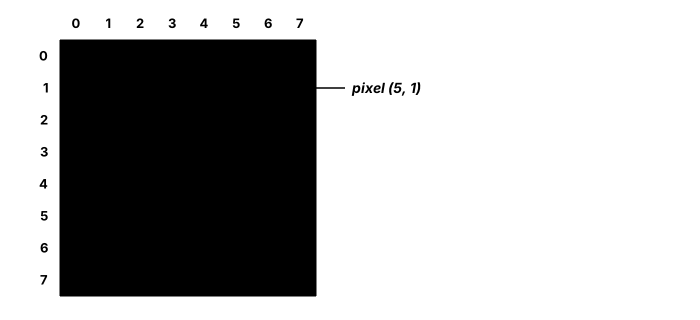
An image is a grid of tiny colored squares called pixels, each with a red, green and blue value, and often a fourth value, alpha, for how see-through it is. An image file stores that grid on disk; once pygame loads it, it becomes a Surface, exactly like the Surfaces you drew on in the Drawing Shapes & Surfaces lesson. Anything you can do to a Surface, you can do to a loaded image.
| Format | Transparency | Use it for |
|---|---|---|
| PNG | Yes, per pixel | Sprites, icons, pixel art, anything with see-through edges |
| JPG | No | Photos and large painted backgrounds (it blurs sharp pixel edges slightly) |
| BMP | No | Rarely; files are large because nothing is compressed |
📂 Loading Images the Safe Way
Loading is one line, pygame.image.load(path), but four habits separate a game that works on your computer from one that works everywhere:
- Find files relative to your script, not to wherever the terminal happens to be:
ASSETS = Path(__file__).parent / "assets". Double-clicking a script, or running it from another folder, changes the working directory;__file__does not change. - Convert after
set_mode().convert_alpha()(for images with transparency) orconvert()(for opaque ones) stores the pixels in the same format as the screen, which is what the pygame docs recommend for images you blit often. Both need the display to exist, so callpygame.display.set_mode()first. - Load once, before the loop. Loading reads the disk and decodes the file. Do it at startup and keep the Surface; never call
loadin the game loop or in adrawmethod. - Fail softly. A missing file raises
FileNotFoundError, and a damaged one raisespygame.error. ReturningNonejust moves the crash to the next line ('NoneType' object has no attribute 'convert_alpha'). Return a bright placeholder instead, so the game keeps running and the missing art is obvious.
from pathlib import Path

import pygame

ASSETS = Path(__file__).parent / "assets"


def load_image(name):
    """Load an image from the assets folder, or return a magenta placeholder if it fails."""
    try:
        return pygame.image.load(ASSETS / name).convert_alpha()
    except (FileNotFoundError, pygame.error) as error:
        print(f"Could not load {name}: {error}")
        placeholder = pygame.Surface((48, 48), pygame.SRCALPHA)
        placeholder.fill((255, 0, 255))
        return placeholder


pygame.init()
screen = pygame.display.set_mode((800, 600))        # the display must exist before convert_alpha()
pygame.display.set_caption("Loading an Image")
clock = pygame.time.Clock()

player_image = load_image("player.png")             # once, before the loop
player_rect = player_image.get_rect(center=(400, 300))

running = True
while running:
    clock.tick(60)
    for event in pygame.event.get():
        if event.type == pygame.QUIT:
            running = False

    screen.fill((30, 30, 45))
    screen.blit(player_image, player_rect)          # blit = copy the pixels onto the screen
    pygame.display.flip()

pygame.quit()
Put any small PNG named player.png in an assets folder next to the script. If you don't have one yet, run the program anyway: you get a magenta square and a message in the terminal instead of a crash. get_rect(center=…) gives you a rect the size of the image, already positioned, which is the easiest way to place a picture by its middle.
🫥 Transparency
There are three kinds of see-through in pygame, and each fixes a different problem:
| Kind | How | When |
|---|---|---|
| Per-pixel alpha | load(...).convert_alpha() | PNG sprites with soft or see-through edges (the usual case) |
| Colorkey | image.set_colorkey((255, 0, 255)) | Older art where one "background" color, often magenta, means transparent |
| Whole-surface alpha | image.set_alpha(128) | Fading a whole sprite in or out (0 = invisible, 255 = solid) |
ghost = load_image("ghost.png")         # convert_alpha() keeps the soft edges
ghost.set_alpha(128)                    # and the whole ghost is now half see-through

old_art = pygame.image.load(ASSETS / "old_sprite.bmp").convert()
old_art.set_colorkey((255, 0, 255))     # every magenta pixel becomes invisible
The classic bug is a sprite drawn inside a solid black or white box. It means the transparency was lost: usually convert() was used on a PNG that needed convert_alpha(), or the art itself has no transparent pixels. When you draw your own images in code, create the Surface with pygame.SRCALPHA so it starts fully transparent.
🔧 Transforming Images
pygame.transform makes a new Surface from an old one; the original is never changed.
| Call | What you get |
|---|---|
pygame.transform.scale(img, (w, h)) | Resized to exactly w × h, keeping hard pixel edges (good for pixel art) |
pygame.transform.scale_by(img, 2) | Resized by a factor; smoothscale_by blends pixels for smoother painted art |
pygame.transform.flip(img, True, False) | Mirrored left-right (the second flag flips top-bottom) |
pygame.transform.rotate(img, degrees) | Turned counterclockwise; the new Surface is bigger so the corners fit |
pygame.transform.grayscale(img) | A gray copy that keeps transparency, handy for "locked" or "disabled" icons |
Try each button below. The readout shows the pygame code, and the dashed box is the rect of the result. Watch the box when you rotate: it grows to fit the corners, which is why you re-center with get_rect(center=…) after every rotation.
Tinting with a blend flag
Surface.fill can multiply instead of paint. Filling a copy with special_flags=pygame.BLEND_RGB_MULT multiplies every pixel's red, green and blue by your color divided by 255: (255, 255, 255) changes nothing, (255, 120, 120) makes it redder, and (128, 128, 128) darkens it to about half. The RGB in the flag's name means alpha is left alone, so the transparent edges stay transparent.
def tinted(image, color):
    """A copy of image with its colors multiplied by color (each channel 0-255)."""
    color = tuple(max(0, min(255, int(c))) for c in color)    # clamp, as always
    result = image.copy()                                       # never change the original
    result.fill(color, special_flags=pygame.BLEND_RGB_MULT)
    return result


hurt_enemy = tinted(enemy_image, (255, 120, 120))   # a red flash when hit
Rotate from the original, and cache the results
Rotating is real work: every pixel of the new picture has to be computed. In the Trigonometry for Games lesson you rotated one small shape every frame, which is fine. With many sprites, a common approach is to make each rotated picture once and keep it. The trap is caching every angle you ever see: angles like 37.2194° almost never repeat, so the cache grows forever. Round the angle to a step first, and the cache can never hold more than 360 ÷ step pictures:
ROTATION_STEP = 5          # degrees: at most 72 cached pictures per image


def get_rotated(cache, image, angle):
    """Return image rotated to the nearest ROTATION_STEP degrees, making each one only once."""
    key = round(angle / ROTATION_STEP) * ROTATION_STEP % 360
    if key not in cache:
        cache[key] = pygame.transform.rotate(image, key)   # always from the ORIGINAL image
    return cache[key]
A 5° step is small enough that most spinning objects look smooth. You may find an old helper called rotate_center online that crops the rotated image back to its original size; that cuts off the corners of anything that isn't round. Re-centering the rect, as the demo shows, keeps the whole picture.
✅ Growth Mindset: The Black Box and the Wobble
A sprite in a black box, a rotating image that drifts across the screen, a picture that gets blurrier every second: every pygame developer has made all three. Each has one cause you can check in under a minute (convert() instead of convert_alpha(), a missing get_rect(center=…), rotating the rotated copy). When your art looks wrong, resist redrawing it. Ask which of the three it looks like, and test that one thing.
🧩 Sprite Classes
In the Vectors lesson you wrote small classes that kept a position, a rect and update/draw methods. pygame has a ready-made parent class for exactly that job: pygame.sprite.Sprite. You build on it by subclassing it.
A Sprite subclass has two rules. It must have an image (a Surface) and a rect (where to draw it), because that is what a Group reads when it draws. Everything else is up to you. Keep the float-position pattern from the Vectors lesson: the Vector2 is the truth, and the rect follows it.
import pygame

WIDTH, HEIGHT = 800, 600


class Player(pygame.sprite.Sprite):
    """A ship that moves with the arrow keys at the same speed in every direction."""

    SPEED = 260                                   # pixels per second

    def __init__(self, image, pos):
        super().__init__()
        self.image = image
        self.pos = pygame.Vector2(pos)            # the real, float position
        self.rect = self.image.get_rect(center=self.pos)

    def update(self, dt):
        keys = pygame.key.get_pressed()
        direction = pygame.Vector2(keys[pygame.K_RIGHT] - keys[pygame.K_LEFT],
                                   keys[pygame.K_DOWN] - keys[pygame.K_UP])
        if direction.length_squared() > 0:
            direction = direction.normalize()
        self.pos += direction * self.SPEED * dt
        self.pos.x = max(0, min(WIDTH, self.pos.x))
        self.pos.y = max(0, min(HEIGHT, self.pos.y))
        self.rect.center = self.pos               # the rect follows


def make_ship():
    """Draw a ship once, on a transparent Surface. A loaded PNG works the same way."""
    image = pygame.Surface((48, 36), pygame.SRCALPHA)
    pygame.draw.polygon(image, (96, 165, 250), [(48, 18), (8, 0), (0, 18), (8, 36)])
    pygame.draw.circle(image, (226, 232, 240), (26, 18), 6)
    return image


pygame.init()
screen = pygame.display.set_mode((WIDTH, HEIGHT))
pygame.display.set_caption("A Sprite Class")
clock = pygame.time.Clock()
player = Player(make_ship(), (WIDTH / 2, HEIGHT / 2))

running = True
while running:
    dt = clock.tick(60) / 1000
    for event in pygame.event.get():
        if event.type == pygame.QUIT:
            running = False

    player.update(dt)

    screen.fill((15, 23, 42))
    screen.blit(player.image, player.rect)
    pygame.display.flip()

pygame.quit()
SPEED is written inside the class but outside any method, so it is shared by every Player and read as self.SPEED. The ship here is drawn in code so the program runs anywhere; swap make_ship() for load_image("ship.png") and nothing else changes.
👥 Sprite Groups
One sprite is easy to update and blit by hand. Forty are not. A pygame.sprite.Group is a container that updates and draws all of its sprites for you:
| Code | What it does |
|---|---|
group = pygame.sprite.Group() | Makes an empty group |
group.add(sprite) | Adds a sprite (a sprite can be in several groups at once) |
group.update(dt) | Calls update(dt) on every sprite; whatever you pass is passed on |
group.draw(screen) | Blits every sprite's image at its rect |
sprite.kill() | Removes the sprite from every group it is in |
len(group), group.empty() | How many sprites are in it; remove them all |
Games usually keep one group for drawing everything and extra groups for kinds of things, so each kind can be handled on its own, for example removing every enemy at once. This program has an Enemy class and two groups, and pressing K removes every enemy at once:
import random

import pygame

WIDTH, HEIGHT = 800, 600


class Enemy(pygame.sprite.Sprite):
    """A red square that drifts down the screen and wraps back to the top."""

    def __init__(self, pos, speed):
        super().__init__()
        self.image = pygame.Surface((30, 30))
        self.image.fill((239, 68, 68))
        self.pos = pygame.Vector2(pos)
        self.speed = speed                        # pixels per second
        self.rect = self.image.get_rect(center=self.pos)

    def update(self, dt):
        self.pos.y += self.speed * dt
        if self.pos.y > HEIGHT + 20:
            self.pos.y = -20
        self.rect.center = self.pos


pygame.init()
screen = pygame.display.set_mode((WIDTH, HEIGHT))
pygame.display.set_caption("Sprite Groups: press K")
clock = pygame.time.Clock()
font = pygame.font.Font(None, 30)
rng = random.Random(4)

all_sprites = pygame.sprite.Group()               # everything that gets drawn
enemies = pygame.sprite.Group()                   # just the enemies
for i in range(5):
    enemy = Enemy((100 + i * 150, rng.uniform(0, HEIGHT)), rng.uniform(60, 160))
    all_sprites.add(enemy)
    enemies.add(enemy)

running = True
while running:
    dt = clock.tick(60) / 1000
    for event in pygame.event.get():
        if event.type == pygame.QUIT:
            running = False
        elif event.type == pygame.KEYDOWN and event.key == pygame.K_k:
            for enemy in enemies:                 # kill() takes it out of BOTH groups
                enemy.kill()

    all_sprites.update(dt)

    screen.fill((15, 23, 42))
    all_sprites.draw(screen)
    label = font.render(f"Enemies: {len(enemies)}   Drawn: {len(all_sprites)}", True, (230, 230, 230))
    screen.blit(label, (10, 10))
    pygame.display.flip()

pygame.quit()
Notice the loop: two lines, all_sprites.update(dt) and all_sprites.draw(screen), handle every object, however many there are. The font is created once, before the loop, like every font in this course.
✅ Growth Mindset: Inheritance Is a New Idea, Not a Test
Subclassing and super() are the first Python features in this course that you did not meet in your intro course. It is completely normal to copy the pattern for a while before it feels natural. Use the error messages as your teacher: _Sprite__g means the super().__init__() line is missing, and "Source objects must be a surface" means a sprite has no image yet. Two errors, two fixes, and you have learned inheritance by doing it.
🏋️ Practice Exercise: Asteroid Field
Objective: fill the window with asteroids loaded from a PNG that drift, spin and wrap around the edges, using a Sprite class, a Group and a bounded rotation cache.
Time: about 40 minutes. Starter files: asteroid_field_starter.py and assets/asteroid.png (your instructor has them; make_art.py redraws the PNG if it goes missing). The starter loads and shows one rock, but there are no sprites yet. Its numbered comments match the steps below.
- Make
load_image()safe: catchFileNotFoundErrorandpygame.error, print a message and return a magenta placeholder. Test it by misspelling the file name, then fix the name. (≈ 5 min) - In
Asteroid.__init__, addsuper().__init__()as the first line. (≈ 2 min) - Uncomment the loop that spawns six asteroids into the group. (≈ 2 min)
- In the game loop, call
asteroids.update(dt), and replace the single blit withasteroids.draw(screen). The rocks now drift and wrap, but do not spin. (≈ 5 min) - Finish
get_rotated(): round the angle toROTATION_STEP, make the rotated picture only if the cache doesn't have it, and return it. The rocks spin, and the HUD's cached-rotations number stops growing. (≈ 12 min) - Handle input: SPACE spawns a rock above the top edge, a left click spawns one at the mouse, and C empties the group. (≈ 8 min)
You are done when:
- big and small asteroids drift, spin at different speeds and wrap smoothly around every edge, with no black boxes;
- SPACE and clicks add rocks (up to 40), and C clears them;
- the "cached rotations" number stops at or below 144 however long it runs;
- renaming the PNG shows magenta squares and a message instead of a crash, and closing the window prints the asteroid count.
💡 Hint
If you get AttributeError: … '_Sprite__g', step 2 is missing. If the rocks wobble while spinning, check that update() sets self.rect = self.image.get_rect(center=self.pos) after choosing the rotated image. If the cache number keeps climbing, you are using the raw angle as the key instead of the rounded one. Big and small rocks each have their own cache dictionary, so the limit is 2 × 72.
✅ Example Solution
If your instructor hands you the lab file, you will see a few extra lines marked lab runtime near the top and and frame_budget() in the loop. They let the instructor's checker run the program automatically; when you run it yourself they do nothing.
"""Asteroid Field: Intro Lesson 7 practice exercise (solution).

Loads one asteroid image, makes a small version of it once, and fills the
window with spinning, drifting Asteroid sprites managed by a Group.
SPACE or a click adds an asteroid, C clears them all. Close the window to quit.
"""
import random
from pathlib import Path

import pygame


WIDTH, HEIGHT = 800, 600
ASSETS = Path(__file__).parent / "assets"
ROTATION_STEP = 5            # degrees between cached rotations: at most 72 pictures per image
MAX_ASTEROIDS = 40
BG_COLOR = (12, 14, 28)
TEXT_COLOR = (230, 230, 230)


def load_image(name):
    """Load an image from the assets folder, or return a magenta placeholder if it fails."""
    try:
        return pygame.image.load(ASSETS / name).convert_alpha()
    except (FileNotFoundError, pygame.error) as error:
        print(f"Could not load {name}: {error}")
        placeholder = pygame.Surface((48, 48), pygame.SRCALPHA)
        placeholder.fill((255, 0, 255))
        return placeholder


def get_rotated(cache, image, angle):
    """Return image rotated to the nearest ROTATION_STEP degrees, making each one only once."""
    key = round(angle / ROTATION_STEP) * ROTATION_STEP % 360
    if key not in cache:
        cache[key] = pygame.transform.rotate(image, key)
    return cache[key]


class Asteroid(pygame.sprite.Sprite):
    """A rock that drifts, spins and wraps around the edges of the window."""

    def __init__(self, image, cache, pos, velocity, spin):
        super().__init__()                   # let Sprite set itself up (groups need this)
        self.original = image                # always rotate the untouched original
        self.cache = cache                   # rotated pictures, shared by every rock of this size
        self.pos = pygame.Vector2(pos)       # float position
        self.velocity = pygame.Vector2(velocity)   # pixels per second
        self.spin = spin                     # degrees per second
        self.angle = 0.0
        self.image = image                   # a Group draws self.image at self.rect
        self.rect = self.image.get_rect(center=self.pos)

    def update(self, dt):
        self.pos += self.velocity * dt
        margin = 40                          # wrap once it is fully off screen
        if self.pos.x < -margin:
            self.pos.x += WIDTH + 2 * margin
        elif self.pos.x > WIDTH + margin:
            self.pos.x -= WIDTH + 2 * margin
        if self.pos.y < -margin:
            self.pos.y += HEIGHT + 2 * margin
        elif self.pos.y > HEIGHT + margin:
            self.pos.y -= HEIGHT + 2 * margin
        self.angle = (self.angle + self.spin * dt) % 360
        self.image = get_rotated(self.cache, self.original, self.angle)
        self.rect = self.image.get_rect(center=self.pos)   # re-center: rotated images grow


def spawn(group, kinds, rng, pos=None):
    """Add one asteroid of a random size to group, at pos or just above the top edge."""
    if len(group) >= MAX_ASTEROIDS:
        return                               # full: keep the count (and the work) bounded
    image, cache = rng.choice(kinds)
    if pos is None:
        pos = (rng.uniform(0, WIDTH), -30)
    velocity = pygame.Vector2(rng.uniform(-90, 90), rng.uniform(30, 110))
    spin = rng.uniform(-120, 120)
    group.add(Asteroid(image, cache, pos, velocity, spin))


def main():
    pygame.init()
    screen = pygame.display.set_mode((WIDTH, HEIGHT))    # before convert_alpha()
    pygame.display.set_caption("Asteroid Field")
    clock = pygame.time.Clock()
    font = pygame.font.Font(None, 26)
    rng = random.Random(11)

    big = load_image("asteroid.png")                     # load once, before the loop
    small = pygame.transform.smoothscale_by(big, 0.5)    # scale once, not every frame
    kinds = [(big, {}), (small, {})]                     # each size gets its own cache

    asteroids = pygame.sprite.Group()
    for _ in range(6):
        spawn(asteroids, kinds, rng, (rng.uniform(0, WIDTH), rng.uniform(0, HEIGHT)))

    running = True
    while running:
        dt = clock.tick(60) / 1000
        for event in pygame.event.get():
            if event.type == pygame.QUIT:
                running = False
            elif event.type == pygame.KEYDOWN and event.key == pygame.K_SPACE:
                spawn(asteroids, kinds, rng)
            elif event.type == pygame.KEYDOWN and event.key == pygame.K_c:
                asteroids.empty()
            elif event.type == pygame.MOUSEBUTTONDOWN and event.button == 1:
                spawn(asteroids, kinds, rng, event.pos)

        asteroids.update(dt)                 # calls update(dt) on every sprite

        screen.fill(BG_COLOR)
        asteroids.draw(screen)               # blits every sprite's image at its rect
        cached = sum(len(cache) for _, cache in kinds)
        hud = font.render(f"Asteroids: {len(asteroids)}   cached rotations: {cached}",
                          True, TEXT_COLOR)
        screen.blit(hud, (10, 10))
        pygame.display.flip()

    pygame.quit()
    print(f"Asteroids: {len(asteroids)}")
    print(f"Cached rotations: {sum(len(cache) for _, cache in kinds)} (never more than {2 * 360 // ROTATION_STEP})")


if __name__ == "__main__":
    main()
📓 Learning Journal
Take five minutes to write in your learning journal (a notebook or a plain text file works). Jot down:
- Key concepts you learned today
- Techniques that clicked (and the ones that haven't, yet)
- Questions or confusion to bring to the next session
- Ideas to try in your own game
- Progress and feelings: how did this lesson go for you?
✍️ This lesson's prompts:
- Look back at the "fuzzy thing about classes" you wrote after the Vectors lesson. Is it clearer now? Explain
super().__init__()in one sentence. - Which groups would a simple shooter need (for example,
all_sprites,enemies,bullets)? Why might one sprite belong to two of them? - What will your capstone's main characters look like? Where could you get or draw that art, and what size should it be?
📝 Summary
You loaded images relative to your script, converted them after the display existed, and returned a placeholder instead of crashing when a file was missing. You transformed pictures without touching the originals, learned why rotation grows the rect, and kept a bounded cache of rotated pictures. Then you gave your game objects a proper home: Sprite subclasses with an image, a rect and a float position, collected in Groups that update and draw them all at once.
🎓 Key Takeaways
- Load with
Path(__file__).parent / "assets", once, afterset_mode(), thenconvert_alpha()for PNGs with transparency. - Catch
FileNotFoundErrorandpygame.errorand return a placeholder Surface, neverNone. - Transform the original, re-center rotated images with
get_rect(center=…), and round angles before caching so the cache stays small. - Tint with
fill(color, special_flags=pygame.BLEND_RGB_MULT)on a copy, and clamp the color. - A Sprite subclass calls
super().__init__()first and hasimageandrect; keep its real position in aVector2. - Groups
update(dt)anddraw(screen)every sprite;kill()removes a sprite from all its groups.
🔭 Looking Ahead
One image per file works for a few sprites, but a character with a dozen poses needs a dozen files. In the next lesson, Sprite Sheets, you cut many frames out of a single image with grid math and a small JSON file that names them.
❓ Common Questions
Where can I get game art I am allowed to use?
Look for art released under a clear license. Kenney (kenney.nl) publishes large packs under CC0, which lets you use them for anything. Keep a note of where each file came from and its license, even when the license doesn't require credit. Or draw your own: a SRCALPHA Surface and pygame.draw go a long way, and you can save the result with pygame.image.save().
Why do I get "No convert format has been set, try display.set_mode() or Window.get_surface()"?
convert() and convert_alpha() match the image to the screen's pixel format, so the screen must exist first. Call pygame.display.set_mode() before loading and converting images.
Should every enemy load its own copy of the image?
No. Load the image once and pass the same Surface to every enemy, as the exercise passes big and small to each asteroid. Loading it 50 times reads and decodes the same file 50 times and keeps 50 identical copies in memory.
My pixel art looks blurry when I make it bigger. Why?
smoothscale and smoothscale_by blend neighboring pixels, which suits painted art but softens pixel art. Use scale or scale_by for pixel art, and scale once when you load, not every frame.
Can I draw a sprite without a Group?
Yes: screen.blit(sprite.image, sprite.rect). Groups become worth it as soon as you have several sprites: one update and one draw call handle them all.
🎯 Quick Quiz
Question 1: You load hero.png, which has transparent edges. What should you call on the result before drawing it?
Question 2: Fifty enemies all use enemy.png. Where should load_image("enemy.png") run?
Question 3: You rotate a 64 × 40 image by 45°. What happens to its size, and what should you do?
Question 4: Your Sprite subclass's __init__ forgets super().__init__(). What happens?
Question 5: get_rotated() uses key = round(angle / 5) * 5 % 360. At most how many pictures can one image's cache hold?
🌟 Going Further
- A player ship: add the
Playersprite from this lesson to the asteroid field, in its own group, drawn on top. - Hit flash: pressing H tints every asteroid red for 0.2 seconds using
tinted(). Make each tinted picture once, not every frame. - Fade out: give asteroids a lifetime in seconds and lower their alpha with
set_alpha()as it runs out, thenkill()them. - Your own art: change
make_art.pyto draw a different rock, a coin or a ship, and save it as a new PNG. - Read the docs: the pygame-ce pages for pygame.image, pygame.transform and pygame.sprite.
- Coming up in Game Dev II: Intermediate: Groups, Layers & Masks adds draw order and pixel-perfect collision to the groups you met here.