Lesson 10: Sound & Music
Turn the sound off in your favorite game and notice how much flatter it feels. In this lesson you give your games a voice: snappy sound effects, looping music, and the volume and mute controls players expect.
🎯 Learning Objectives
By the end of this lesson, you will be able to:
- Start pygame-ce's mixer safely, so a game still runs on a computer with no sound device.
- Explain the difference between
pygame.mixer.Sound(short effects, loaded into memory) andpygame.mixer.music(one streamed track). - Load sounds once and play them on events, with volumes between 0.0 and 1.0.
- Predict what
Sound.play()does when every mixer channel is busy, and change the number of channels. - Build a small
SoundManagerclass with effects volume, music volume and a mute that restores the right volumes.
Project: a Sound Board that plays three effects, loops music, and has volume, pause and mute keys, plus an on-screen view of the busy channels.
In This Lesson
🔊 Effects and Music
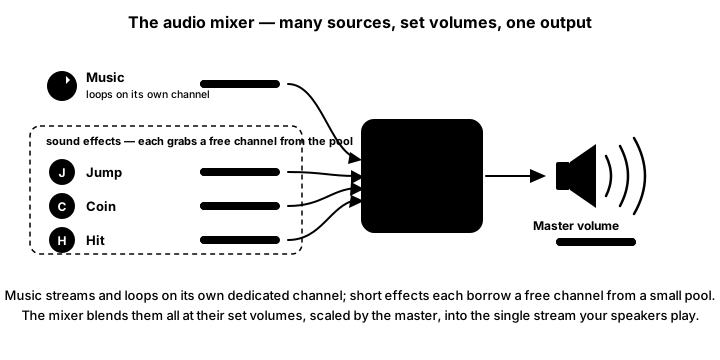
Think of a movie theater. The soundtrack plays underneath the whole film and sets the mood. On top of it, short sounds (a door slam, footsteps, a laser) happen exactly when something happens on screen. Games split their audio the same way, and pygame-ce's pygame.mixer module gives you one tool for each:
- Sound effects are short clips such as a jump, a coin or a hit. Each is a
pygame.mixer.Sound, loaded completely into memory so it can start instantly, many times, even overlapping itself. - Music is one long track, played through
pygame.mixer.music. It is streamed: read from the file bit by bit while it plays, instead of loaded all at once. Only one music track plays at a time.
The mixer blends every playing sound into the single stream your speakers play, each at its own volume.
💡 Why this matters
Sound is feedback. A coin "ding" confirms the pickup before your eyes find the score, and a thud tells you that you got hit even while you are looking somewhere else. Adding a sound to an action is often the cheapest way to make it feel better.
🧰 Make Some Test Sounds
You need a few sound files to practice with. You can download free ones later (see the FAQ), but this program makes four for you in a second, so every example in this lesson works right away. Save it as make_sounds.py in the folder where you keep this lesson's programs and run it once:
"""Make the test sounds for Intro Lesson 10 (Sound & Music).

Run it once:  python make_sounds.py   (python3 on macOS/Linux)
It writes four small WAV files into an assets folder next to this script:
jump.wav, coin.wav, hit.wav and music_loop.wav. No downloads needed, and
you are free to use them in anything you make.
"""
import math
import random
import wave
from array import array
from pathlib import Path

RATE = 22050                       # samples per second
ASSETS = Path(__file__).parent / "assets"


def save_wav(name, samples):
    """Save a list of floats between -1 and 1 as a 16-bit mono WAV file."""
    data = array("h", [int(max(-1.0, min(1.0, s)) * 32767) for s in samples])
    with wave.open(str(ASSETS / name), "wb") as wav:
        wav.setnchannels(1)        # mono
        wav.setsampwidth(2)        # 2 bytes = 16 bits per sample
        wav.setframerate(RATE)
        wav.writeframes(data.tobytes())
    print("wrote", ASSETS / name)


def tone(freq_start, freq_end, seconds, volume=0.5):
    """A square-ish beep that slides from freq_start to freq_end and fades out."""
    samples = []
    phase = 0.0
    count = int(RATE * seconds)
    for i in range(count):
        t = i / count
        freq = freq_start + (freq_end - freq_start) * t
        phase += freq / RATE
        wave_value = 1.0 if math.sin(2 * math.pi * phase) >= 0 else -1.0
        samples.append(wave_value * volume * (1 - t))
    return samples


def noise(seconds, volume=0.5):
    """A burst of static that fades out, like a hit or an explosion."""
    rng = random.Random(1)
    count = int(RATE * seconds)
    return [rng.uniform(-1, 1) * volume * (1 - i / count) ** 2 for i in range(count)]


def music_loop():
    """Four bars of a gentle arpeggio, 4 seconds long, that loops cleanly."""
    notes = [262, 330, 392, 523, 220, 262, 330, 440, 175, 220, 262, 349, 196, 247, 294, 392]
    samples = []
    note_len = int(RATE * 0.25)
    for freq in notes:
        for i in range(note_len):
            t = i / note_len
            envelope = min(1.0, t * 20) * (1 - t) * 0.3
            samples.append(math.sin(2 * math.pi * freq * i / RATE) * envelope)
    return samples


if __name__ == "__main__":
    ASSETS.mkdir(exist_ok=True)
    save_wav("jump.wav", tone(300, 900, 0.18, 0.35))
    save_wav("coin.wav", tone(988, 988, 0.08, 0.3) + tone(1319, 1319, 0.25, 0.3))
    save_wav("hit.wav", noise(0.3, 0.6))
    save_wav("music_loop.wav", music_loop())
You don't need to understand every line. It builds each sound as a long list of numbers between −1 and 1 (the shape of the sound wave, 22050 numbers per second), and the wave module from Python's standard library saves them as WAV files in an assets folder. Every program in this lesson loads its sounds from Path(__file__).parent / "assets", the folder next to the program, so it works no matter which folder you run it from.
| Format | What it is | A good fit for |
|---|---|---|
WAV (.wav) | Uncompressed: large files, nothing to decode | Short effects |
OGG Vorbis (.ogg) | Compressed: much smaller files | Music and longer effects |
MP3 (.mp3) | Compressed: small files | Music you already have as MP3 |
FLAC (.flac) | Compressed without losing quality | High-quality music |
We checked all four with pygame-ce 2.5.8 installed from pip: both Sound and music loaded WAV, OGG, MP3 and FLAC files. Older tutorials say Sound can't load MP3; that was true of older pygame versions. WAV for effects and OGG for music is still a safe, common choice.
🎚️ Start the Mixer Safely
pygame.init() starts the mixer for you. Two details are worth knowing.
Settings go in before pygame.init(). If you want to choose the mixer's settings, call pygame.mixer.pre_init(...) first. Once the mixer is running, calling pygame.mixer.init() with different settings does not change them.
pygame.mixer.pre_init(44100, -16, 2, 512)   # rate, 16-bit, stereo, buffer size
pygame.init()- 44100 samples per second, 16-bit signed samples (
-16), 2 channels (stereo). On our test machine that is also what the mixer used withoutpre_init. - 512 is the buffer size: how many samples the mixer prepares at a time. The pygame-ce docs explain the trade-off: a smaller buffer means less delay between
play()and hearing the sound, but can cause crackles or dropouts; a larger buffer plays smoothly but adds delay. If your sounds lag behind the action, lower it; if they crackle, raise it.
Some computers have no sound device. Classroom machines, servers and some virtual machines have none. Then pygame.init() quietly skips the mixer, and the first pygame.mixer.Sound(...) raises pygame.error. Ask for the mixer explicitly and catch the error, so your game still runs, just silently:
try:
    pygame.mixer.init()       # already running? Then this does nothing.
    sound_ok = True
except pygame.error as error:
    print("No sound device, running silently:", error)
    sound_ok = False
💥 Sound Effects: Load Once, Play Often
Here is a complete program: press Space and it plays jump.wav and flashes the window. It needs the assets folder from make_sounds.py next to it.
from pathlib import Path

import pygame

ASSETS = Path(__file__).parent / "assets"

pygame.mixer.pre_init(44100, -16, 2, 512)   # sound settings: must come BEFORE pygame.init()
pygame.init()
try:
    pygame.mixer.init()                     # already running? Then this does nothing.
    sound_ok = True
except pygame.error as error:
    print("No sound device, running silently:", error)
    sound_ok = False

screen = pygame.display.set_mode((480, 240))
pygame.display.set_caption("Press SPACE to jump")
clock = pygame.time.Clock()

jump_sound = None
if sound_ok:
    jump_sound = pygame.mixer.Sound(ASSETS / "jump.wav")   # load ONCE, before the loop
    jump_sound.set_volume(0.6)                             # 0.0 (silent) to 1.0 (full)

flash = 0.0                        # seconds left of the "jump!" flash
running = True
while running:
    dt = clock.tick(60) / 1000
    for event in pygame.event.get():
        if event.type == pygame.QUIT:
            running = False
        elif event.type == pygame.KEYDOWN and event.key == pygame.K_SPACE:
            if jump_sound is not None:
                jump_sound.play()          # plays on a free channel, then returns
            flash = 0.15

    flash = max(0.0, flash - dt)
    screen.fill((255, 220, 90) if flash > 0 else (25, 28, 40))
    pygame.display.flip()

pygame.quit()
The key line is where the Sound is created: before the loop. Creating a Sound reads the file from disk and decodes it, which is work you want to do once, at startup. After that, play() just starts the ready-made sound, so it can happen the instant the player presses a key. Creating the Sound inside the event handler would repeat all that work on every key press.
A few more things a Sound can do:
coin_sound = pygame.mixer.Sound(ASSETS / "coin.wav")
hum_sound = pygame.mixer.Sound(ASSETS / "music_loop.wav")   # any Sound can loop

coin_sound.set_volume(0.5)      # 0.0 = silent, 1.0 = full volume
coin_sound.play()               # play once
hum_sound.play(loops=-1)        # loop until stopped (loops=2 plays 3 times in total)
hum_sound.stop()                # stop it now, on every channel it is playing on
hum_sound.fadeout(500)          # fade out, then stop. pygame counts fades in MILLISECONDS
Note the units in the last line: in this course dt and timers are in seconds, but pygame's fade functions take milliseconds, so 500 is half a second. When your own code stores a fade time in seconds, convert it at the call: fadeout(int(fade_seconds * 1000)).
✅ Growth Mindset: Silence Is a Clue, Not a Dead End
Sound bugs are sneaky because there is nothing to see. When you hear nothing, don't start changing code at random. Check the chain one link at a time: did the mixer start (print(pygame.mixer.get_init()))? Did the file load (print the Sound)? Did play() return a channel or None? Is the volume above 0? Is your computer's own volume up? Each check is a small win, and you will not need all of them.
🎵 Music: One Streamed Track
Background music has its own module with no object to create: you load a file, then play it.
pygame.mixer.music.load(ASSETS / "music_loop.wav")
pygame.mixer.music.set_volume(0.4)      # quieter than the effects
pygame.mixer.music.play(-1)             # -1 = loop forever

pygame.mixer.music.pause()              # freeze it where it is...
pygame.mixer.music.unpause()            # ...and carry on from the same spot
pygame.mixer.music.fadeout(1000)        # fade out over one second (milliseconds again)
pygame.mixer.music.play(-1, fade_ms=2000)   # start again, fading in over two seconds
print(pygame.mixer.music.get_busy())    # True while music is playing
Loading a new file replaces the current track, because there is only one music stream. That is also why music never competes with your sound effects for channels: it has its own path through the mixer.
A common starting point is music noticeably quieter than the effects, so the effects stay easy to hear. Treat that as a first guess, not a rule, and adjust it by ear, ideally with a friend playing.
🎛️ Channels: How Many Sounds at Once?
Each playing sound effect needs a channel, and the mixer has a fixed number of them; our test machine started with 8 (pygame.mixer.get_num_channels() tells you). So what happens when all of them are busy and you play one more? Try it: press 10 hits at once in the demo below.
Eight hits play; the other two don't play at all. In pygame-ce, Sound.play() returns the Channel it used, or None when no channel is free. It does not cut off an older sound to make room. You can see it for yourself (this program needs the assets folder too):
from pathlib import Path

import pygame

ASSETS = Path(__file__).parent / "assets"

pygame.mixer.init()
pygame.mixer.set_num_channels(2)            # only two sounds at once, to see what happens
hit = pygame.mixer.Sound(ASSETS / "hit.wav")

first = hit.play()
second = hit.play()
third = hit.play()                          # both channels are still busy
print(first is not None, second is not None, third)     # True True None

channel = pygame.mixer.find_channel(True)   # True = take the one playing longest
channel.play(hit)                           # this sound WILL play
print("Busy channels:", sum(pygame.mixer.Channel(i).get_busy() for i in range(2)))
pygame.quit()
You have two tools when channels run out:
- More channels:
pygame.mixer.set_num_channels(16)at startup lets more effects overlap. - Make room for an important sound:
pygame.mixer.find_channel(True)returns the channel that has been playing longest when all are busy, andchannel.play(sound)starts your sound on it, cutting off whatever it was playing. Save this for sounds the player must hear, like "game over".
🗂️ A Simple SoundManager
Once a game has more than a couple of sounds, scattered Sound variables and volume numbers get messy. A small class keeps them together, and it is the natural place for "no sound device" checks and a mute switch:
class SoundManager:
    """Loads sound effects once and controls effects and music volume."""

    def __init__(self, folder, enabled):
        self.folder = folder
        self.enabled = enabled        # False when the computer has no sound device
        self.sounds = {}
        self.sfx_volume = 0.7
        self.music_volume = 0.4
        self.muted = False

    def load(self, name, filename):
        """Load one effect from the folder and remember it under name."""
        if self.enabled:
            sound = pygame.mixer.Sound(self.folder / filename)
            sound.set_volume(self.sfx_volume)
            self.sounds[name] = sound

    def play(self, name):
        """Play an effect. Returns its Channel, or None if nothing played."""
        if self.muted or name not in self.sounds:
            return None
        return self.sounds[name].play()

    def set_sfx_volume(self, volume):
        self.sfx_volume = max(0.0, min(1.0, volume))
        for sound in self.sounds.values():
            sound.set_volume(self.sfx_volume)

    def play_music(self, filename):
        """Stream a music file from disk and loop it forever."""
        if self.enabled:
            pygame.mixer.music.load(self.folder / filename)
            pygame.mixer.music.set_volume(0.0 if self.muted else self.music_volume)
            pygame.mixer.music.play(-1)

    def set_music_volume(self, volume):
        self.music_volume = max(0.0, min(1.0, volume))
        if self.enabled and not self.muted:
            pygame.mixer.music.set_volume(self.music_volume)

    def toggle_mute(self):
        """Mute or unmute everything. Unmuting restores the saved volumes."""
        self.muted = not self.muted
        if self.enabled:
            if self.muted:
                pygame.mixer.stop()                    # cut effects already playing
                pygame.mixer.music.set_volume(0.0)
            else:
                pygame.mixer.music.set_volume(self.music_volume)


# Using it:
sounds = SoundManager(ASSETS, sound_ok)
sounds.load("coin", "coin.wav")
sounds.play_music("music_loop.wav")
sounds.play("coin")          # in the game, when a coin is collected
Look at how mute works. It does not throw away the volumes: self.music_volume keeps the player's choice while the music is set to 0.0, and unmuting puts that saved value back. A mute that sets everything to 0.0 and later back to a hard-coded number forgets whatever the player picked, which is a real bug in plenty of games.
The manager also clamps every volume with max(0.0, min(1.0, volume)), the same clamp you used for colors in the Drawing Shapes & Surfaces lesson, so pressing "volume up" too many times can't break anything. And when enabled is False, every method quietly does nothing.
🏋️ Practice Exercise: Sound Board
Objective: build a Sound Board that plays three effects, loops music, and lets the player change the effects and music volumes, pause the music and mute everything.
Time: about 30 minutes. Starter files: sound_board_starter.py and make_sounds.py (your instructor has them). The starter already draws the volume bars, the status line and the channel boxes and reads every key, but its SoundManager methods are empty. Its numbered comments match the steps below.
- Run
make_sounds.pyonce, then run the starter. The window works but is silent. (≈ 3 min) - Write
load()(comment 1) andplay()(comment 2). Keys 1, 2 and 3 should now play jump, coin and hit. (≈ 7 min) - Write
play_music()(comment 3): the music should start looping. P already pauses and resumes it. (≈ 4 min) - Write
toggle_mute()(comment 4) so M silences everything and brings back the volumes you had. (≈ 5 min) - Write both volume setters (comments 5a and 5b), with clamping. Use ↑/↓ and ←/→. (≈ 6 min)
- Make key 4 play the hit ten times in a row and count how many calls returned a channel (comment 6). Watch the channel boxes fill up. (≈ 5 min)
You are done when:
- keys 1, 2 and 3 play three different effects, and the music loops underneath;
- the volume bars never go below 0% or above 100%, and you can hear each change;
- M mutes everything, and pressing it again brings back the exact volumes you had set;
- key 4 reports
Burst: 8 played, 2 got no channelwhen nothing else is playing; - on a computer where the mixer can't start, the program prints one message and keeps running silently instead of crashing.
💡 Hint
Every method starts the same way: if self.enabled: (or return early when not). For mute, store nothing new: self.music_volume already remembers the player's choice, so muting sets the mixer's music volume to 0.0 and unmuting sets it back to self.music_volume. For the burst, a list comprehension works well: [sounds.play("hit") for _ in range(10)], then count the results that are not None.
✅ Example Solution
If your instructor hands you the lab file, you will see a few extra lines marked lab runtime near the top and and frame_budget() in the loop. They let the instructor's checker run the program automatically for a fixed number of frames; when you run it yourself they do nothing. You never need to write them.
"""Sound Board: Intro Lesson 10 practice exercise (solution).

Keys:  1 jump   2 coin   3 hit   4 ten hits at once (watch the channels run out)
       M mute everything   P pause the music
       UP / DOWN effects volume   LEFT / RIGHT music volume
Run make_sounds.py once first so the assets folder has its WAV files.
Close the window to quit.
"""
from pathlib import Path

import pygame


ASSETS = Path(__file__).parent / "assets"
WIDTH, HEIGHT = 640, 400
BG_COLOR = (20, 22, 34)
TEXT_COLOR = (235, 235, 235)
DIM_COLOR = (150, 155, 170)
BAR_BACK = (60, 64, 80)
BAR_COLOR = (90, 200, 140)
BUSY_COLOR = (255, 190, 70)
HELP = [
    "1 jump   2 coin   3 hit   4 ten hits at once",
    "M mute   P pause music",
    "UP/DOWN effects volume   LEFT/RIGHT music volume",
]


class SoundManager:
    """Loads sound effects once and controls effects and music volume."""

    def __init__(self, folder, enabled):
        self.folder = folder
        self.enabled = enabled        # False when the computer has no sound device
        self.sounds = {}
        self.sfx_volume = 0.7
        self.music_volume = 0.4
        self.muted = False

    def load(self, name, filename):
        """Load one effect from the folder and remember it under name."""
        if self.enabled:
            sound = pygame.mixer.Sound(self.folder / filename)
            sound.set_volume(self.sfx_volume)
            self.sounds[name] = sound

    def play(self, name):
        """Play an effect. Returns its Channel, or None if nothing played."""
        if self.muted or name not in self.sounds:
            return None
        return self.sounds[name].play()

    def set_sfx_volume(self, volume):
        self.sfx_volume = max(0.0, min(1.0, volume))
        for sound in self.sounds.values():
            sound.set_volume(self.sfx_volume)

    def play_music(self, filename):
        """Stream a music file from disk and loop it forever."""
        if self.enabled:
            pygame.mixer.music.load(self.folder / filename)
            pygame.mixer.music.set_volume(0.0 if self.muted else self.music_volume)
            pygame.mixer.music.play(-1)

    def set_music_volume(self, volume):
        self.music_volume = max(0.0, min(1.0, volume))
        if self.enabled and not self.muted:
            pygame.mixer.music.set_volume(self.music_volume)

    def toggle_mute(self):
        """Mute or unmute everything. Unmuting restores the saved volumes."""
        self.muted = not self.muted
        if self.enabled:
            if self.muted:
                pygame.mixer.stop()                    # cut effects already playing
                pygame.mixer.music.set_volume(0.0)
            else:
                pygame.mixer.music.set_volume(self.music_volume)


def start_audio():
    """Start pygame and its mixer. Returns True if this computer can play sound."""
    pygame.mixer.pre_init(44100, -16, 2, 512)          # must come before pygame.init()
    pygame.init()
    try:
        pygame.mixer.init()                           # does nothing if already running
    except pygame.error as error:
        print("No sound device, running silently:", error)
        return False
    return True


def busy_channels():
    """How many mixer channels are playing something right now."""
    if pygame.mixer.get_init() is None:
        return 0
    return sum(pygame.mixer.Channel(i).get_busy() for i in range(pygame.mixer.get_num_channels()))


def draw_bar(screen, font, label, value, y):
    screen.blit(font.render(label, True, TEXT_COLOR), (40, y))
    pygame.draw.rect(screen, BAR_BACK, (260, y + 2, 300, 18))
    pygame.draw.rect(screen, BAR_COLOR, (260, y + 2, 300 * value, 18))


def main():
    audio_ok = start_audio()
    screen = pygame.display.set_mode((WIDTH, HEIGHT))
    pygame.display.set_caption("Sound Board")
    clock = pygame.time.Clock()
    font = pygame.font.Font(None, 28)
    help_lines = [font.render(line, True, DIM_COLOR) for line in HELP]   # render once

    sounds = SoundManager(ASSETS, audio_ok)
    sounds.load("jump", "jump.wav")
    sounds.load("coin", "coin.wav")
    sounds.load("hit", "hit.wav")
    sounds.play_music("music_loop.wav")
    music_paused = False
    last_message = "Press 1, 2, 3 or 4"
    effect_keys = {pygame.K_1: "jump", pygame.K_2: "coin", pygame.K_3: "hit"}

    running = True
    while running:
        clock.tick(60)

        for event in pygame.event.get():
            if event.type == pygame.QUIT:
                running = False
            elif event.type == pygame.KEYDOWN:
                if event.key in effect_keys:
                    name = effect_keys[event.key]
                    channel = sounds.play(name)
                    last_message = f"{name}: " + ("playing" if channel is not None else "no sound")
                elif event.key == pygame.K_4:
                    results = [sounds.play("hit") for _ in range(10)]
                    played = sum(1 for channel in results if channel is not None)
                    last_message = f"Burst: {played} played, {10 - played} got no channel"
                    print(last_message)
                elif event.key == pygame.K_m:
                    sounds.toggle_mute()
                elif event.key == pygame.K_p and audio_ok:
                    if music_paused:
                        pygame.mixer.music.unpause()
                    else:
                        pygame.mixer.music.pause()
                    music_paused = not music_paused
                elif event.key == pygame.K_UP:
                    sounds.set_sfx_volume(sounds.sfx_volume + 0.1)
                elif event.key == pygame.K_DOWN:
                    sounds.set_sfx_volume(sounds.sfx_volume - 0.1)
                elif event.key == pygame.K_RIGHT:
                    sounds.set_music_volume(sounds.music_volume + 0.1)
                elif event.key == pygame.K_LEFT:
                    sounds.set_music_volume(sounds.music_volume - 0.1)

        screen.fill(BG_COLOR)
        draw_bar(screen, font, f"Effects volume {sounds.sfx_volume:.0%}", sounds.sfx_volume, 40)
        draw_bar(screen, font, f"Music volume {sounds.music_volume:.0%}", sounds.music_volume, 80)
        status = "MUTED" if sounds.muted else ("music paused" if music_paused else "music playing")
        if not audio_ok:
            status = "no sound device"
        screen.blit(font.render(f"Status: {status}", True, TEXT_COLOR), (40, 130))
        busy = busy_channels()
        total = pygame.mixer.get_num_channels() if audio_ok else 0
        screen.blit(font.render(f"Channels busy: {busy}/{total}", True, TEXT_COLOR), (40, 170))
        for i in range(total):
            color = BUSY_COLOR if pygame.mixer.Channel(i).get_busy() else BAR_BACK
            pygame.draw.rect(screen, color, (40 + i * 34, 205, 28, 28))
        screen.blit(font.render(last_message, True, TEXT_COLOR), (40, 255))
        for i, line in enumerate(help_lines):
            screen.blit(line, (40, 300 + i * 28))
        pygame.display.flip()

    pygame.quit()
    print(f"Effects {sounds.sfx_volume:.0%}, music {sounds.music_volume:.0%}, muted {sounds.muted}")


if __name__ == "__main__":
    main()
📓 Learning Journal
Take five minutes to write in your learning journal (a notebook or a plain text file works). Jot down:
- Key concepts you learned today
- Techniques that clicked (and the ones that haven't, yet)
- Questions or confusion to bring to the next session
- Ideas to try in your own game
- Progress and feelings: how did this lesson go for you?
✍️ This lesson's prompts:
- Play a game you like for two minutes with the sound on, then two with it off. Which actions felt weaker without sound? Which sound would you add to Coin Dash first?
- Explain to a friend why a
Soundis created before the loop but played inside it. - What surprised you about channels running out? Where in a game could that actually happen?
📝 Summary
You split game audio into short effects and streamed music, started the mixer so a game without a sound device still runs, and made your own test sounds. You loaded each Sound once and played it on events, looped and paused music with pygame.mixer.music, and discovered that when every channel is busy, Sound.play() plays nothing and returns None. Finally you wrapped it all in a SoundManager whose mute remembers the player's volumes.
🎓 Key Takeaways
pygame.mixer.Soundis for short effects, loaded into memory;pygame.mixer.musicstreams one long track at a time.- Choose mixer settings with
pre_init()beforepygame.init(); a smaller buffer means less delay but a higher risk of crackles. - Wrap
pygame.mixer.init()intry/except pygame.errorso your game runs on computers without sound. - Create every
Soundonce, before the loop, and callplay()when things happen. - When all channels are busy,
Sound.play()returnsNone; useset_num_channels()orfind_channel(True)when that matters. - Volumes run from 0.0 to 1.0: clamp them, and let mute restore the saved values instead of hard-coded ones.
🔭 Looking Ahead
Your games now move, collide and make noise, but your sprites are still frozen pictures. In the next lesson, Sprite Animation, you flip through frames from a sprite sheet with dt-based timing, so characters walk, idle and swing a sword.
❓ Common Questions
Where can I get free sounds for my games?
kenney.nl offers free game sound packs under the CC0 license, which lets you use them in anything without asking. Freesound.org has a huge library, but each sound has its own license, so read it before you use one. Browser tools such as jsfxr generate retro effects like the ones make_sounds.py makes. Keep a note of where every file came from.
I get pygame.error: mixer not initialized. What does that mean?
The mixer never started, usually because the computer has no working sound device (common in virtual machines and on some school computers). Use the try/except start-up from this lesson and skip audio when it fails. If the computer does have sound, check that your system volume is up and that another program is not holding the audio device.
I get FileNotFoundError when loading a sound.
The path is relative to the folder you ran Python from, not the folder your program is in. Build paths from the program's own folder, Path(__file__).parent / "assets" / "jump.wav", as every example here does, and run make_sounds.py first.
Can two different songs play at the same time?
Not through pygame.mixer.music, which plays one track at a time. You can load a second song as a Sound and play it on a channel, but it will be loaded completely into memory, so keep that for short loops such as ambient wind or rain.
Why does my sound play late, a moment after the key press?
Usually the buffer is large. Set a smaller one with pygame.mixer.pre_init(44100, -16, 2, 512) before pygame.init(). Also check that you are not creating the Sound inside the event handler, and that the file itself has no silence at the start.
Should every action have a sound?
Every important action benefits from one. Too many overlapping sounds turn into noise, so listen to your game as a player would and remove any sound you stop noticing. Varying a repeated sound a little (two or three versions of a footstep) can keep it from getting tiring.
🎯 Quick Quiz
Question 1: What is the best way to play a three-minute background track that loops forever?
Question 2: Why create each pygame.mixer.Sound before the game loop instead of in the event handler?
Question 3: All 8 mixer channels are busy and your code calls hit_sound.play(). What happens?
Question 4: Players say your sounds start a moment after the action. Which mixer change is most likely to help?
Question 5: The player sets the music to 30%, mutes, then unmutes. What should unmuting do?
🌟 Going Further
- Add sound to Coin Dash: copy the
SoundManagerinto your Coin Dash game and play "coin" when a coin is collected and "hit" when a drone bumps you. Play a sound only when something changes, not on every frame of an overlap. - Footsteps: while the player moves, play a short sound every 0.3 seconds using a timer that counts down with
dt. - Your own sounds: change the frequencies and lengths in
make_sounds.py, or record yourself saying "boing" and save it as WAV or OGG. - Read the docs: skim the pygame-ce pages for pygame.mixer and pygame.mixer.music. Find
music.queue()andChannel.set_volume(). - Coming up in Game Dev II: Intermediate: Audio Mixing & Spatial Sound covers sounds that get quieter with distance, stereo panning and smooth crossfades between music tracks.