Lesson 11: Sprite Animation
A character that blinks while it waits, swings its legs as it walks and winds up before a sword swing feels alive. In this lesson you make that happen: frames from a sprite sheet, timed in seconds, switched by what the player is doing.
🎯 Learning Objectives
By the end of this lesson, you will be able to:
- Explain why counting game frames makes an animation's speed depend on the frame rate, and time frames in seconds with
dtinstead. - Keep the leftover time when a frame changes (
timer -= frame_time) and show why resetting the timer to 0 makes animations run slow. - Build an
Animationclass that loops or plays once and holds its last frame. - Switch between idle, walk and attack states, starting each new state at frame 0 and letting a one-shot finish.
- Face left and right with frames flipped once at load time, not every frame.
Project: an Animated Hero who idles, walks both ways and swings a sword, with every frame cut from a sprite sheet.
In This Lesson
🎬 Flipbooks and Frames
Draw a stick figure in the corner of every page of a notebook, each one slightly different, then flip the pages. That is sprite animation. In game terms:
- Frames are the individual pictures. In the Sprite Sheets lesson you cut them out of one image with
subsurface(). - Frame time is how long each picture stays on screen, in seconds.
- Looping animations (idle, walk) start over after the last frame; one-shot animations (a sword swing, a jump) play once and stop.
- States are the different flipbooks a character owns, and the game picks one based on what the character is doing.
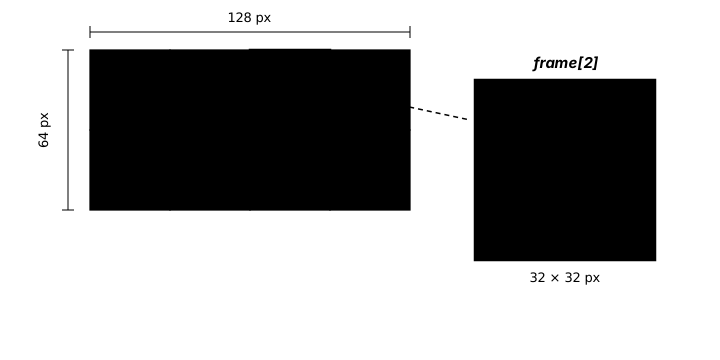
Try it in the demo. Switch the main character between states, change the speed, and watch the frame counters. Jump and attack are one-shots: they play once, then the character goes back to idle.
⏱️ Timing Frames With dt
The tempting first version counts game frames: "show the next picture every 6 frames". That works on your computer and breaks on everyone else's, exactly like moving by pixels per frame did in the Game Loop lesson. At 30 FPS the walk cycle plays at half speed; at 144 FPS it looks like a hummingbird.
The fix is the same one you used for movement: measure time in seconds. Each animation keeps a timer. Every game frame you add dt; once the timer reaches frame_time, you move to the next picture. Here is a complete program that spins a coin. It draws the coin's eight frames in code as a one-row sprite sheet, then cuts them out with subsurface(), just as you would with an image file:
import math

import pygame

FRAME_SIZE = 64
FRAME_COUNT = 8
FRAME_TIME = 0.08          # seconds each frame stays on screen


def make_coin_strip():
    """Draw a spinning coin as a strip of frames, like a one-row sprite sheet."""
    strip = pygame.Surface((FRAME_SIZE * FRAME_COUNT, FRAME_SIZE), pygame.SRCALPHA)
    for i in range(FRAME_COUNT):
        width = max(4, abs(math.cos(i / FRAME_COUNT * math.pi)) * 56)   # the coin turns
        oval = pygame.Rect(0, 0, width, 56)
        oval.center = (i * FRAME_SIZE + FRAME_SIZE // 2, FRAME_SIZE // 2)
        pygame.draw.ellipse(strip, (250, 200, 60), oval)
        pygame.draw.ellipse(strip, (180, 130, 30), oval, 3)
    return strip


pygame.init()
screen = pygame.display.set_mode((320, 200))
pygame.display.set_caption("Spinning Coin")
clock = pygame.time.Clock()

strip = make_coin_strip()
frames = [strip.subsurface((i * FRAME_SIZE, 0, FRAME_SIZE, FRAME_SIZE)) for i in range(FRAME_COUNT)]
index = 0                  # which frame is showing
timer = 0.0                # seconds since the frame last changed

running = True
while running:
    dt = clock.tick(60) / 1000
    for event in pygame.event.get():
        if event.type == pygame.QUIT:
            running = False

    timer += dt
    while timer >= FRAME_TIME:             # time for the next frame (maybe more than one)
        timer -= FRAME_TIME                # keep the leftover time
        index = (index + 1) % FRAME_COUNT  # wrap back to 0 after the last frame

    screen.fill((25, 28, 40))
    frame = frames[index]
    screen.blit(frame, frame.get_rect(center=(160, 100)))
    pygame.display.flip()

pygame.quit()
Change clock.tick(60) to clock.tick(15): the coin looks choppier, but it spins at exactly the same speed. Change FRAME_TIME to 0.16 (twice as long) and it spins half as fast. The animation's speed now depends only on FRAME_TIME, never on the computer.
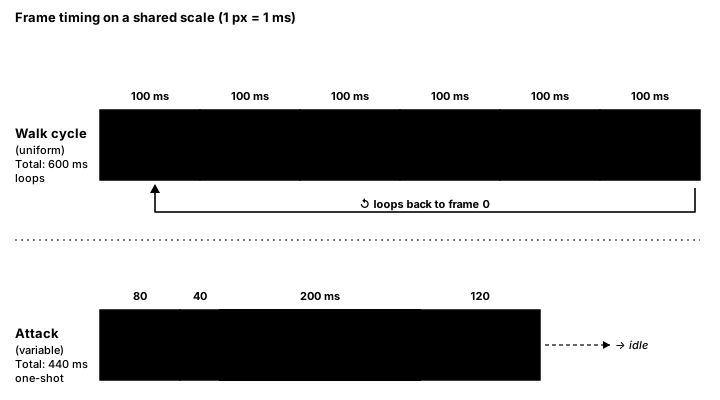
frame_time = 0.1 seconds. Uniform timing (top) is what this lesson builds; per-frame durations (bottom), where the impact frame lingers, are a Going Further idea.➗ Keep the Leftover Time
Look again at the two lines that change the frame:
while timer >= FRAME_TIME:
    timer -= FRAME_TIME        # not: timer = 0
Many tutorials write timer = 0 instead. It looks harmless, but it throws away time. Say each frame should last 0.1 s and your game runs at 25 FPS, so dt is 0.04 s. The timer goes 0.04, 0.08, 0.12: the frame changes, but the timer was 0.02 s past the target. Resetting to 0 forgets that 0.02 s, so every frame really lasts 0.12 s and the whole animation plays about 17% slow. Subtracting keeps the extra 0.02 s for the next frame, so the frames average out to exactly 0.1 s. This program counts the difference:
FRAME_TIME = 0.1        # each animation frame stays on screen for 0.1 seconds
dt = 1 / 25             # a computer running at 25 FPS: 0.04 seconds per game frame
ticks = 76              # 76 game frames = 3.04 seconds


def count_changes(keep_leftover):
    """Run the animation timer for `ticks` frames and count the frame changes."""
    timer = 0.0
    changes = 0
    for tick in range(ticks):
        timer += dt
        while timer >= FRAME_TIME:
            changes += 1
            if keep_leftover:
                timer -= FRAME_TIME     # keep the extra time for the next frame
            else:
                timer = 0.0             # throw the extra time away
    return changes


print(f"{ticks * dt:.2f} seconds should give {int(ticks * dt / FRAME_TIME)} frame changes")
print("timer = 0.0         :", count_changes(False))
print("timer -= FRAME_TIME :", count_changes(True))
Three seconds of game time should show 30 frame changes. Resetting the timer gives 25; keeping the leftover gives all 30. The while (instead of if) matters too: after a long frame, for example when the window was dragged, dt can cover several frame times, and the loop catches up on all of them instead of falling further behind.
✅ Growth Mindset: "It Looks a Bit Off" Is Real Data
Timing bugs rarely crash anything. The animation just feels slightly slow, or a bit jittery, and it is easy to shrug it off, or to decide you are "not an animation person". You don't need a special eye; you need a measurement. Print index and timer for a few frames, or count frame changes over three seconds like the program above. Turning "it looks off" into a number is a skill, and it gets easier every time you use it.
🧩 An Animation Class
A character needs several animations, and each one has its own frames, frame time, current index and timer. That is a perfect job for a small class. This one is taken straight from the exercise solution:
class Animation:
    """Plays a list of frames, each for frame_time seconds."""

    def __init__(self, frames, frame_time, loop=True):
        self.frames = frames
        self.flipped = [pygame.transform.flip(f, True, False) for f in frames]  # flip once, here
        self.frame_time = frame_time
        self.loop = loop
        self.reset()

    def reset(self):
        self.index = 0
        self.timer = 0.0
        self.finished = False

    def update(self, dt):
        if self.finished:
            return
        self.timer += dt
        while self.timer >= self.frame_time:
            self.timer -= self.frame_time           # keep the leftover time
            if self.index < len(self.frames) - 1:
                self.index += 1
            elif self.loop:
                self.index = 0
            else:
                self.finished = True                 # one-shot: hold the last frame
                self.timer = 0.0
                break

    def current_frame(self, facing_left=False):
        frames = self.flipped if facing_left else self.frames
return frames[self.index]update(dt)is the timer from the coin program, plus one decision at the last frame: a looping animation wraps to 0; a one-shot setsfinished = Trueand holds its last frame, so a sword swing doesn't snap back to the wind-up pose.reset()puts the animation back at frame 0 with an empty timer. You call it whenever the character switches to this animation.current_frame()returns the Surface to draw. You will seeflippedin Facing Left and Right.
The class doesn't know what a "walk" is, and it doesn't need to: it just plays a list of pictures. That is why one class can run every animation your character has.
🔀 Switching States
Now the character needs to pick which animation to play. Keep the state as a simple string, "idle", "walk" or "attack", and decide the next one from what the player is doing:
def choose_state(state, moving, attack_pressed, attack_finished):
    """Pick the hero's next animation state."""
    if state == "attack" and not attack_finished:
        return "attack"                  # let the swing finish first
    if attack_pressed:
        return "attack"
    if moving:
        return "walk"
    return "idle"


# in the game loop:
swing_done = state == "attack" and animations["attack"].finished
new_state = choose_state(state, direction != 0, attack_pressed, swing_done)
if new_state != state or swing_done:       # a finished swing always restarts
    state = new_state
    animations[state].reset()              # a new state starts at frame 0
animations[state].update(dt)
Three rules make switching look right:
- A new state starts at frame 0. Each
Animationremembers where it stopped. Withoutreset(), walking again would resume the old walk cycle mid-stride, and a second sword swing would start already "finished". - A one-shot finishes before anything else happens.
choose_state()keeps returning"attack"until the swing is done, so tapping an arrow key can't cut a swing in half. - A finished swing always leaves. The
or swing_donepart means that when the swing ends, the state changes (to idle, walk, or a brand-new attack) and the new animation is reset, even when the new state is"attack"again.
Every state here can actually be reached: arrow keys lead to walk, Space leads to attack, and letting go leads back to idle. When you add a state, trace the path into it and out of it before you draw its frames.
↔️ Facing Left and Right
You rarely draw a separate left-facing sheet. pygame.transform.flip(surface, True, False) mirrors a Surface left to right. The question is when to call it. Flipping inside the drawing code runs the same work again every frame and creates a new Surface each time, for a picture you already had a moment ago. The Animation class flips each frame once, when it is created, and keeps both lists:
self.flipped = [pygame.transform.flip(f, True, False) for f in frames]   # in __init__

frame = animation.current_frame(facing_left)    # in the draw step: just pick a list
This is the same "prepare once, reuse many times" habit you used for fonts and images: expensive-to-make things are made at load time, and the game loop only chooses between them.
One more detail from the solution: the hero is drawn with frame.get_rect(midbottom=pos), so its feet stay on the floor even if frames have different heights. Anchoring by the feet is a common choice for characters that stand on the ground.
🏋️ Practice Exercise: Animated Hero
Objective: make a hero who idles, walks left and right, and swings a sword, with smooth, frame-rate-independent timing.
Time: about 35 minutes. Starter file: animated_hero_starter.py (your instructor has it). It already draws the sprite sheet in code, slices it, reads the keys and moves the hero, but the hero is frozen on frame 1. Its numbered comments match the steps below.
- Run the starter. Walk with ←/→: the hero slides without moving its legs. (≈ 2 min)
- In
Animation.update(), add thewhileloop that subtractsframe_timeand moves to the next frame (comment 1). Idle and walk should now animate. (≈ 8 min) - Handle the last frame (comment 2): wrap to 0 for loops; for one-shots set
finished, clear the timer and stop. (≈ 5 min) - Teach
choose_state()about attacks (comment 3): stay in"attack"until it has finished, and start it when Space is pressed. (≈ 6 min) - Build the flipped frames once in
__init__(comment 4a), so walking left faces left. (≈ 5 min) - Reset the new state's animation whenever the state changes (comment 5). Swing twice in a row: both swings should start from the wind-up. (≈ 4 min)
- Change
clock.tick(60)toclock.tick(20)and check that the animations play at the same speed, just choppier. Put it back. (≈ 5 min)
You are done when:
- the hero idles (and blinks), walks with moving legs, and faces the way it walks;
- Space plays the whole swing once, even if you press an arrow key during it, then returns to idle or walk;
- every swing starts at frame 1, and the frame counter on screen always starts at 1 after a state change;
- at 20 FPS the animations take the same time as at 60 FPS;
- closing the window prints a line like
Final state: idle, facing left, attacks finished: 2.
💡 Hint
Write update() for the looping case first and run it before touching one-shots. For the last frame, compare self.index with len(self.frames) - 1 before adding 1, so the index never goes past the end. If the second swing never plays, check comment 5: the attack animation is still marked finished because nothing reset it.
✅ Example Solution
If your instructor hands you the lab file, you will see a few extra lines marked lab runtime near the top and and frame_budget() in the loop. They let the instructor's checker run the program automatically for a fixed number of frames; when you run it yourself they do nothing. You never need to write them.
"""Animated Hero: Intro Lesson 11 practice exercise (solution).

LEFT/RIGHT (or A/D) walk, SPACE swings a sword. The hero idles, walks
and attacks with dt-based frame timing, faces the way it walks, and goes
back to idle when the swing finishes. Close the window to quit.
"""
import math

import pygame


WIDTH, HEIGHT = 640, 360
FRAME_W, FRAME_H = 48, 64
WALK_SPEED = 160                 # pixels per second
BG_COLOR = (24, 26, 40)
FLOOR_COLOR = (70, 74, 96)
TEXT_COLOR = (235, 235, 235)
SKIN = (250, 205, 170)
LEFT_KEYS = (pygame.K_LEFT, pygame.K_a)
RIGHT_KEYS = (pygame.K_RIGHT, pygame.K_d)

# Each row of the sheet is one animation: (row, frame count, seconds per frame, loops?)
ANIMATIONS = {
    "idle": (0, 4, 0.20, True),
    "walk": (1, 6, 0.10, True),
    "attack": (2, 4, 0.08, False),
}


def draw_hero(surface, x, state, i, count):
    """Draw one frame of the hero into a 48 x 64 cell whose left edge is x."""
    t = i / count                                   # 0.0 to 1.0 through the cycle
    body_color = {"idle": (90, 150, 230), "walk": (90, 200, 140), "attack": (230, 110, 110)}[state]
    bob = round(math.sin(t * 2 * math.pi) * 2) if state != "attack" else 0
    stride = round(math.sin(t * 2 * math.pi) * 8) if state == "walk" else 0
    pygame.draw.line(surface, body_color, (x + 20, 44), (x + 20 - stride, 62), 5)   # legs
    pygame.draw.line(surface, body_color, (x + 28, 44), (x + 28 + stride, 62), 5)
    pygame.draw.rect(surface, body_color, (x + 14, 22 + bob, 20, 24), border_radius=4)
    pygame.draw.circle(surface, SKIN, (x + 24, 14 + bob), 9)
    pygame.draw.circle(surface, (20, 20, 30), (x + 28, 12 + bob), 2)                  # eye: faces right
    if state == "idle" and i == count - 1:
        pygame.draw.line(surface, (20, 20, 30), (x + 26, 12 + bob), (x + 30, 12 + bob), 2)  # blink
    if state == "attack":
        angle = math.radians(-80 + 140 * t)         # the sword sweeps from up to forward-down
        tip = (x + 30 + math.cos(angle) * 18, 30 + math.sin(angle) * 18)
        pygame.draw.line(surface, (230, 230, 240), (x + 30, 30), tip, 3)


def make_sheet():
    """Draw a sprite sheet in code: one row per animation, one 48 x 64 cell per frame."""
    columns = max(count for _, count, _, _ in ANIMATIONS.values())
    sheet = pygame.Surface((columns * FRAME_W, len(ANIMATIONS) * FRAME_H), pygame.SRCALPHA)
    for state, (row, count, _, _) in ANIMATIONS.items():
        strip = pygame.Surface((count * FRAME_W, FRAME_H), pygame.SRCALPHA)
        for i in range(count):
            draw_hero(strip, i * FRAME_W, state, i, count)
        sheet.blit(strip, (0, row * FRAME_H))
    return sheet


def slice_row(sheet, row, count):
    """Cut one row of the sheet into a list of frame Surfaces."""
    return [sheet.subsurface((i * FRAME_W, row * FRAME_H, FRAME_W, FRAME_H)) for i in range(count)]


class Animation:
    """Plays a list of frames, each for frame_time seconds."""

    def __init__(self, frames, frame_time, loop=True):
        self.frames = frames
        self.flipped = [pygame.transform.flip(f, True, False) for f in frames]  # flip once, here
        self.frame_time = frame_time
        self.loop = loop
        self.reset()

    def reset(self):
        self.index = 0
        self.timer = 0.0
        self.finished = False

    def update(self, dt):
        if self.finished:
            return
        self.timer += dt
        while self.timer >= self.frame_time:
            self.timer -= self.frame_time           # keep the leftover time
            if self.index < len(self.frames) - 1:
                self.index += 1
            elif self.loop:
                self.index = 0
            else:
                self.finished = True                 # one-shot: hold the last frame
                self.timer = 0.0
                break

    def current_frame(self, facing_left=False):
        frames = self.flipped if facing_left else self.frames
        return frames[self.index]


def choose_state(state, moving, attack_pressed, attack_finished):
    """Pick the hero's next animation state."""
    if state == "attack" and not attack_finished:
        return "attack"                  # let the swing finish first
    if attack_pressed:
        return "attack"
    if moving:
        return "walk"
    return "idle"


def main():
    pygame.init()
    screen = pygame.display.set_mode((WIDTH, HEIGHT))
    pygame.display.set_caption("Animated Hero")
    clock = pygame.time.Clock()
    font = pygame.font.Font(None, 28)

    sheet = make_sheet()
    animations = {}
    for name, (row, count, frame_time, loop) in ANIMATIONS.items():
        animations[name] = Animation(slice_row(sheet, row, count), frame_time, loop)

    pos = pygame.Vector2(WIDTH / 2, 280)        # the hero's feet
    state = "idle"
    facing_left = False
    held = set()
    attacks = 0

    running = True
    while running:
        dt = clock.tick(60) / 1000
        attack_pressed = False

        for event in pygame.event.get():
            if event.type == pygame.QUIT:
                running = False
            elif event.type == pygame.KEYDOWN:
                held.add(event.key)
                if event.key == pygame.K_SPACE:
                    attack_pressed = True
            elif event.type == pygame.KEYUP:
                held.discard(event.key)

        direction = 0
        if any(key in held for key in LEFT_KEYS):
            direction -= 1
        if any(key in held for key in RIGHT_KEYS):
            direction += 1

        swing_done = state == "attack" and animations["attack"].finished
        new_state = choose_state(state, direction != 0, attack_pressed, swing_done)
        if new_state != state or swing_done:       # a finished swing always restarts
            if swing_done:
                attacks += 1
            state = new_state
            animations[state].reset()              # a new state starts at frame 0

        if state == "walk":
            facing_left = direction < 0
            pos.x += direction * WALK_SPEED * dt
            pos.x = max(FRAME_W / 2, min(WIDTH - FRAME_W / 2, pos.x))

        animation = animations[state]
        animation.update(dt)

        screen.fill(BG_COLOR)
        pygame.draw.rect(screen, FLOOR_COLOR, (0, 280, WIDTH, HEIGHT - 280))
        frame = animation.current_frame(facing_left)
        screen.blit(frame, frame.get_rect(midbottom=pos))
        label = font.render(f"{state}  frame {animation.index + 1}/{len(animation.frames)}",
                            True, TEXT_COLOR)
        screen.blit(label, (12, 12))
        pygame.display.flip()

    pygame.quit()
    side = "left" if facing_left else "right"
    print(f"Final state: {state}, facing {side}, attacks finished: {attacks}")


if __name__ == "__main__":
    main()
📓 Learning Journal
Take five minutes to write in your learning journal (a notebook or a plain text file works). Jot down:
- Key concepts you learned today
- Techniques that clicked (and the ones that haven't, yet)
- Questions or confusion to bring to the next session
- Ideas to try in your own game
- Progress and feelings: how did this lesson go for you?
✍️ This lesson's prompts:
- Pick a character from a game you know. List its animation states and draw arrows for how it gets from one to another. Which ones are one-shots?
- Explain, with numbers, why
timer = 0makes an animation slow buttimer -= frame_timedoesn't. - Which part of today's exercise took the longest? What would you tell yourself before starting it again?
📝 Summary
Sprite animation is a flipbook: a list of frames, each shown for a set time. You timed frames in seconds with dt so animations play at the same speed on any computer, and kept the leftover time with timer -= frame_time so they don't slowly fall behind. You packed that logic into an Animation class that loops or plays once, switched between idle, walk and attack states with a small function, reset each new state to frame 0, and faced left with frames flipped once at load time.
🎓 Key Takeaways
- Time animations in seconds: add
dtto a timer and change frames when it reachesframe_time. - Subtract
frame_timeinstead of resetting to 0, and usewhileso a long frame catches up. - Looping animations wrap to frame 0; one-shots hold the last frame and report
finished. - Start every new state at frame 0 with
reset(), and let one-shots finish before switching. - Flip or otherwise transform frames once, at load time, and only choose between them in the loop.
🔭 Looking Ahead
You now have every piece of a small arcade game: a loop, drawing, input, vectors, sprites, collisions, sound and animation. In the next lesson, Capstone Part 1: Design & Core Loop, you plan your own game on one page and build its core loop.
❓ Common Questions
How many frames does a walk cycle need?
There is no fixed number; this lesson's walk uses 6. More frames look smoother but are more work to draw. Start small, watch it at full speed, and add frames only where the motion looks jumpy.
What frame time should I use?
Start with about 0.1 s per frame for a walk and 0.15 to 0.25 s for a slow idle, then adjust by eye. A faster frame time makes a character feel quicker and lighter; a slower one feels heavier. Test it while the character is actually moving, because walking speed and leg speed have to match or the feet look like they are sliding.
Should each state's animation keep running while it isn't shown?
No. Only update the current state's animation. The others wait, and reset() starts them cleanly when they are needed again.
My frames jitter up and down when the state changes.
Frames of different sizes are being positioned by their top-left corner. Position each frame by a fixed anchor instead, such as frame.get_rect(midbottom=feet_position), so the feet stay put whatever the frame's size.
At a low frame rate, my animation skips frames. Is that a bug?
No, that is the while loop doing its job. If one game frame lasts longer than frame_time, the animation moves on by two frames so it stays on schedule. The character looks choppier, but it keeps the right speed, just like the ball in the Game Loop lesson.
Where do I get real sprite sheets?
kenney.nl has many free CC0 character and tile sheets you can use in anything. Load one with pygame.image.load(...).convert_alpha() and cut it with subsurface() exactly as in the Sprite Sheets lesson; the Animation class doesn't care where the frames came from.
🎯 Quick Quiz
Question 1: frame_time is 0.1 and the timer has just reached 0.25. After the while timer >= frame_time: timer -= frame_time loop, what happened?
Question 2: Why write timer -= frame_time instead of timer = 0 when the frame changes?
Question 3: An animation adds 0.15 to a counter every game frame and changes pictures at 1. How does it look at 30 FPS compared with 60 FPS?
Question 4: Why does the hero call reset() on an animation whenever its state changes?
Question 5: Where should a left-facing hero's frames be flipped?
🌟 Going Further
- A run state: hold Shift to run. Add a
"run"row to the sheet with a shorter frame time and a fasterWALK_SPEED, and add it tochoose_state(). - Per-frame durations: give the attack a list of durations, like the figure's timeline, so the impact frame lingers: store
(frame, seconds)pairs and use the current pair's seconds as the frame time. - Animate Coin Dash: use the spinning-coin frames from this lesson for the coins in your Coin Dash game.
- Read the docs: skim the pygame-ce page for pygame.transform and find
flip()andscale_by(). Could you pre-scale your frames once, too? - Coming up in Game Dev II: Intermediate: Character Controllers builds a full animation state machine with events on specific frames (a footstep sound on the frame the foot lands), and Spatial Hashing & Object Pools covers caching frames for many animated sprites.