Sprite Sheets
Efficient Graphics with Sprite Sheets
Sprite sheets are the secret weapon of game graphics! By packing multiple images into a single file, you reduce loading times, improve performance, and organize your assets efficiently. Let's master the art of sprite sheet management! 🎮📋
Understanding Sprite Sheets
📚 The Sticker Sheet Analogy
Think of sprite sheets like a sticker sheet:
- Single Sheet: All stickers on one page (one image file)
- Grid Layout: Organized in rows and columns
- Cut Out Pieces: Extract individual stickers (sprites)
- Atlas Map: Guide showing where each sticker is
- Efficient Storage: Better than individual sticker packs
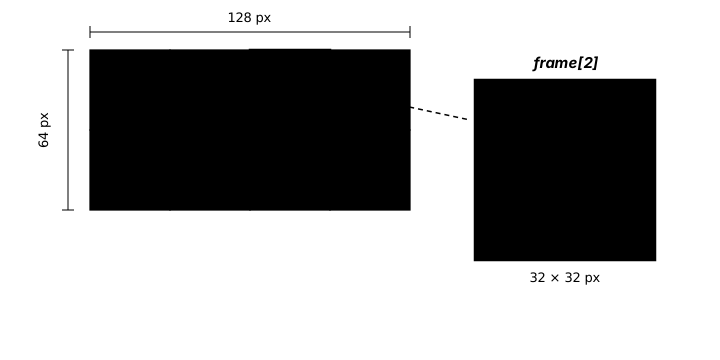
(col, row) position and slice it out with a single subsurface call.Interactive Sprite Sheet Visualizer
Explore sprite sheet extraction and animation!
Mode: Grid Sheet | Frame: 0
Basic Sprite Sheet Loading
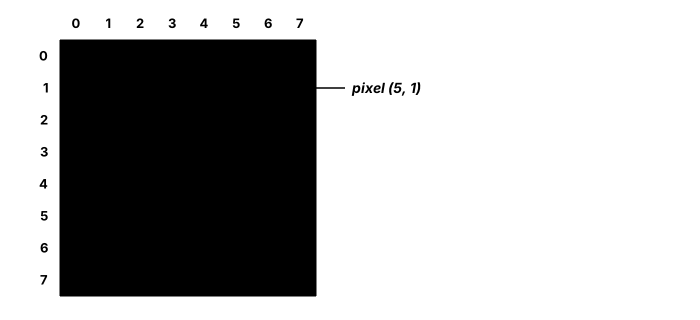
get_sprite(x, y, width, height) call below addresses cells using the same (col, row) indexing shown here — just at a larger scale, with each frame spanning many pixels instead of one.import pygame
class SpriteSheet:
def __init__(self, filename):
"""Load sprite sheet file"""
self.sheet = pygame.image.load(filename).convert_alpha()
def get_sprite(self, x, y, width, height):
"""Extract a single sprite from the sheet"""
sprite = pygame.Surface((width, height), pygame.SRCALPHA)
sprite.blit(self.sheet, (0, 0), (x, y, width, height))
return sprite
def get_sprites_from_row(self, row, width, height, count):
"""Extract multiple sprites from a row"""
sprites = []
for i in range(count):
x = i * width
y = row * height
sprites.append(self.get_sprite(x, y, width, height))
return spritesComplete Sprite Sheet Example
import pygame
import json

class SpriteSheetDemo:
    def __init__(self):
        pygame.init()
        self.screen = pygame.display.set_mode((800, 600))
        pygame.display.set_caption("Sprite Sheet Demo")
        self.clock = pygame.time.Clock()

        # Create demo sprite sheet
        self.create_demo_sheet()
        self.load_sprites()

        # Demo settings
        self.show_grid = True
        self.selected_sprite = 0

    def create_demo_sheet(self):
        """Generate a demo sprite sheet"""
        self.sheet_surface = pygame.Surface((256, 256), pygame.SRCALPHA)

        # Create different sprite types
        for row in range(8):
            for col in range(8):
                x = col * 32
                y = row * 32

                # Create unique sprite for each cell
                sprite = pygame.Surface((32, 32), pygame.SRCALPHA)

                # Simple colored rectangles for demo
                color = ((row * 32) % 256, (col * 32) % 256, 128)
                pygame.draw.rect(sprite, color, (4, 4, 24, 24))

                self.sheet_surface.blit(sprite, (x, y))

    def load_sprites(self):
        """Load sprites from the sheet"""
        self.sprites = []
        for row in range(8):
            for col in range(8):
                x = col * 32
                y = row * 32
                rect = pygame.Rect(x, y, 32, 32)
                sprite = self.sheet_surface.subsurface(rect)
                self.sprites.append(sprite)

    def handle_events(self):
        for event in pygame.event.get():
            if event.type == pygame.QUIT:
                return False
            elif event.type == pygame.KEYDOWN:
                if event.key == pygame.K_g:
                    self.show_grid = not self.show_grid
                elif event.key == pygame.K_LEFT:
                    self.selected_sprite = (self.selected_sprite - 1) % 64
                elif event.key == pygame.K_RIGHT:
                    self.selected_sprite = (self.selected_sprite + 1) % 64
        return True

    def draw(self):
        self.screen.fill((40, 40, 50))

        # Draw sprite sheet
        self.screen.blit(self.sheet_surface, (50, 50))

        # Draw grid
        if self.show_grid:
            for i in range(9):
                pygame.draw.line(self.screen, (100, 100, 100),
                               (50 + i * 32, 50), (50 + i * 32, 306))
                pygame.draw.line(self.screen, (100, 100, 100),
                               (50, 50 + i * 32), (306, 50 + i * 32))

        # Draw extracted sprite
        extracted = self.sprites[self.selected_sprite]
        enlarged = pygame.transform.scale(extracted, (128, 128))
        self.screen.blit(enlarged, (400, 50))

        # Draw info
        font = pygame.font.Font(None, 24)
        info_lines = [
            f"Selected: {self.selected_sprite}",
            "G: Toggle Grid",
            "Arrows: Select Sprite"
        ]

        for i, line in enumerate(info_lines):
            text = font.render(line, True, (255, 255, 255))
            self.screen.blit(text, (400, 200 + i * 30))

    def run(self):
        running = True
        while running:
            running = self.handle_events()
            self.draw()
            pygame.display.flip()
            self.clock.tick(60)
        pygame.quit()

if __name__ == "__main__":
    demo = SpriteSheetDemo()
    demo.run()
Best Practices
⚡ Sprite Sheet Optimization
- Power of 2: Use dimensions like 256x256, 512x512 for GPU efficiency
- Consistent Sizes: Keep sprites in same animation at same size
- Padding: Add 1-2 pixel padding to prevent bleeding
- Subsurfaces: Use subsurface() instead of copying
- Batch Similar: Group similar sprites (characters, tiles, effects)
- Compression: Use PNG for sprites with transparency
Practice Exercises
🎯 Sprite Sheet Challenges!
- Sheet Generator: Create tool to combine individual sprites
- Animation Extractor: Extract and preview animations from sheet
- Atlas Packer: Implement efficient packing algorithm
- Sheet Editor: Tool to modify sprites in existing sheet
- Auto-Slicer: Detect and extract sprites automatically
- Performance Test: Compare individual images vs sprite sheet
Key Takeaways
- 📋 Sprite sheets reduce file I/O and improve performance
- 🔲 Grid-based sheets are simple and predictable
- 📦 Packed atlases maximize space efficiency
- 💾 Use subsurfaces to avoid memory duplication
- 📝 Metadata files add flexibility and maintainability
- ⚡ Batch rendering from sheets is faster
- 🛠️ Use tools or scripts for automatic packing
🏋️♂️ Practice Exercise: Slice, Don't Copy
🏋️♂️ Exercise 1: Walk Cycle from a Single Sheet — with subsurface()
Objective: Build a tiny 4-frame walk-cycle demo from a single sprite sheet, using pygame.Surface.subsurface(rect) to extract each frame WITHOUT copying its pixels — the lesson's Best Practices entry “Subsurfaces: Use subsurface() instead of copying” demonstrated against a grid-addressed sheet. The exercise drills two patterns at once: the (col, row) → pixel-rect arithmetic that turns a logical cell coordinate into a pygame.Rect, and the memory-sharing semantics of subsurface that let one loaded sheet back N animation frames without N× the pixel-buffer cost.
Instructions:
- Initialize Pygame, create a 480×320 window with a descriptive caption, create a
pygame.time.Clock(), and defineCELL = 64andCOLS = 4(a single-row strip of four 64×64 cells — a 256×64 sheet). - Write a
make_strip()helper that programmatically builds the 256×64 sheet Surface in memory: for each column, draw a tinted background rect plus a body rect and head circle whose vertical position varies with column index, so the four cells each show a slightly different walk-cycle pose. (In production you'd replace this helper with onepygame.image.load("walk.png").convert_alpha()call — the rest of the code is unchanged.) - Call
sheet = make_strip()ONCE before the game loop — a single Surface holds all 4 cells. - Extract the 4 frames as a list comprehension:
frames = [sheet.subsurface(pygame.Rect(col * CELL, 0, CELL, CELL)) for col in range(COLS)]. Each entry is a sub-Surface whose pixel memory is SHARED withsheet— no per-frame Surface allocations, no per-frame pixel copies. The grid arithmetic(col, row) → (col * cell_w, row * cell_h)is the lesson's canonical addressing pattern. - In the game loop, compute the current frame index by elapsed time:
index = (pygame.time.get_ticks() // 120) % COLS— the cycle advances one cell every 120 ms. - Each frame, fill the screen, then draw two things: (a) the full sheet at the top of the window so you can SEE what's being indexed into, and (b) the current frame scaled 2× (via
pygame.transform.scale) and centred at (240, 200) so the active cell is obvious at a glance. - Cap at 60 FPS with
clock.tick(60), exit cleanly onpygame.QUIT, and confirm via inspection thatpygame.Surface.copy()is called zero times in your finished code — every frame inframesis a subsurface, not a copy.
💡 Hint
The two patterns this exercise drills are both grounded in lesson code. The complete demo's frame-loading loop computes x = col * 32; y = row * 32; rect = pygame.Rect(x, y, 32, 32); sprite = self.sheet_surface.subsurface(rect) — multiplication, not direct (col, row) coordinates. subsurface(rect) returns a new Surface object that points to the SAME pixel memory as the parent (it's a view, not a copy), so 4 subsurfaces of a 256×64 sheet still cost just one 256×64 pixel buffer. The lesson's Best Practices entry “Subsurfaces: Use subsurface() instead of copying” calls this out specifically. The contrasting pattern is the SpriteSheet.get_sprite() method earlier in the lesson, which creates a new Surface and blits the cropped region into it — a full pixel copy. subsurface() is preferred unless you specifically need an independent Surface (e.g. you plan to mutate the frame without affecting the sheet).
✅ Example Solution
import sys, math
import pygame

pygame.init()
screen = pygame.display.set_mode((480, 320))
pygame.display.set_caption("Sprite Sheet — Slice with subsurface")
clock = pygame.time.Clock()

CELL = 64
COLS = 4

def make_strip():
    """Build a 4-cell walk strip in memory — in production, replace with pygame.image.load()."""
    strip = pygame.Surface((CELL * COLS, CELL), pygame.SRCALPHA)
    for col in range(COLS):
        bob = int(math.sin(col / COLS * math.tau) * 4)
        pygame.draw.rect(strip, (40, 50 + col * 20, 60), (col * CELL, 0, CELL, CELL))   # cell bg
        pygame.draw.rect(strip, ( 80, 200, 130), (col * CELL + 18, 14 + bob, 28, 36))   # body
        pygame.draw.circle(strip, (255, 220, 180), (col * CELL + 32, 12 + bob), 10)     # head
    return strip

sheet = make_strip()

# Extract 4 frames as SUBSURFACES — each shares pixel memory with `sheet` (no copies)
frames = [sheet.subsurface(pygame.Rect(col * CELL, 0, CELL, CELL))
          for col in range(COLS)]

MS_PER_FRAME = 120
running = True
while running:
    for event in pygame.event.get():
        if event.type == pygame.QUIT:
            running = False

    index = (pygame.time.get_ticks() // MS_PER_FRAME) % COLS

    screen.fill((24, 24, 36))
    screen.blit(sheet, ((480 - sheet.get_width()) // 2, 20))           # show source sheet
    big = pygame.transform.scale(frames[index], (CELL * 2, CELL * 2))
    screen.blit(big, big.get_rect(center=(240, 210)))                  # show active frame

    pygame.display.flip()
    clock.tick(60)

pygame.quit()
sys.exit()
🎯 Quick Quiz
Question 1: You've loaded a sprite sheet with sheet = pygame.image.load("sheet.png").convert_alpha() and need to extract 64 individual cells for use in your game. Which approach is more memory-efficient?
Question 2: A sprite sheet contains a 4×2 grid of 32×32 cells (8 frames total — frame 0 top-left, frame 7 bottom-right). To extract frame 5 (column 1 of row 1) via sheet.subsurface(rect), what should rect be?
Question 3: The lesson's Best Practices recommend “Padding: Add 1–2 pixel padding to prevent bleeding” around each sprite in a sheet. What problem does this padding actually solve?
What's Next?
Now that you can manage sprite sheets efficiently, next we'll learn about sprite groups and layers - organizing multiple sprites for complex scenes and gameplay!