2D Coordinate Systems
Understanding Space in Games
Every object in your game exists somewhere in space. Understanding coordinate systems is fundamental to positioning objects, moving characters, implementing cameras, and creating game worlds. Let's explore how games think about space! 📍🗺️
The Cartesian Coordinate System
🗺️ The Map Analogy
Think of coordinate systems like different types of maps:
- Screen Space: Like a tourist map - what the player sees
- World Space: Like a full atlas - the entire game world
- Local Space: Like a floor plan - relative to an object
- Camera Space: Like a photo viewfinder - what's in view
Screen Coordinates (Pygame Default)
# Pygame screen coordinates
# Origin (0,0) is at TOP-LEFT
# X increases going RIGHT
# Y increases going DOWN (unlike math class!)

import pygame

screen = pygame.display.set_mode((800, 600))

# Position at top-left
top_left = (0, 0)

# Position at center
center = (400, 300)

# Position at bottom-right
bottom_right = (799, 599)

# Drawing with screen coordinates
pygame.draw.circle(screen, (255, 0, 0), center, 50)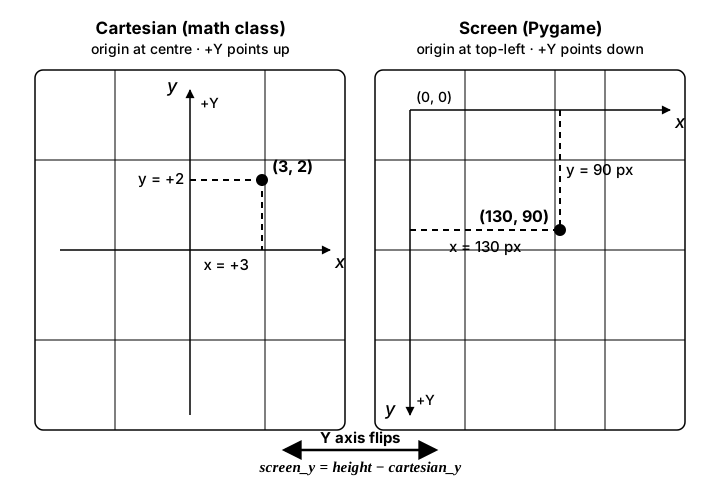
screen_y = height − cartesian_y. Get this backwards and your sprites jump to the wrong half of the window.Interactive Coordinate Explorer
Move your mouse to see coordinates in different systems
Click to place a marker!
Converting Between Coordinate Systems
class CoordinateConverter:
    def __init__(self, screen_width, screen_height):
        self.screen_width = screen_width
        self.screen_height = screen_height
        self.center_x = screen_width // 2
        self.center_y = screen_height // 2
        # Note: this converter centers the Cartesian origin in the window.
        # The earlier figure used a bottom-left origin (screen_y = height - y);
        # both are valid conventions - just pick one and stay consistent.

    def screen_to_cartesian(self, x, y):
        """Convert screen coordinates to mathematical Cartesian"""
        cart_x = x - self.center_x
        cart_y = self.center_y - y
        return (cart_x, cart_y)

    def cartesian_to_screen(self, x, y):
        """Convert Cartesian coordinates to screen"""
        screen_x = x + self.center_x
        screen_y = self.center_y - y
        return (screen_x, screen_y)

    def screen_to_normalized(self, x, y):
        """Convert to normalized coordinates (0 to 1)"""
        norm_x = x / self.screen_width
        norm_y = y / self.screen_height
        return (norm_x, norm_y)

    def normalized_to_screen(self, x, y):
        """Convert from normalized to screen coordinates"""
        screen_x = int(x * self.screen_width)
        screen_y = int(y * self.screen_height)
        return (screen_x, screen_y)
World Space vs Screen Space
🌍 The Camera View
World space is your entire game world, while screen space is just what the camera sees:
- World Space: The complete game level (maybe 10,000 x 10,000 pixels)
- Screen Space: What's displayed (800 x 600 pixels)
- Camera: The translator between world and screen
Simple Camera System
class Camera:
    def __init__(self, width, height):
        self.width = width
        self.height = height
        self.x = 0  # Camera position in world
        self.y = 0
        self.zoom = 1.0

    def apply(self, entity_rect):
        """Convert world position to screen position"""
        # Apply camera offset
        screen_x = entity_rect.x - self.x
        screen_y = entity_rect.y - self.y

        # Apply zoom
        screen_x = int(screen_x * self.zoom)
        screen_y = int(screen_y * self.zoom)
        width = int(entity_rect.width * self.zoom)
        height = int(entity_rect.height * self.zoom)

        return pygame.Rect(screen_x, screen_y, width, height)

    def update(self, target):
        """Follow a target (usually the player)"""
        # Center camera on target
        self.x = target.rect.centerx - self.width // 2
        self.y = target.rect.centery - self.height // 2

        # Optional: Add smooth following
        # self.x += (target_x - self.x) * 0.1

    def world_to_screen(self, world_x, world_y):
        """Convert world coordinates to screen coordinates"""
        screen_x = (world_x - self.x) * self.zoom
        screen_y = (world_y - self.y) * self.zoom
        return (int(screen_x), int(screen_y))

    def screen_to_world(self, screen_x, screen_y):
        """Convert screen coordinates to world coordinates"""
        world_x = screen_x / self.zoom + self.x
        world_y = screen_y / self.zoom + self.y
        return (int(world_x), int(world_y))
Polar Coordinates
Sometimes it's easier to think in terms of angle and distance rather than X and Y!
import math

def cartesian_to_polar(x, y):
    """Convert Cartesian (x, y) to Polar (r, theta)"""
    r = math.sqrt(x * x + y * y)
    theta = math.atan2(y, x)
    return (r, theta)

def polar_to_cartesian(r, theta):
    """Convert Polar (r, theta) to Cartesian (x, y)"""
    x = r * math.cos(theta)
    y = r * math.sin(theta)
    return (x, y)

# Example: Rotating objects around a point
def rotate_around_point(center_x, center_y, point_x, point_y, angle):
    # Convert to relative position
    rel_x = point_x - center_x
    rel_y = point_y - center_y

    # Convert to polar
    r, theta = cartesian_to_polar(rel_x, rel_y)

    # Add rotation
    theta += angle

    # Convert back to Cartesian
    new_x, new_y = polar_to_cartesian(r, theta)

    # Add back center offset
    return (new_x + center_x, new_y + center_y)

# Example: Circular movement
class OrbitingObject:
    def __init__(self, center_x, center_y, radius, speed):
        self.center_x = center_x
        self.center_y = center_y
        self.radius = radius
        self.angle = 0
        self.speed = speed

    def update(self, dt):
        self.angle += self.speed * dt

    def get_position(self):
        x = self.center_x + self.radius * math.cos(self.angle)
        y = self.center_y + self.radius * math.sin(self.angle)
        return (x, y)
Isometric Coordinates
For that classic 2.5D look used in strategy games!
class IsometricConverter:
    def __init__(self, tile_width, tile_height):
        self.tile_width = tile_width
        self.tile_height = tile_height

    def cart_to_iso(self, x, y):
        """Convert Cartesian grid to isometric screen position"""
        iso_x = (x - y) * (self.tile_width // 2)
        iso_y = (x + y) * (self.tile_height // 2)
        return (iso_x, iso_y)

    def iso_to_cart(self, iso_x, iso_y):
        """Convert isometric screen position to Cartesian grid"""
        x = (iso_x / (self.tile_width // 2) + iso_y / (self.tile_height // 2)) / 2
        y = (iso_y / (self.tile_height // 2) - iso_x / (self.tile_width // 2)) / 2
        return (int(x), int(y))

    def get_tile_at_mouse(self, mouse_x, mouse_y, offset_x=0, offset_y=0):
        """Get which tile the mouse is over"""
        # Adjust for camera/screen offset
        adjusted_x = mouse_x - offset_x
        adjusted_y = mouse_y - offset_y

        # Convert to grid coordinates
        grid_x, grid_y = self.iso_to_cart(adjusted_x, adjusted_y)
        return (grid_x, grid_y)
Complete Example: Multi-Coordinate Game
import pygame
import math

class CoordinateDemo:
    def __init__(self):
        pygame.init()
        self.screen = pygame.display.set_mode((800, 600))
        pygame.display.set_caption("Coordinate Systems Demo")
        self.clock = pygame.time.Clock()

        # Colors
        self.BLACK = (0, 0, 0)
        self.WHITE = (255, 255, 255)
        self.RED = (255, 0, 0)
        self.GREEN = (0, 255, 0)
        self.BLUE = (0, 0, 255)
        self.YELLOW = (255, 255, 0)

        # World properties
        self.world_width = 2000
        self.world_height = 2000

        # Camera
        self.camera_x = 0
        self.camera_y = 0
        self.zoom = 1.0

        # Player in world coordinates
        self.player_x = 1000
        self.player_y = 1000
        self.player_speed = 5

        # Orbiting objects (polar coordinates)
        self.orbiters = [
            {'radius': 100, 'angle': 0, 'speed': 1},
            {'radius': 150, 'angle': math.pi, 'speed': -0.5},
            {'radius': 200, 'angle': math.pi/2, 'speed': 0.75}
        ]

        # Grid objects (for showing coordinate systems)
        self.grid_objects = []
        for i in range(10):
            for j in range(10):
                self.grid_objects.append({
                    'world_x': 200 + i * 150,
                    'world_y': 200 + j * 150
                })

    def world_to_screen(self, world_x, world_y):
        """Convert world coordinates to screen coordinates"""
        screen_x = (world_x - self.camera_x) * self.zoom
        screen_y = (world_y - self.camera_y) * self.zoom
        return (int(screen_x), int(screen_y))

    def screen_to_world(self, screen_x, screen_y):
        """Convert screen coordinates to world coordinates"""
        world_x = screen_x / self.zoom + self.camera_x
        world_y = screen_y / self.zoom + self.camera_y
        return (world_x, world_y)

    def update_camera(self):
        """Center camera on player"""
        self.camera_x = self.player_x - 400 / self.zoom
        self.camera_y = self.player_y - 300 / self.zoom

    def handle_input(self):
        keys = pygame.key.get_pressed()

        # Player movement (in world space)
        if keys[pygame.K_LEFT]:
            self.player_x -= self.player_speed
        if keys[pygame.K_RIGHT]:
            self.player_x += self.player_speed
        if keys[pygame.K_UP]:
            self.player_y -= self.player_speed
        if keys[pygame.K_DOWN]:
            self.player_y += self.player_speed

        # Zoom controls
        if keys[pygame.K_PLUS] or keys[pygame.K_EQUALS]:
            self.zoom = min(2.0, self.zoom + 0.02)
        if keys[pygame.K_MINUS]:
            self.zoom = max(0.5, self.zoom - 0.02)

        # Keep player in world bounds
        self.player_x = max(0, min(self.world_width, self.player_x))
        self.player_y = max(0, min(self.world_height, self.player_y))

    def update_orbiters(self, dt):
        """Update orbiting objects using polar coordinates"""
        for orbiter in self.orbiters:
            orbiter['angle'] += orbiter['speed'] * dt

    def draw(self):
        self.screen.fill(self.BLACK)

        # Draw grid objects
        for obj in self.grid_objects:
            screen_pos = self.world_to_screen(obj['world_x'], obj['world_y'])
            if 0 <= screen_pos[0] <= 800 and 0 <= screen_pos[1] <= 600:
                size = int(20 * self.zoom)
                pygame.draw.rect(self.screen, (50, 50, 50),
                               (screen_pos[0] - size//2, screen_pos[1] - size//2, size, size))

        # Draw world bounds
        corners = [
            (0, 0), (self.world_width, 0),
            (self.world_width, self.world_height), (0, self.world_height)
        ]
        screen_corners = [self.world_to_screen(x, y) for x, y in corners]
        if any(0 <= x <= 800 and 0 <= y <= 600 for x, y in screen_corners):
            pygame.draw.lines(self.screen, self.GREEN, True, screen_corners, 2)

        # Draw player
        player_screen = self.world_to_screen(self.player_x, self.player_y)
        pygame.draw.circle(self.screen, self.BLUE, player_screen, int(20 * self.zoom))

        # Draw orbiters (using polar coordinates)
        for orbiter in self.orbiters:
            # Convert polar to Cartesian relative to player
            orbit_x = orbiter['radius'] * math.cos(orbiter['angle'])
            orbit_y = orbiter['radius'] * math.sin(orbiter['angle'])

            # Add to player position (world coordinates)
            world_x = self.player_x + orbit_x
            world_y = self.player_y + orbit_y

            # Convert to screen
            screen_pos = self.world_to_screen(world_x, world_y)
            pygame.draw.circle(self.screen, self.YELLOW, screen_pos, int(10 * self.zoom))

            # Draw orbit path
            points = []
            for angle in range(0, 360, 10):
                rad = math.radians(angle)
                px = self.player_x + orbiter['radius'] * math.cos(rad)
                py = self.player_y + orbiter['radius'] * math.sin(rad)
                points.append(self.world_to_screen(px, py))
            if len(points) > 1:
                pygame.draw.lines(self.screen, (100, 100, 0), True, points, 1)

        # Draw coordinate info
        font = pygame.font.Font(None, 24)
        mouse_x, mouse_y = pygame.mouse.get_pos()
        world_mouse = self.screen_to_world(mouse_x, mouse_y)

        texts = [
            f"Player World: ({int(self.player_x)}, {int(self.player_y)})",
            f"Player Screen: {player_screen}",
            f"Mouse Screen: ({mouse_x}, {mouse_y})",
            f"Mouse World: ({int(world_mouse[0])}, {int(world_mouse[1])})",
            f"Camera: ({int(self.camera_x)}, {int(self.camera_y)})",
            f"Zoom: {self.zoom:.2f}x"
        ]

        for i, text in enumerate(texts):
            rendered = font.render(text, True, self.WHITE)
            self.screen.blit(rendered, (10, 10 + i * 25))

        # Instructions
        instructions = [
            "Arrow Keys: Move player",
            "+/-: Zoom in/out",
            "Yellow circles orbit using polar coordinates"
        ]
        for i, text in enumerate(instructions):
            rendered = font.render(text, True, (200, 200, 200))
            self.screen.blit(rendered, (10, 500 + i * 25))

    def run(self):
        running = True
        dt = 0

        while running:
            for event in pygame.event.get():
                if event.type == pygame.QUIT:
                    running = False

            self.handle_input()
            self.update_camera()
            self.update_orbiters(dt)
            self.draw()

            pygame.display.flip()
            dt = self.clock.tick(60) / 1000.0  # Delta time in seconds

        pygame.quit()

if __name__ == "__main__":
    demo = CoordinateDemo()
    demo.run()
Coordinate System Transformations
🔄 Transform Operations
- Translation: Moving objects (changing x, y)
- Rotation: Spinning objects around a point
- Scaling: Making objects bigger/smaller
- Shearing: Skewing objects
import numpy as np

class Transform2D:
    @staticmethod
    def translate(point, dx, dy):
        """Translate a point by (dx, dy)"""
        return (point[0] + dx, point[1] + dy)

    @staticmethod
    def rotate(point, angle, origin=(0, 0)):
        """Rotate a point around an origin"""
        # Translate to origin
        x = point[0] - origin[0]
        y = point[1] - origin[1]

        # Apply rotation
        cos_a = math.cos(angle)
        sin_a = math.sin(angle)
        new_x = x * cos_a - y * sin_a
        new_y = x * sin_a + y * cos_a

        # Translate back
        return (new_x + origin[0], new_y + origin[1])

    @staticmethod
    def scale(point, scale_x, scale_y, origin=(0, 0)):
        """Scale a point from an origin"""
        # Translate to origin
        x = point[0] - origin[0]
        y = point[1] - origin[1]

        # Apply scale
        new_x = x * scale_x
        new_y = y * scale_y

        # Translate back
        return (new_x + origin[0], new_y + origin[1])

    @staticmethod
    def transform_matrix(point, matrix):
        """Apply a transformation matrix to a point"""
        # Convert to homogeneous coordinates
        p = np.array([point[0], point[1], 1])

        # Apply transformation
        result = matrix @ p

        # Convert back to 2D
        return (result[0], result[1])

    @staticmethod
    def create_rotation_matrix(angle):
        """Create a 3x3 rotation matrix"""
        cos_a = math.cos(angle)
        sin_a = math.sin(angle)
        return np.array([
            [cos_a, -sin_a, 0],
            [sin_a, cos_a, 0],
            [0, 0, 1]
        ])
Practice Exercises
🎯 Coordinate Challenges!
- Mini-Map System: Create a minimap showing world position on screen
- Click to Move: Convert mouse clicks to world movement commands
- Radar Display: Show nearby objects using polar coordinates
- Parallax Scrolling: Multiple coordinate layers moving at different speeds
- Split Screen: Two cameras showing different world parts
- Coordinate Grid Overlay: Toggle-able coordinate display for debugging
Common Coordinate Problems
⚠️ Watch Out For These Issues!
- Y-Axis Confusion: Screen Y goes down, math Y goes up
- Off-by-One: Screen width 800 means pixels 0-799
- Integer Truncation: Converting floats to ints loses precision
- Zoom Problems: Remember to scale everything including speeds
- Origin Confusion: Different systems have different origins
- Rotation Order: Rotate then translate ≠ translate then rotate
Key Takeaways
- 📍 Screen coordinates start at top-left (0,0)
- 📐 Cartesian coordinates can have (0,0) anywhere
- 🌍 World space contains your entire game world
- 📷 Cameras translate between world and screen space
- 🎯 Polar coordinates are great for circular motion
- 🔄 Transformations let you manipulate coordinates
- ⚡ Always know which coordinate system you're using
🏋️♂️ Practice Exercise: Pan, Click, Convert
🏋️♂️ Exercise 1: Camera Pan + Click-to-World — Three Coordinate Conversions in 30 Lines
Objective: Build a small Pygame program that exercises the screen ↔ world conversion in BOTH directions in one game loop. Hold arrow keys to pan a virtual camera over an unbounded world that contains a handful of fixed world-space markers; world-to-screen converts them every frame so they slide as the camera moves. Click anywhere on the screen and screen-to-world converts the click back into the world to drop a new persistent marker at that point — then keep panning, and the new marker stays put in the world while the screen position scrolls past. A small HUD reports the mouse position in BOTH screen coordinates (top-left origin, Y down) AND math-class Cartesian coordinates (centered origin, Y up) simultaneously so the Y-axis flip stays in your face.
Instructions:
- Open an 800×600 window and start a clean game loop (event-pump, fill, draw, flip,
clock.tick(60)) using thepygame_basics_game_loopskeleton. - Track the camera as two ints
cam_x, cam_y, both starting at 0 (think "camera offset in world units"). - Keep a list of world-space markers seeded with 4–6 fixed positions like
(100, 80),(550, 320),(-200, 450)— some negative on purpose so panning the camera the other way reveals them. - Each frame, read
pygame.key.get_pressed(); on left/right/up/down keys nudgecam_x/cam_yby ±5 px. (Continuous polling, not events — this is movement, the canonical state-polling case from the input lesson.) - Draw each marker by converting world to screen with
screen_x = world_x - cam_xandscreen_y = world_y - cam_y, thenpygame.draw.circle(screen, COLOR, (screen_x, screen_y), 8). Markers off-screen don't need to be culled — Pygame simply doesn't draw them. - On
MOUSEBUTTONDOWN, convert the click's screen position back to world withworld_x = mouse_x + cam_xandworld_y = mouse_y + cam_y, then append(world_x, world_y)to the marker list. - Render a HUD line each frame using
pygame.font.SysFont: "Screen: ({mouse_x}, {mouse_y}) Cartesian: ({mouse_x - 400}, {300 - mouse_y})" — the Cartesian conversion centers (0,0) at the screen center AND flips the Y so positive Y means "up" the way math class taught it.
💡 Hint
The two conversions are NOT the same operation — they're inverses. World-to-screen subtracts the camera (a marker at world (1000, 0) with the camera at (300, 0) renders at screen x=700); screen-to-world adds the camera (a click at screen x=700 with the camera at (300, 0) lands at world x=1000). To convince yourself the two are inverses: drop a marker right at the mouse position with screen-to-world, then immediately verify that the world-to-screen redraw that very frame puts a circle exactly under the mouse. The sign-flip is the single most common bug here — if your dropped markers move when you didn't pan, you've got a sign wrong somewhere.
✅ Example Solution
import pygame

pygame.init()
WIDTH, HEIGHT = 800, 600
screen = pygame.display.set_mode((WIDTH, HEIGHT))
pygame.display.set_caption("Pan, Click, Convert")
font = pygame.font.SysFont(None, 22)
clock = pygame.time.Clock()

cam_x, cam_y = 0, 0
markers = [(100, 80), (550, 320), (-200, 450), (900, 150), (300, -100)]
WHITE, RED, GREEN, GRAY = (240, 240, 240), (220, 60, 60), (60, 200, 60), (40, 40, 40)

running = True
while running:
    for event in pygame.event.get():
        if event.type == pygame.QUIT:
            running = False
        elif event.type == pygame.MOUSEBUTTONDOWN:
            mx, my = event.pos
            world_x = mx + cam_x          # screen → world: ADD camera
            world_y = my + cam_y
            markers.append((world_x, world_y))

    keys = pygame.key.get_pressed()
    if keys[pygame.K_LEFT]:  cam_x -= 5
    if keys[pygame.K_RIGHT]: cam_x += 5
    if keys[pygame.K_UP]:    cam_y -= 5
    if keys[pygame.K_DOWN]:  cam_y += 5

    screen.fill(GRAY)
    for wx, wy in markers:
        sx = wx - cam_x                   # world → screen: SUBTRACT camera
        sy = wy - cam_y
        pygame.draw.circle(screen, RED, (sx, sy), 8)

    mx, my = pygame.mouse.get_pos()
    cart_x, cart_y = mx - WIDTH // 2, HEIGHT // 2 - my   # centered + Y-flip
    hud = font.render(
        f"Screen: ({mx}, {my})   Cartesian: ({cart_x}, {cart_y})   Cam: ({cam_x}, {cam_y})",
        True, WHITE)
    screen.blit(hud, (10, 10))
    pygame.display.flip()
    clock.tick(60)

pygame.quit()
🎯 Quick Quiz
Question 1: Where is the origin (0, 0) of Pygame's screen coordinate system, and which direction does the Y axis grow?
Question 2: A marker sits at world position (1000, 0). The camera is at world position (300, 0). At what screen-X does the marker draw, and what is the formula?
Question 3: Your screen is 800 pixels wide. What is the largest valid X coordinate you can use to draw a single pixel that lands on-screen?
What's Next?
Now that you understand coordinate systems, next we'll explore vector operations - the mathematical tools that make movement, physics, and game mechanics possible!