Lesson 5: Velocity, Acceleration & Timesteps
A spaceship that drifts after you let go of the thrusters, a car that eases up to speed, a cannonball that arcs: all of them are the same two lines of code repeated every step. In this lesson you turn forces into motion, learn why the order of those two lines matters, and build a fixed-timestep loop so your physics plays out the same way on every computer.
🎯 Learning Objectives
By the end of this lesson, you will be able to:
- Build a body class that collects forces, turns them into acceleration with
a = F / m, and clears them every step. - Explain the difference between explicit and semi-implicit Euler, and choose semi-implicit Euler for game physics.
- Replace per-frame multipliers such as
vel *= 0.98with frame-rate independent drag and a speed limit. - Measure how a variable timestep changes a jump's height, then fix it with a fixed-timestep accumulator.
- Debug the "spiral of death" and choppy motion with a frame-time cap and render interpolation.
Project: Thruster Drift, a force-driven ship with drag, a speed limit and a 1/120-second physics step.
In This Lesson
🚗 Position, Velocity, Acceleration
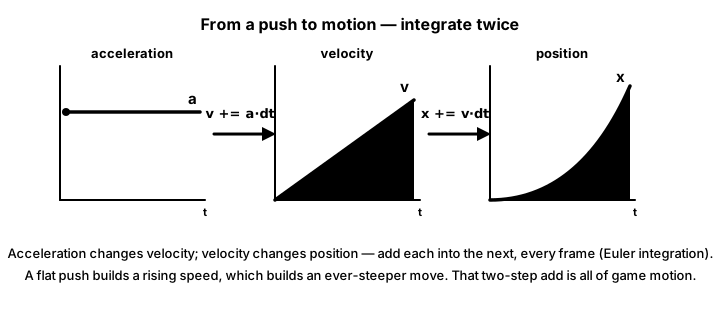
Think about driving a car. Where you are on the road is your position. How fast you are going, and in which direction, is your velocity. Pressing the gas or the brake changes your velocity; how quickly it changes is your acceleration. The engine, the brakes and the wind are forces: they are what cause the acceleration.
| Quantity | In code | Units in this course | Changed by |
|---|---|---|---|
| Position | pos: Vector2 | pixels (px) | velocity × dt |
| Velocity | vel: Vector2 | pixels per second (px/s) | acceleration × dt |
| Acceleration | accel = force / mass | pixels per second per second (px/s²) | the forces acting right now |
You have already used the first row since the Intro course: pos += vel * dt. This lesson adds the second row, vel += accel * dt, and the forces behind it.
Play with the idea before writing any code. Each button below is a different set of forces acting on the same body; the update code never changes. The green arrow is velocity and the red arrow is acceleration.
Notice two things. With Constant velocity there is no red arrow at all: nothing is pushing, so nothing changes, and the ball keeps going. With Orbit, the red arrow always points at the center while the green arrow points sideways; a pull toward the center plus a sideways launch is all a circular orbit needs.
💪 Forces and F = ma
Newton's second law says force equals mass times acceleration, F = m × a. Games use it the other way around: you know the forces, so you work out the acceleration, a = F / m. The same push moves a light object more than a heavy one, which is exactly why a loaded truck feels sluggish.
Real games have many forces at once: thrust, gravity, wind, drag. The clean pattern is to collect them during a step, use them once, then clear them:
apply_force(f)adds each force to a running total.update(dt)divides the total by the mass, changes the velocity, then moves the position.- The total goes back to zero, ready for next step's forces.
Here is the whole pattern as a complete program. Two bodies get the same push; one has four times the mass.
import pygame

pygame.init()
screen = pygame.display.set_mode((800, 400))
pygame.display.set_caption("Same Force, Different Mass")
clock = pygame.time.Clock()
font = pygame.font.Font(None, 28)


class Body:
    def __init__(self, x, y, mass, color):
        self.pos = pygame.Vector2(x, y)
        self.vel = pygame.Vector2(0, 0)       # px/s
        self.force = pygame.Vector2(0, 0)     # forces collected for this frame
        self.mass = mass
        self.color = color

    def apply_force(self, force):
        self.force += force                   # forces add up like vectors

    def update(self, dt):
        accel = self.force / self.mass        # a = F / m
        self.vel += accel * dt                # velocity changes by a * dt
        self.pos += self.vel * dt             # position changes by v * dt
        self.force = pygame.Vector2(0, 0)     # start the next frame with no forces


light = Body(60, 130, mass=1, color=(120, 200, 255))
heavy = Body(60, 270, mass=4, color=(255, 170, 90))
push = pygame.Vector2(200, 0)                 # the same push for both

running = True
while running:
    dt = clock.tick(60) / 1000
    for event in pygame.event.get():
        if event.type == pygame.QUIT:
            running = False

    for body in (light, heavy):
        if body.pos.x < 740:                  # stop pushing near the right edge
            body.apply_force(push)
        else:
            body.vel.update(0, 0)
        body.update(dt)

    screen.fill((16, 20, 32))
    for body, label in ((light, "mass 1"), (heavy, "mass 4")):
        pygame.draw.circle(screen, body.color, body.pos, 10 + body.mass * 4)
        text = f"{label}: {body.vel.x:5.0f} px/s"
        screen.blit(font.render(text, True, body.color), (10, body.pos.y - 60))
    pygame.display.flip()

pygame.quit()
🔮 Predict, then run
Before running it, predict: when the light body reaches 400 px/s, how fast is the heavy one going? Run it and check. (It is a quarter: the same force, four times the mass, a quarter of the acceleration.) Then delete the line self.force = pygame.Vector2(0, 0) and run it again. The push now piles up: 200, then 400, then 600 and so on, so the acceleration keeps climbing and both bodies shoot off far faster than before. Put the line back.
💡 Why this matters
Once everything is a force, new behavior is one line: a wind zone calls apply_force(wind), an explosion calls apply_force(blast), and gravity calls apply_force(Vector2(0, g * mass)). You never touch the update code again, and mass automatically makes big things feel heavy.
🔁 Explicit vs Semi-Implicit Euler
Stepping velocity and position forward by small amounts of time is called integration, and the two-line version is called Euler integration. There are two ways to order the lines, and they are not the same:
# Explicit (forward) Euler: position uses the OLD velocity
pos += vel * dt
vel += accel * dt

# Semi-implicit (symplectic) Euler: velocity first, position uses the NEW velocity
vel += accel * dt
pos += vel * dt
The difference looks tiny, but it decides whether a spring or an orbit stays stable. This short program simulates a spring for 10 seconds with both orders and compares the energy at the end with the energy at the start. A perfect simulation would print 1.00 for both.
# Explicit vs semi-implicit Euler on a spring (no window needed).
K = 40.0          # spring stiffness: acceleration = -K * x
DT = 1 / 60       # one step per frame at 60 FPS
STEPS = 600       # 10 seconds


def energy(x, v):
    return 0.5 * v * v + 0.5 * K * x * x


for method in ("explicit", "semi-implicit"):
    x, v = 100.0, 0.0
    start = energy(x, v)
    for _ in range(STEPS):
        a = -K * x
        if method == "explicit":
            x += v * DT           # position uses the OLD velocity...
            v += a * DT           # ...then velocity changes
        else:
            v += a * DT           # velocity changes first...
            x += v * DT           # ...then position uses the NEW velocity
    print(f"{method:14} energy after 10 s: {energy(x, v) / start:8.2f} x the start")
Running it prints:
explicit       energy after 10 s:   757.41 x the start
semi-implicit  energy after 10 s:     0.96 x the start
Explicit Euler adds a little energy every step, so the spring swings wider and wider until it explodes. Semi-implicit Euler keeps the energy close to where it started, so the spring keeps swinging for as long as you like. It costs nothing extra, so every physics update in this course uses semi-implicit Euler: velocity first, then position.
Semi-implicit Euler is not exact. For a thrown ball it is slightly off from the textbook formula, and the error shrinks as the step gets smaller. That is fine for games, as long as the step is always the same size (you will see why in a moment).
🌬️ Drag and Speed Limits Done Right
Without anything slowing it down, a ship in space drifts forever. Games often add drag, a slow-down that gets stronger the faster you go, so ships coast to a stop. The line many tutorials use is a per-frame multiplier:
vel *= 0.98 # "lose 2% of the speed every frame""Every frame" is the problem. Here is what that line does to a speed of 100 px/s after one second at three frame rates, next to the fix you are about to write:
| Frame rate | vel *= 0.98 per frame | vel *= math.exp(-1.2 * dt) |
|---|---|---|
| 30 FPS | 54.5 px/s | 30.1 px/s |
| 60 FPS | 29.8 px/s | 30.1 px/s |
| 144 FPS | 5.5 px/s | 30.1 px/s |
With the per-frame version, a player on a 144 Hz monitor gets a ship that stops five times faster than on a 60 Hz laptop. The fix is the same exponential decay you used for smoothing in the Interpolation & Easing lesson: turn "2% per frame" into a rate per second and let dt decide how much of it applies.
DRAG = 1.2                       # per second: bigger = stops sooner
vel *= math.exp(-DRAG * dt)      # same result at any frame rate
If you already have a per-frame number that feels right at 60 FPS, vel *= 0.98 ** (dt * 60) gives the same feel at every frame rate.
For a hard speed limit, pygame-ce's Vector2.clamp_magnitude() shortens a vector that is too long and leaves shorter ones alone, including the zero vector:
vel = vel.clamp_magnitude(MAX_SPEED) # never faster than MAX_SPEED px/s⏱️ Why Variable Timesteps Aren't Enough
Since the Intro course, every update has used the real frame time: dt = clock.tick(60) / 1000. That is a variable timestep, and it keeps speeds right at any frame rate. But the path an object takes still depends on the size of the steps. This program simulates the same jump (launch speed 600 px/s, gravity 980 px/s²) at three frame rates:
# The same jump at three frame rates, with a variable timestep.
GRAVITY = 980.0
JUMP_SPEED = 600.0

for fps in (30, 60, 144):
    dt = 1 / fps
    y, vy, peak = 0.0, -JUMP_SPEED, 0.0
    while True:
        vy += GRAVITY * dt
        y += vy * dt
        peak = max(peak, -y)
        if vy > 0 and y >= 0:
            break
    print(f"{fps:3} FPS: jump peak {peak:6.1f} px")

print(f"exact:   jump peak {JUMP_SPEED ** 2 / (2 * GRAVITY):6.1f} px")
30 FPS: jump peak 173.8 px
60 FPS: jump peak 178.7 px
144 FPS: jump peak 181.6 px
exact: jump peak 183.7 pxPlayers on faster machines jump almost 8 pixels higher. In a platformer that decides whether a ledge can be reached. There are two more problems:
- Big hiccups. When the window is dragged or the computer stalls, one frame can take a quarter of a second. One huge step can carry a fast object straight through a thin wall, or make a stiff spring explode.
- No replays. The same inputs give slightly different results on every run, because the frame times are never exactly the same. Replays, ghosts and networked games need physics that repeats exactly.
✅ Growth Mindset: "It Worked on My Machine" Is a Clue
If your jump feels different on a friend's laptop, you haven't done anything wrong; you have found a real, famous problem that every physics game has to solve. Treat "it works here but not there" as data: write down the frame rate on both machines, then test your game at a low cap (clock.tick(20)) and a high one. A bug you can reproduce on purpose is a bug you can fix, and the next section fixes this one.
🧮 The Fixed-Timestep Accumulator
A fixed timestep means the physics always advances by exactly the same small step, say STEP = 1/120 of a second, no matter how long the frame took. Think of the frame time as money coming in and each physics step as something that costs exactly STEP. You put the frame's time into a savings jar (the accumulator) and buy as many whole steps as you can afford. The change stays in the jar for next frame.
At 60 FPS with a 1/120 s step, each frame runs two physics steps. At 30 FPS it runs four. At 144 FPS it runs zero or one, and the leftovers add up until a step is due. Because every step is the same size, the jump reaches the same height everywhere, and the same inputs always give the same result.
Here is a complete program. Press F to switch the frame cap between 20, 60 and 144 FPS: the picture gets choppier or smoother, but the arc is the same every time.
import pygame

STEP = 1 / 120            # physics always advances exactly 1/120 s
MAX_FRAME = 0.25          # guard against the "spiral of death"
GRAVITY = 980.0

pygame.init()
screen = pygame.display.set_mode((800, 500))
pygame.display.set_caption("Fixed Timestep: F changes the frame rate")
clock = pygame.time.Clock()
font = pygame.font.Font(None, 28)

pos = pygame.Vector2(60, 450)
vel = pygame.Vector2(220, -620)
prev_pos = pos.copy()                 # where the ball was one step ago
trail = []
frame_caps = [20, 60, 144]
cap = 1                               # index into frame_caps
accumulator = 0.0

running = True
while running:
    frame_time = min(clock.tick(frame_caps[cap]) / 1000, MAX_FRAME)
    for event in pygame.event.get():
        if event.type == pygame.QUIT:
            running = False
        elif event.type == pygame.KEYDOWN and event.key == pygame.K_f:
            cap = (cap + 1) % len(frame_caps)

    accumulator += frame_time
    while accumulator >= STEP:        # zero, one or several steps this frame
        prev_pos = pos.copy()
        vel.y += GRAVITY * STEP       # semi-implicit Euler
        pos += vel * STEP
        if pos.y > 450:               # landed: launch again from the start
            pos.update(60, 450)
            vel.update(220, -620)
            prev_pos = pos.copy()
            trail.clear()
        accumulator -= STEP

    alpha = accumulator / STEP        # how far we are into the next step (0..1)
    draw_pos = prev_pos.lerp(pos, alpha)
    trail.append(draw_pos.copy())

    screen.fill((16, 20, 32))
    pygame.draw.line(screen, (80, 90, 120), (0, 462), (800, 462), 2)
    for point in trail:
        pygame.draw.circle(screen, (70, 110, 170), point, 2)
    pygame.draw.circle(screen, (255, 200, 90), draw_pos, 12)
    text = f"frame cap {frame_caps[cap]} FPS   physics step {STEP * 1000:.1f} ms   (F to change)"
    screen.blit(font.render(text, True, (230, 230, 230)), (10, 10))
    pygame.display.flip()

pygame.quit()
Three details make it robust:
MAX_FRAMEprevents the spiral of death. If a frame took two seconds, the loop would try to run 240 steps before drawing, which makes that frame slow too, which means even more steps next time. Capping the frame time at 0.25 s means the game briefly runs in slow motion instead of freezing.- Leftover time is kept, not thrown away.
accumulator -= STEPkeeps the remainder for the next frame, so no time is lost over the long run. - Interpolation smooths the picture. The leftover time also tells you how far you are into the next step (
alpha, from 0 to 1). Drawing atprev_pos.lerp(pos, alpha)hides the small stutter you would otherwise see when the frame rate and the step rate don't line up. It only affects drawing; the physics never sees it. Many games skip it at first, and you can add it later.
Read input from events once per frame, as you always have, and let every physics step that frame use it. The exercise does exactly that.
✅ Growth Mindset: Nested Loops Are Supposed to Feel Strange
A loop inside the game loop that runs "zero, one or several times" is one of the least intuitive ideas in game programming, and most developers needed a few tries before it clicked. If it hasn't clicked for you yet, print steps each frame and watch the numbers change as you press F. Seeing "2, 2, 2" become "0, 1, 0, 1" at 144 FPS teaches it faster than rereading the paragraph.
🏋️ Practice Exercise: Thruster Drift
Objective: fly a small ship with arrow-key thrusters that pushes with forces, coasts to a stop with frame-rate independent drag, obeys a speed limit, and runs its physics on a fixed 1/120-second step.
Time: about 40 minutes. Starter file: thruster_starter.py (your instructor has it). It opens the window and draws the ship, but the ship ignores the thrusters. Its numbered comments match the steps below.
- Run the starter. The ship sits in the middle and the arrow keys do nothing yet. (≈ 3 min)
- In
apply_force(), add the force toself.force. (≈ 3 min) - In
step(), use semi-implicit Euler: addaccel * dtto the velocity first, then addself.vel * dtto the position. The ship now moves, but notice how fast it gets. (≈ 7 min) - Clear
self.forceat the end ofstep(). Hold an arrow key for a second with and without this line and describe the difference. (≈ 5 min) - After the velocity update, add drag with
math.exp(-DRAG * dt). Let go of the keys: the ship should coast to a stop. (≈ 5 min) - Cap the speed with
clamp_magnitude(MAX_SPEED). The speed shown in the corner should never pass 500. (≈ 3 min) - Rewrite
advance()as a fixed-timestep accumulator with theMAX_FRAMEcap. The "physics steps this frame" counter should show about 2 at 60 FPS. (≈ 10 min) - Press M to load heavy cargo (mass 3) and fly again. Then change
clock.tick(60)toclock.tick(20)and check that the ship still handles the same. (≈ 4 min)
You are done when:
- holding an arrow key speeds the ship up smoothly, and letting go makes it coast to a stop;
- with cargo loaded, the same thrusters speed the ship up about three times more slowly;
- the speed never goes above 500 px/s, and the ship wraps around the screen edges;
- the step counter shows about 2 steps per frame at 60 FPS and about 6 at 20 FPS, and the ship feels the same at both;
- closing the window prints a line like
Simulated 3600 physics steps of 8.33 ms.
💡 Hint
If the ship launches off faster and faster after one tap, the force is never cleared (step 4). If the drag seems to do nothing, check that you multiply the velocity, not the position. For step 7, copy the shape of the loop in The Fixed-Timestep Accumulator: add the capped frame time to accumulator, then while accumulator >= STEP: apply the thrust, call ship.step(STEP), subtract STEP and count. Apply the thrust inside the loop, because every step clears the forces.
✅ Example Solution
If your instructor hands you the lab file, you will see a few extra lines marked lab runtime near the top, plus an extra and frame_budget() condition on the main loop. They let the instructor's checker run the program automatically; when you run it yourself they do nothing.
"""Thruster Drift: Intermediate Lesson 5 practice exercise (solution).

A small ship is pushed around by thruster FORCES. Forces become
acceleration (a = F / m), semi-implicit Euler turns acceleration into
velocity and velocity into position, drag is frame-rate independent,
and all physics runs on a fixed timestep of 1/120 s.

Arrow keys: fire thrusters.   M: toggle heavy cargo (triples the mass).
Close the window to quit.
"""
import math

import pygame


WIDTH, HEIGHT = 800, 600
STEP = 1 / 120              # fixed physics step, in seconds
MAX_FRAME = 0.25            # never simulate more than this much time in one frame
THRUST = 600.0              # thruster force (force units; a = F / m)
DRAG = 0.8                  # drag rate per second: v *= exp(-DRAG * dt)
MAX_SPEED = 500.0           # pixels per second
LIGHT, HEAVY = 1.0, 3.0     # ship mass without and with cargo
KEY_DIRECTIONS = {
    pygame.K_LEFT: (-1, 0), pygame.K_RIGHT: (1, 0),
    pygame.K_UP: (0, -1), pygame.K_DOWN: (0, 1),
}


class Ship:
    def __init__(self, x, y, mass=LIGHT):
        self.pos = pygame.Vector2(x, y)
        self.vel = pygame.Vector2(0, 0)        # pixels per second
        self.force = pygame.Vector2(0, 0)      # sum of the forces for this step
        self.mass = mass
        self.last_accel = pygame.Vector2(0, 0) # kept only so we can draw it

    def apply_force(self, force):
        """Add a force for this step. Forces add up until step() uses them."""
        self.force += force

    def step(self, dt):
        """Advance the ship by dt seconds with semi-implicit Euler."""
        accel = self.force / self.mass                 # a = F / m
        self.vel += accel * dt                         # 1. velocity first...
        self.vel *= math.exp(-DRAG * dt)               # frame-rate independent drag
        self.vel = self.vel.clamp_magnitude(MAX_SPEED) # speed limit
        self.pos += self.vel * dt                      # 2. ...then position, with the NEW velocity
        self.pos.x %= WIDTH                            # wrap around the screen edges
        self.pos.y %= HEIGHT
        self.last_accel = accel
        self.force = pygame.Vector2(0, 0)              # forces must be re-applied every step


def thrust_direction(held):
    """Combine the held arrow keys into one direction of length 0 or 1."""
    direction = pygame.Vector2(0, 0)
    for key in held:
        if key in KEY_DIRECTIONS:
            direction += KEY_DIRECTIONS[key]
    if direction.length_squared() > 0:
        direction = direction.normalize()
    return direction


def advance(ship, accumulator, frame_time, direction):
    """Run as many fixed STEPs as the frame's time allows.

    Returns (accumulator, steps_run). Leftover time stays in the
    accumulator for the next frame.
    """
    accumulator += min(frame_time, MAX_FRAME)
    steps = 0
    while accumulator >= STEP:
        ship.apply_force(direction * THRUST)
        ship.step(STEP)
        accumulator -= STEP
        steps += 1
    return accumulator, steps


def draw_arrow(screen, color, start, vector, scale):
    end = start + vector * scale
    if (end - start).length_squared() > 4:
        pygame.draw.line(screen, color, start, end, 3)
        pygame.draw.circle(screen, color, end, 4)


def main():
    pygame.init()
    screen = pygame.display.set_mode((WIDTH, HEIGHT))
    pygame.display.set_caption("Thruster Drift")
    clock = pygame.time.Clock()
    font = pygame.font.Font(None, 26)          # created once, before the loop

    ship = Ship(WIDTH / 2, HEIGHT / 2)
    held = set()                               # arrow keys currently held down
    accumulator = 0.0
    total_steps = 0
    steps_this_frame = 0

    running = True
    while running:
        frame_time = clock.tick(60) / 1000     # seconds since the last frame

        for event in pygame.event.get():
            if event.type == pygame.QUIT:
                running = False
            elif event.type == pygame.KEYDOWN:
                if event.key in KEY_DIRECTIONS:
                    held.add(event.key)
                elif event.key == pygame.K_m:
                    ship.mass = HEAVY if ship.mass == LIGHT else LIGHT
            elif event.type == pygame.KEYUP:
                held.discard(event.key)

        accumulator, steps_this_frame = advance(ship, accumulator, frame_time, thrust_direction(held))
        total_steps += steps_this_frame

        screen.fill((14, 18, 30))
        pygame.draw.circle(screen, (120, 200, 255), ship.pos, 16)
        draw_arrow(screen, (80, 220, 120), ship.pos, ship.vel, 0.25)        # velocity: green
        draw_arrow(screen, (255, 110, 110), ship.pos, ship.last_accel, 0.1) # acceleration: red
        lines = [
            f"speed {ship.vel.length():5.0f} px/s   mass {ship.mass:.0f}   (M toggles cargo)",
            f"physics steps this frame: {steps_this_frame}   step = {STEP * 1000:.2f} ms",
        ]
        for i, text in enumerate(lines):
            screen.blit(font.render(text, True, (230, 230, 230)), (10, 10 + i * 24))
        pygame.display.flip()

    pygame.quit()
    print(f"Simulated {total_steps} physics steps of {STEP * 1000:.2f} ms.")
    print(f"Final speed: {ship.vel.length():.0f} px/s")


if __name__ == "__main__":
    main()
📓 Learning Journal
Take five minutes to write in your learning journal (a notebook or a plain text file works). Jot down:
- Key concepts you learned today
- Techniques that clicked (and the ones that haven't, yet)
- Questions or confusion to bring to the next session
- Ideas to try in your own game
- Progress and feelings: how did this lesson go for you?
✍️ This lesson's prompts:
- Explain the savings-jar picture of the accumulator in your own words. What would go wrong if you threw away the leftover time every frame?
- Pick a game you know that has floaty or weighty movement. Which forces, masses and drag values do you think it uses?
- Look back at an earlier project. Where did you use a per-frame multiplier, and how would you rewrite it?
📝 Summary
Motion in a game is a chain: forces make acceleration (a = F / m), acceleration changes velocity, and velocity changes position. You collect forces during a step, use them once and clear them. You order the update velocity-first (semi-implicit Euler) because it keeps springs and orbits stable at no extra cost. You replaced per-frame drag with an exponential rate per second, and you measured how a variable timestep makes the same jump reach different heights. The fixed-timestep accumulator fixes that: physics always advances in identical steps, a frame-time cap prevents the spiral of death, and optional interpolation keeps the picture smooth.
🎓 Key Takeaways
- Acceleration is force divided by mass; heavier objects respond less to the same push.
- Collect forces, use them in one update, then clear them, or they pile up.
- Semi-implicit Euler (velocity first, then position) is the default for game physics.
- Per-frame multipliers depend on the frame rate; use
vel *= math.exp(-k * dt)instead. - A fixed-timestep accumulator makes physics repeatable; cap the frame time to avoid the spiral of death.
- Interpolating between the previous and current state smooths drawing without changing the physics.
🔭 Looking Ahead
Your ship floats in space. In the next lesson, Gravity & Jumping, you add the most important force in platformers and design a jump from two numbers: how high it goes and how long it takes to get there.
❓ Common Questions
Why a step of 1/120 s and not 1/60 s?
Either works. A smaller step is closer to the exact answer and lets fast objects move less per step, so they are less likely to skip through thin walls. It also costs twice as many updates. 1/120 s is a comfortable default for the small scenes in this course; if your physics is expensive, try 1/60 s and measure.
Does pygame-ce have a built-in fixed timestep?
clock.tick() only caps the frame rate and tells you how long the frame took. The accumulator is about ten lines you write yourself, which also means you control the step size, the cap and whether you interpolate.
Do I always need interpolation?
No. With a step of 1/120 s and a 60 Hz display, each frame runs exactly two steps most of the time, and the motion already looks smooth. Interpolation matters most when the frame rate and the step rate don't divide evenly, for example a 144 Hz monitor with a 1/60 s step.
Where do I read the keyboard: inside the step loop or outside?
Read events once per frame, outside the step loop, as always. Then apply the resulting input (for example "thrust right") in every step that runs that frame. Forces are cleared after each step, so they must be applied inside the step loop.
What units are forces and masses in?
Game units. Positions are pixels and time is seconds, so acceleration is px/s². Mass is a tuning number: pick 1 for an ordinary object and scale others relative to it. What matters is the ratio, not the real-world kilograms.
Are there better integrators than semi-implicit Euler?
Yes, such as Verlet and Runge-Kutta, which are more accurate for the same step size. They are more code and rarely needed for arcade games. The Advanced course covers them when you build your own physics engine.
🎯 Quick Quiz
Question 1: A body of mass 2 receives two forces this step: (100, 0) and (0, 50). What is its acceleration?
Question 2: Which update is semi-implicit Euler?
Question 3: What is wrong with running vel *= 0.98 once per frame?
Question 4: The accumulator holds 0.020 s and STEP = 1/120 (about 0.0083 s). What happens this frame?
Question 5: Why does the loop cap the frame time at MAX_FRAME before adding it to the accumulator?
🌟 Going Further
- Lunar lander: add a constant gravity force to Thruster Drift, a landing pad at the bottom, and a rule that you crash if you touch down faster than 80 px/s.
- Watch energy explode: change the spring program from Explicit vs Semi-Implicit Euler to print the energy every second for both integrators, and plot the numbers on paper. How many seconds until explicit Euler doubles?
- Replay test: record the arrow keys pressed at each physics step into a list, then play the list back into a fresh ship and check that it ends in exactly the same place.
- Read the docs: the pygame-ce pages for pygame.math (Vector2) and pygame.time (Clock). Find
clamp_magnitudeandlerp. - Coming up in Game Dev III: Advanced: Build a Physics Engine (+ pymunk) covers Verlet and Runge-Kutta integrators, rotation and torque, and Racing Physics builds car handling from these same forces.